1
03 fp ch03
8/27/04
10:33 AM
Page 67
Entering Articulations
67
Adding New Articulations to the Library
If the articulation you are looking for does not exist in the Articulation Selection dialog box, you can create
it. To do this, double-click a note in the score to open the Articulation Selection dialog box, and click the
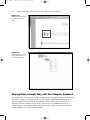
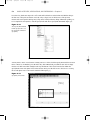
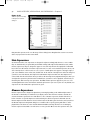
Create button. This brings us to the Articulation Designer, shown in Figure 3.17.
Figure 3.17
Specify the visual definition,
placement, and playback for an
articulation in the Articulation
Designer dialog box
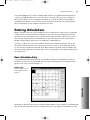
You will notice two buttons in the Symbol section: Main and Flipped. These refer to the articulation as it will
appear above or below the staff, depending on your settings in the Symbol Options section. To select from a
list of font characters, click the Main button. Find the character you want to use and click the Select button.
If you want the same character to appear on the opposite side of the staff, click the Flipped button and do
the same. If you can’t find the character you are looking for, click the Set Font button to choose a different
font. Once you have selected characters to add to your Articulation Selection, click OK and then Select to
return to the score.
Finale offers several music fonts that contain articulations you might find useful. For a complete list of
characters in all Finale fonts, click the Help menu on Mac (on Windows, click Help, then User Manual) and
select the Engraver, Jazz, or Maestro character map. Of course, you will be able to select a character from
any font that exists on your system in the Articulation Designer dialog box.
Editing Articulations
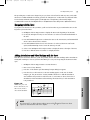
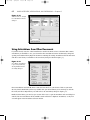
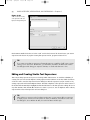
Select a new size, style, or font for the articulation here. Click OK, OK, and then Select to return to your
score. Any changes you make to an articulation will apply to every instance of that articulation in your score.
CHAPTER 3
You may need to modify the size, font, or character of an existing articulation. To do this, click a note in
your score to bring up the Articulation Selection dialog box. Highlight the articulation you would like to
change and click the Edit button. This brings up the Articulation Designer dialog box. To modify the
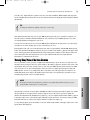
articulation, click the Set Font button. This launches the Font dialog box (see Figure 3.18).