1
7.
8.
9.
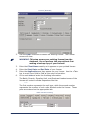
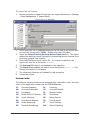
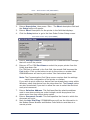
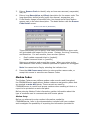
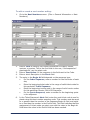
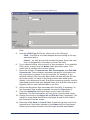
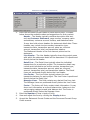
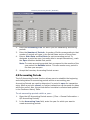
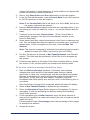
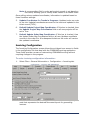
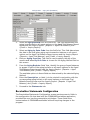
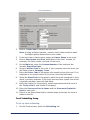
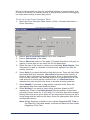
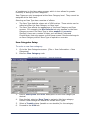
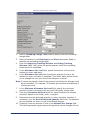
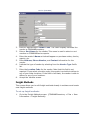
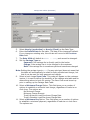
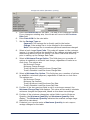
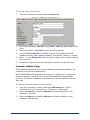
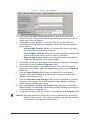
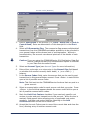
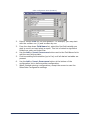
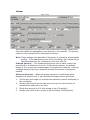
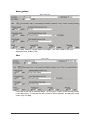
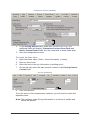
In the Earliest pre-ticket status field, select a status from the list. This
status is the earliest status from which a truck can be pre-ticketed.
Mark the Allow P.O. Change on Ticket checkbox if necessary. If
marked, this checkbox allows the Purchase Order field, as entered on
the Orders screen, to be changed on the Tickets screen. The feature
allows tickets to have different purchase order numbers than their orders.
Mark the Default Pricing Plant from Scheduled Plant checkbox if
necessary.
If you do not use delivery methods, zone codes, or map pages, you can elect
to eliminate them from the Order screens to prevent confusion.
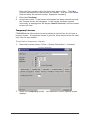
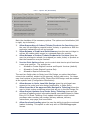
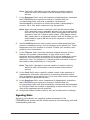
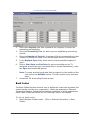
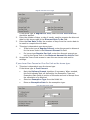
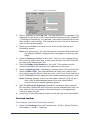
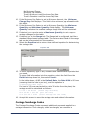
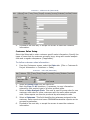
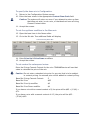
10. Mark the Show Delivery Methods in Orders/Tickets checkbox if
necessary. Many concrete companies do not use delivery methods, and
eliminating the field form the order form simplifies order entry.
11. Select an option in the Show Map Page in Orders/Tickets field. The
options are:
•
No – The field will not be displayed.
•
Yes – The field will be displayed.
•
Required – The field will be displayed, and an entry will be
required.
12. Select an option in the Show Zone Code in Orders/Tickets field. The
options are the same as described in the previous field.
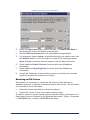
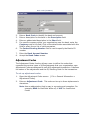
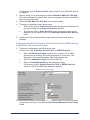
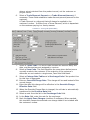
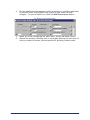
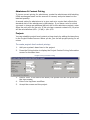
13. The Order Schedule screen has a button that specifies whether the
Ticketing screen should take the load size from the truck or the schedule.
The Default Schedule Load Size From field establishes the system
default for that button.
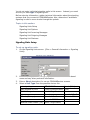
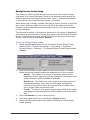
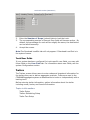
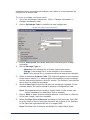
14. If you are printing barcode cards from COMMANDseries, you will need to
specify a Truck Barcode Ticket Format.
15. If you are printing barcode cards from COMMANDseries, you will need to
specify a Truck Barcode Ticket Sequence. You can create a dummy
ticket sequence that the system will use to generate barcodes.
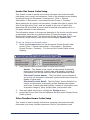
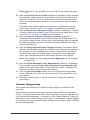
The final two fields control how totals are diplayed on the Tracking screen.
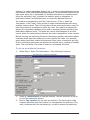
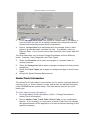
16. The Truck Tracking Plant Line Quantity allows you to display either
the Ordered Quantity or the Scheduled Quantity on the Plant Summary
Line.
17. The Truck Tracking Order Line Quantity allows you to display either
the Ordered Quantity or the Scheduled Quantity on the Order Line.
18. Accept this screen to save these configuration settings.
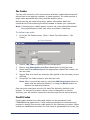
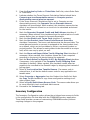
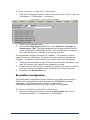
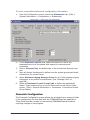
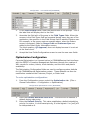
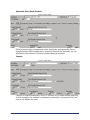
Aggregate Configuration
The Aggregate Configuration screen allows the privileged user access to
customization options specific to COMMANDaggregate.
8/9/05
143