1
Home Screen
Display Settings
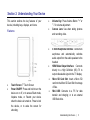
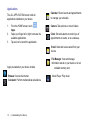
The HOME screen is the starting point for using
your device. After powering ON the device, the
“Ematic” logo will be displayed and then the
HOME screen below:
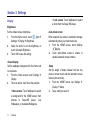
The display settings can be customized to your
preferences.
Application - Software which allows you to
perform a specific task. Your device is preloaded
with a variety of applications, and additional ones
can be downloaded from the App Shop. Press
the
icon to enter the main menu.
Widget - A small application which resides on
the Desktop screen and provides quick and easy
access to information.
Shortcut - A link you can put on your Desktop
Screen to provide quicker access to an
application or a folder containing contacts or
bookmarks.
System Bar - Always present at the bottom of
the screen to show notifications, system status,
and navigation buttons.
6
| Understanding Your Device