1
1.5 Understanding and using the filtering of employees
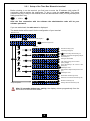
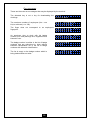
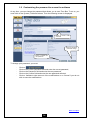
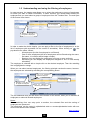
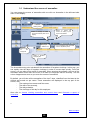
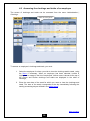
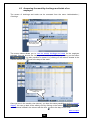
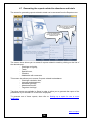
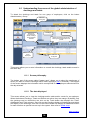
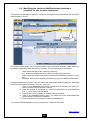
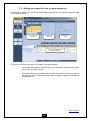
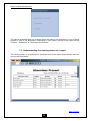
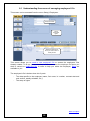
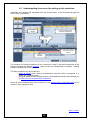
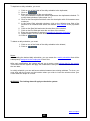
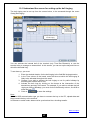
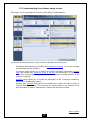
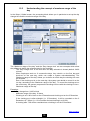
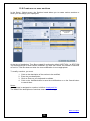
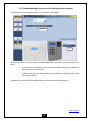
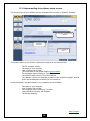
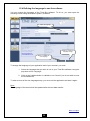
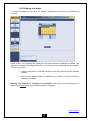
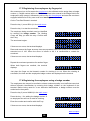
In many screens, the master area allows you to select the employee or group of employees
for which you want to obtain information. In some screens, you cannot select directly an
employee and you must select a group of employees from the Timebox filter. The main part
of the screen is as shown :
List of employees
Selection of the filter to
be applied to employees
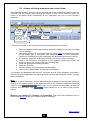
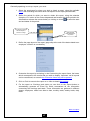
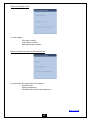
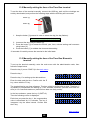
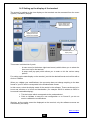
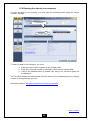
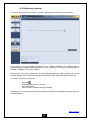
In order to make the choice simpler, you can apply a filter to the list of employees (or to the
list of employees with anomalies for the screen of anomalies). When clicking on
, the
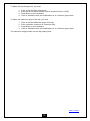
pop-down menu offers 4 filters:
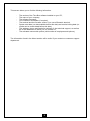
- All employees (the list of employees is not filtered),
- One or more employees (the list of employees can be filtered using the name,
first name, id. number and/or badge number),
- Sections (you can display the employees from one or more sections),
- Schedule (you can display the employees assigned to one or more weekly
schedules).
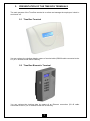
The employee is selected with a simple click on the desired employee. Then the matching
line is highlighted in orange.
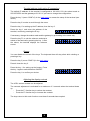
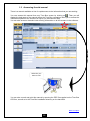
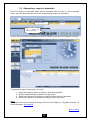
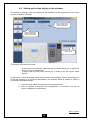
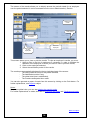
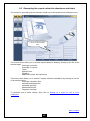
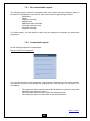
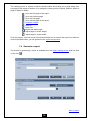
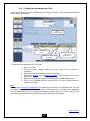
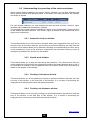
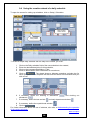
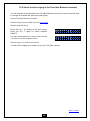
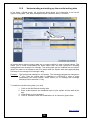
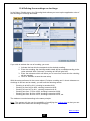
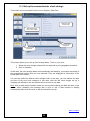
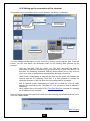
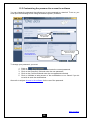
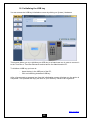
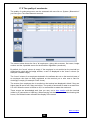
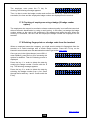
When you can select several employees, the filtering principle remains the same; however,
the employees are selected by activating the corresponding boxes:
Box to be activated to
select the employee
List of employees
Selection of the filter to
be applied to employees
Link for selecting or
deselecting all employees
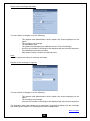
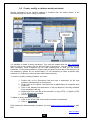
The two additional links All and None at the bottom of the screen, allow you to deselect all
employees or select all filtered employees.
Notes:
When switching from one entry point to another, the selected filter and the sorting of
employees are preserved.
The employees can be sorted in alphabetical order or counter-alphabetical order with one
click on the Name column header.
Back to subject
18