1
4.1.2 Edit Buttons (Copy, Paste, Undo, Redo)
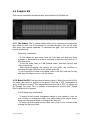
These buttons allow you to copy, paste, undo or redo. If it’s not possible to use
a certain function, the button will be tagged in lighter gray. This will occur, for
example, if there is nothing to Paste (which would mean you haven’t clicked
“Copy” first).
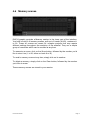
“Copy” will copy the state of a whole screen. This information can then be
pasted using the “Paste” button in this instance of DUY31|graphic or in
another. The “Undo” and “Redo” buttons allow you to return to the “previous”
or “next” state after your last edition. A history of the last 10 editions is stored.
Therefore, you have 10 levels of Undo or Redo. If you would like to clean the
history or stored states, click on the Copy button while holding the Opt key.
In depth, the “Copy” function acquires data of the plug-in and audio scene: the
noise contents and the plug-in’s parameters.
4.1.3 Memory Buttons (A, B, C, D, E, F)
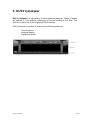
The A, B, C, D, E, F buttons are temporary memories which are useful in many
cases. For example, if you would like to compare several settings.
To save a screen state to one of these memories, simply click on the memory
button (A, B, C, D, E or F). If the memory is empty, the button will be
highlighted in gray. Once you click on the button and save the content of the
screen, the lettering will turn black. If you want to empty a memory, click on the
button while holding the Opt key.
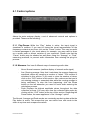
If you would like to load all the memories in a circular way, click on the Rotate
button. If you only have memories A and B full, the sequence in rotation from
one memory to another will be A, B, A, B...
DUY31 User Manual
Page 10