1
34
Sequence It! User Manual
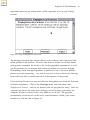
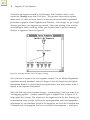
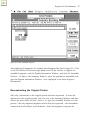
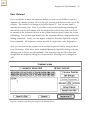
Several Features of this window need some explanation :
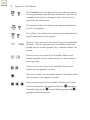
Save To File Button -- Common to both the User Entered and Computer
Generated screens, this button allows you to save the protein being generated
to a standard SequenceIt! file. It is useful for instructors setting up a series of
problems for students.
Circular Check Box -- Selecting this control causes a circular peptide to be
generated, ignoring all other end group information.
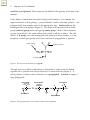
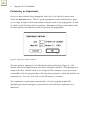
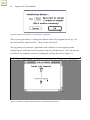
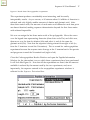
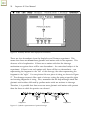
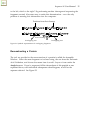
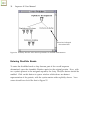
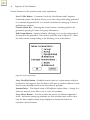
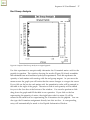
End Groups Button -- Opens a window allowing you to set the end groups of
the protein to be generated. The window looks like that in Figure 26 -- select
the radio button corresponding to the blocking you're interested in.
Figure 28. End Groups dialog.
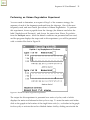
Setup Disulfides Button -- Enabled when at least two cystine amino acids are
entered into the sequence box, the button will open a window identical to that
used to enter disulfide bonds in the introductory problem.
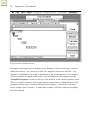
Amount Entry -- The default value of 200 nMoles is placed here -- change it to
whatever amount you'd like to use to solve the problem.
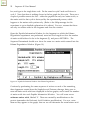
Setup Menus Button -- Use this to filter the menus for different apprentice
levels. Instructors setting up problems for their students may want to have
only the least complex menu items displayed to lessen the chance for
confusion and frustration.