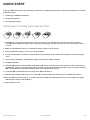
1
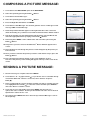
SENDING AN SMS:
1. Once the message is complete select the R MENU.
2. Scroll down to ‘Add Contact’ if you wish to choose a number already saved in the
Gizmondo Device’s contact list. Then scroll through the contacts until you have
the recipient you wish to send the message to is highlighted. Then press ‘Save’ in
the R MENU.
TM
3. If you wish to use a new number select the R MENU and select the ‘Add Number’
option. Then key in the number and select ‘Save’ under the R MENU.
4. Go back into the R MENU and select ‘Send’ and your SMS is sent to the recipient.
L SHIFT FUNCTIONS: SMS
Holding down the L SHIFT and using it in conjunction with one of the Action Buttons
allows quick use of the following functions:
L SHIFT + D-Pad: Pressing the D-Pad left and right allows you to scroll through your messages, categorised by time intervals: All, Today, Yesterday, This Week, Last Week, 2 Weeks Ago, 3 Weeks Ago, 4 Weeks Ago, and Before 4 Weeks Ago.
L SHIFT + D-Pad: Whilst you are composing an SMS, pressing the D-Pad left and right this allows you to move the cursor backwards and forwards through the message.
L SHIFT + D-Pad(North): Gives you the ability to call additional characters of the same family.
PICTURE MESSAGING
RECEIVING A PICTURE MESSAGE:
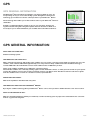
WHEN YOU RECEIVE A PICTURE MESSAGE:
1. A sound/vibration will alert you to the arrival of a new message.
2. A Picture Message (
side of the screen.
) icon appears on the icon bar along the bottom right hand
TO READ THE RECEIVED PICTURE MESSAGE:
1. Go to the MAIN MENU.
2. Using the D-Pad scroll to MESSAGING on the MAIN MENU.
3. Select MESSAGING by pressing the PLAY (
) Button.
4. This will take you to the MESSAGING Menu.
5. Using the D-Pad, scroll down to Picture Messages.
6. Select Picture Messaging, by pressing the PLAY (
) Button.
7. You are then in your INBOX and you can read the newly received message. The
latest message to be received will be at the top of the screen.
8. A new message will be indicated by a closed envelope icon (
)
9. A message that has already been read is indicated by an open
envelope icon ( ).
If you have received multiple messages an icon showing several envelopes
overlapping one another ( ) will appear in the icon bar along the bottom right hand
side of the screen
gizmondo quick start guide
messaging
page 19