1
TechnologSoft
31
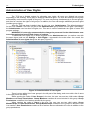
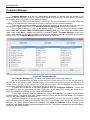
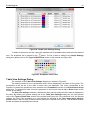
Three buttons are located under each tree. Their availability depends on which node in the tree is
currently selected. All three buttons are active if the group node or user node is selected respectively in
the tree.
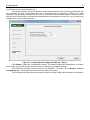
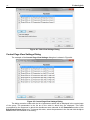
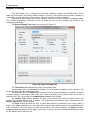
If the user presses the Create... or Edit... button under the User Groups tree, the Edit a User
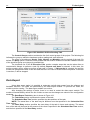
Group dialog box opens (Figure 38) to create a new group or edit an existing one. If the user presses
the Delete button, the program will ask to confirm deletion of the user group and in the case of
confirmation, the group will be deleted.
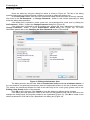
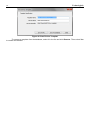
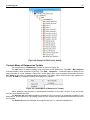
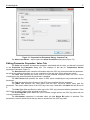
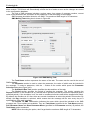
If the user presses the Create... or Edit... button under the Users tree, the Edit a User dialog
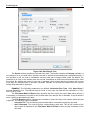
box opens (Figure 40) to create a new user or edit an existing one. If the user presses the Delete button,
the program will ask to confirm deletion of the user and in the case of confirmation, the user will be
deleted.
NOTE. It is forbidden to delete the user who is logged in the program at the moment.
The + and - buttons between the trees are used to add users to the groups and delete users from
the group, respectively. The activity of these buttons depends on which nodes are highlighted in the
trees at the moment.
If the user selects the Groups node on the left and the Users node on the right, the + button will
be active. Clicking this button adds the selected user on the right to the group highlighted on the left.
The program preliminary asks for confirmation.
If the user opens the Group Members node and selects the user in the appearing list, the –
button will be active. Clicking this button removes the user from the group. The program preliminary asks
for confirmation.
Editing User Groups
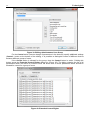
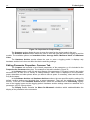
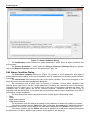
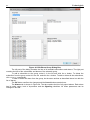
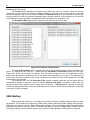
A user group is edited by using the dialog box which is shown in Figure 38. The title of the dialog
specifies what action is being performed, either creating a new group or editing an existing one.
In the User Group Name section, enter the group name.
The main part of the dialog box has two lists: List of unauthorized actions and List of allowed
actions. The actions allowed for a group should be moved to the list of allowed actions. To move actions
from one list to another, use the buttons between the lists. The > and < buttons move only those actions
that are selected at the moment. The >> and << move immediately all actions. Also the user can move
an action from one list to another by left double-clicking on the action list.
Click OK to save changes. Click Cancel to close the dialog box without saving changes.