1
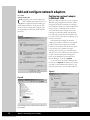
too, that the protocol has already been added
but has been configured improperly.
Make sure the network client and service
are installed (as we just did in the previous
steps), then click Install. From the pop-up
menu, double-click Protocol. Almost every
computer, including those on your home network, relies on TCP/IP, so that’s the protocol
we’ll install in this example.
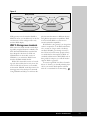
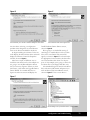
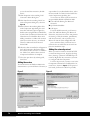
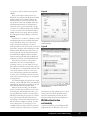
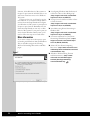
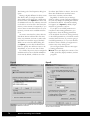
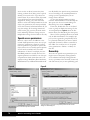
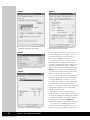
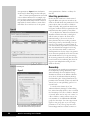
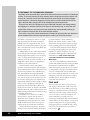
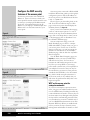
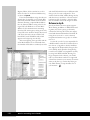
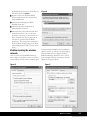
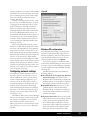
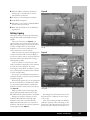
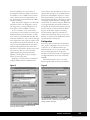
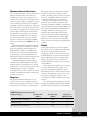
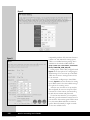
From the Select Network Protocol dialog
box, shown in Figure D, double-click Internet
Protocol (TCP/IP) or select Internet Protocol
(TCP/IP) and click OK. Both actions will
select the TCP/IP option.
After installing the protocol, make sure the
check boxes are selected for the network client,
service, and protocol. The next step is to configure basic protocol settings.
If the system is to receive an IP address
automatically from a Dynamic Host Configuration Protocol (DHCP) server, you can simply click Close and reboot. (This typically will
be the case with a home network with a dial-up
connection, which gets its address information
from the DHCP server at your ISP. Broadband
setup will vary widely, depending on your
provider.) When rebooting, the system will
send out a DHCP discover message. The
DHCP server will snag that message off the
network and fire back an IP address and subnet mask, an address for DNS services, and a
default gateway (if the DHCP server is so
configured).
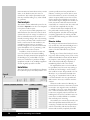
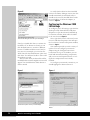
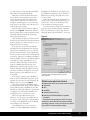
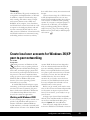
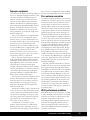
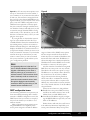
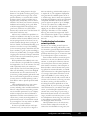
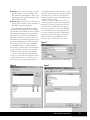
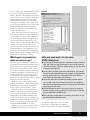
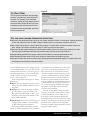
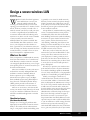
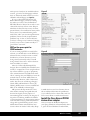
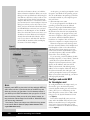
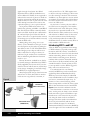
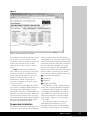
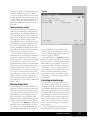
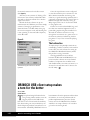
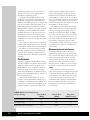
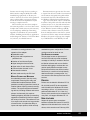
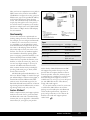
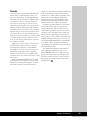
If you want to specify a static IP address,
click on TCP/IP and select Properties. In the
General tab, select the Use The Following IP
Address option, as shown in Figure E.
Once you’ve entered the IP address and its
associated subnet mask, along with the addresses
for the default gateway and DNS servers, click
OK. When entering IP addresses, type periods
to separate your dotted-decimal entries. Use
the [Tab] key to move from box to box.
After you’ve provided the necessary
addresses, you can specify any WINS servers
you want to use by clicking the Advanced button. Click on the WINS tab, enter the WINS
server address, then click OK.
In the WINS tab, you can also specify
whether to enable LMHOSTS lookup and
NetBIOS over TCP/IP. You can specify that
the NetBIOS configuration be set based on a
DHCP server setting. Click OK once you’ve
set these values.
Click OK, click OK again, and click Close.
Finally, close the Network And Dial-Up Connections box, and you should find your network connection working properly.
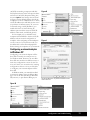
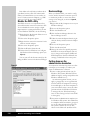
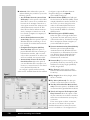
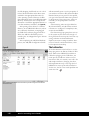
You can learn more about your network settings by running the IPCONFIG command.
Do so by clicking Start | Run. Type cmd and
click OK. Then, type IPCONFIG /ALL. The
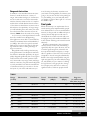
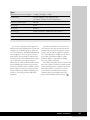
Figure E
To specify an IP address, you’ll have to provide the
associated subnet mask, default gateway, and DNS
server addresses.
OTHER AVAILABLE PROTOCOLS
Windows 2000 offers some other protocol options:
X AppleTalk
X DLC
X NetBEUI
X Network Monitor Driver
X NWLink IPX/SPX/NetBIOS Compatible
Transport
These protocols typically are useful for larger
networks or those that will encompass multiple
operating systems, so they are usually not particularly useful in a home network setting.
Configuration and Troubleshooting
37