1
section two
14
Starting ANSWER and the ANSWER Home Screen
2.6.5
3.
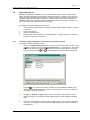
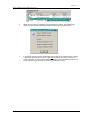
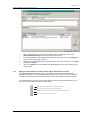
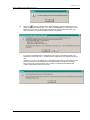
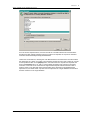
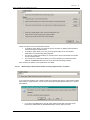
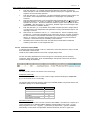
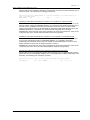
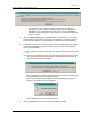
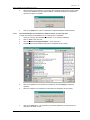
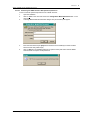
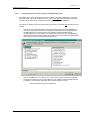
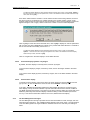
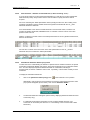
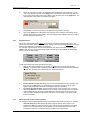
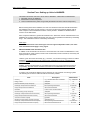
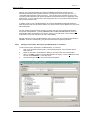
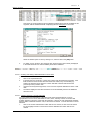
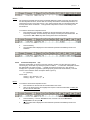
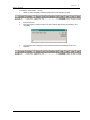
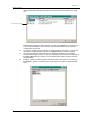
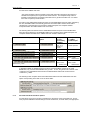
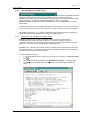
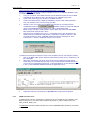
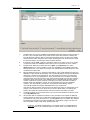
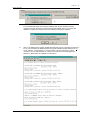
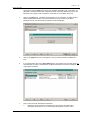
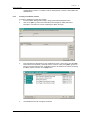
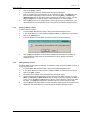
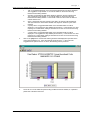
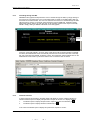
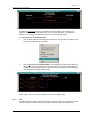
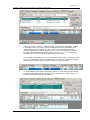
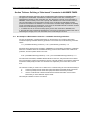
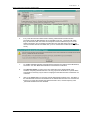
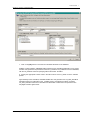
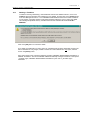
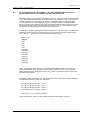
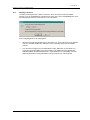
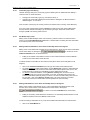
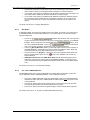
A Confirm Deletion of Scenario message box will appear:
4.
Click on [OK] and the non-BASE Scenario will be deleted, along with its associated Cases.
Editing a Scenario
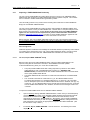
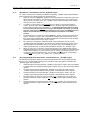
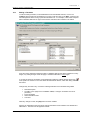
This facility allows the editing of a non-BASE Scenario’s Name and/or Description, and any
associated Comment. It also allows the changing of the BASE (or _DELETED) Scenario’s
Description and Comment. It is not possible to change the Name of the BASE Scenario or the
_DELETED Scenario.
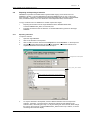
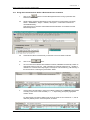
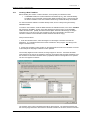
To edit a Scenario’s Name and/or Description and/or Comment:
1.
In the Scenarios display, highlight the Scenario that is to be edited.
2.
3.
2.6.6
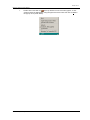
Click on the [Edit…] button below the Scenarios display, or click on Edit in the menu bar
and choose Edit Scenario… in the drop menu.
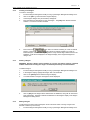
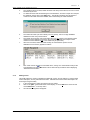
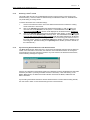
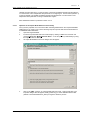
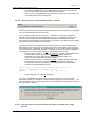
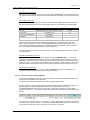
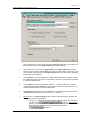
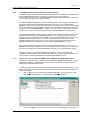
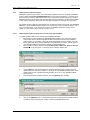
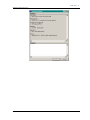
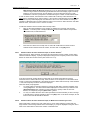
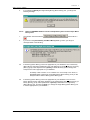
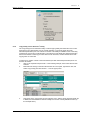
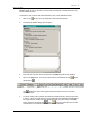
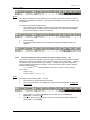
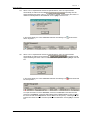
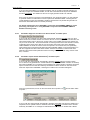
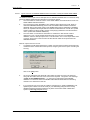
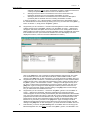
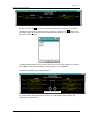
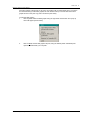
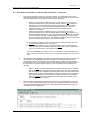
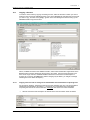
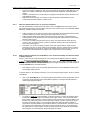
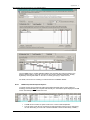
An Edit Scenario dialogue box (similar to the New Scenario dialogue box above) will appear.
4.
Change the Name and/or Description and/or Comment for the Scenario. The [OK] button
will be enabled.
5.
Click on [OK] and the edited Scenario will be displayed in the Scenarios display on the
Home Screen.
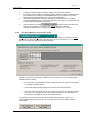
Moving a Scenario(s) between the Scenarios display and the Selected Scenarios display
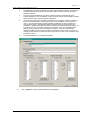
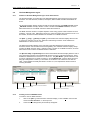
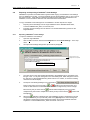
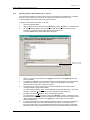
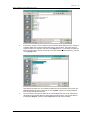
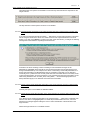
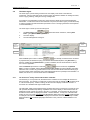
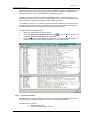
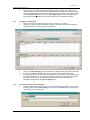
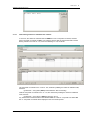
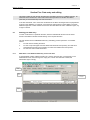
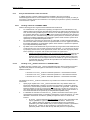
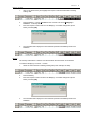
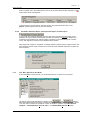
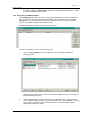
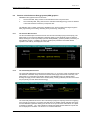
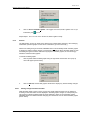
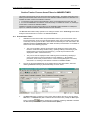
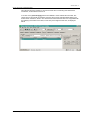
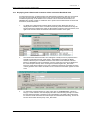
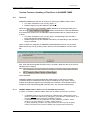
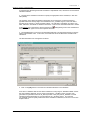
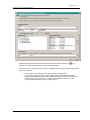
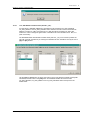
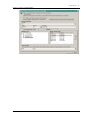
The Data Management region is split into two displays, being the Scenarios display and the
Selected Scenarios display. The Scenarios display shows all the on-line Scenarios in the current
Database. The Selected Scenarios display shows the Scenarios that are currently being edited or
browsed.
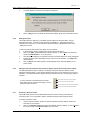
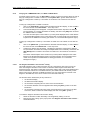
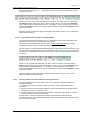
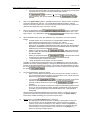
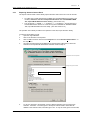
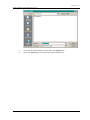
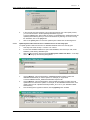
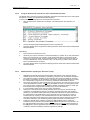
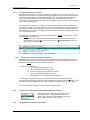
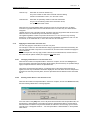
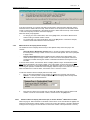
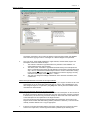
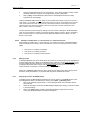
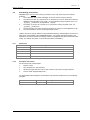
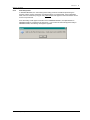
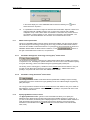
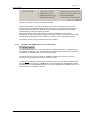
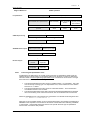
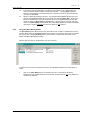
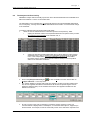
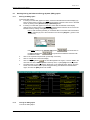
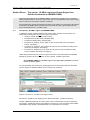
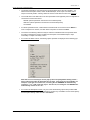
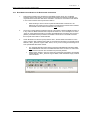
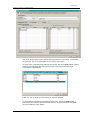
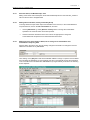
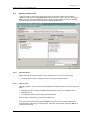
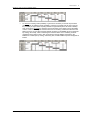
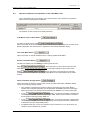
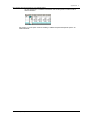
To move individual or all Scenarios from the left
hand display to/from the right hand display, use the
selection buttons as shown.
Move selected Scenario to right hand display
Move all Scenarios to right hand display
Remove selected Scenario from right hand display
Remove all Scenarios from right hand display
2.6.7
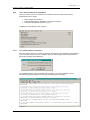
Browsing a Scenario’s data
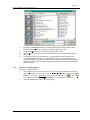
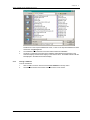
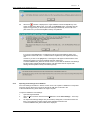
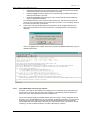
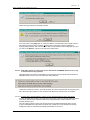
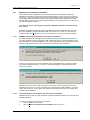
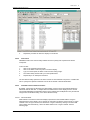
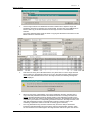
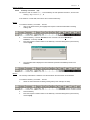
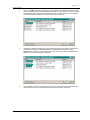
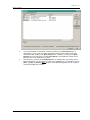
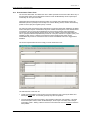
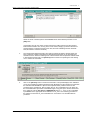
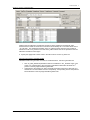
This facility takes the user into the Data/Results Screen to allow browsing of the selected
Scenario(s) data. It is not possible to edit the selected Scenario(s) data using this facility.
To browse a Scenario’s data:
1.
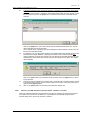
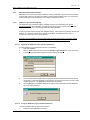
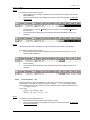
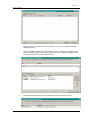
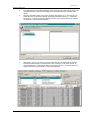
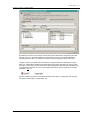
Use the Scenario selection buttons so that the Selected Scenarios display contains the
Scenario(s) to be browsed.
2.
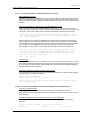
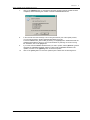
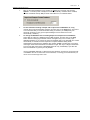
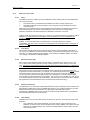
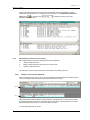
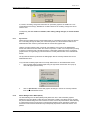
Click on the [Browse Data] button below the Selected Scenarios display, or click on View in
the menu bar and choose Browse data in the drop menu.
© Noble-Soft Systems Pty Ltd 2004-09