1
Claws Mail
LINUXUSER
Examples of Actions
This action decodes uuencoded messages with the xdeview decoder. If an
encoded file is split into multiple messages, the action decodes them all:
Menu Name: UUdeview
Command Line: xdeview %F&
This action pipes the Subject header
value to a script:
Menu Name: Get Subject
Command Line: grep "^Subject:U
\ " %f | cut -d\ -f 2-| U
script.sh
This action performs a whois lookup on
the selected text
Menu Name: whois
Command Line: | whois '%s'
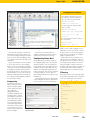
Figure 1: The Claws Mail Main Window.
To fetch new messages, click the Get
Mail button on the toolbar. Claws lets
you check incoming messages for spam
with one of the anti-spam plugins, and
you can filter and sort the messages into
subfolders.
If you would rather not click a button
to check your mail, you can configure
Claws to fetch your messages automatically. Use one of the notification plugins
to configure automatic notification if a
new messages arrives. The Claws command interface also lets you execute an
arbitrary command when a message arrives, thus providing unlimited options
for custom processing.
Composing
Composing a new message is as simple as clicking the Compose button
on the toolbar. The message composer is
equipped with spell
checking, wrapping, and
an undo feature. Actions
and templates (described
later in this article) provide additional possibilities for creating and processing messages. Claws
also offers a variety of privacy options, as well as a
return receipt feature and
priority settings.
You can use an external editor to
compose messages and insert text files
directly into the body of a message.
Configuring Claws Mail
Claws Mail offers a number of options
for configuring preferences and customizing the interface. The Account Preferences dialog lets the user define basic information such as email addresses, signatures, incoming and outgoing server
names, and ports. You can also configure
security parameters, such as SSL settings, SMTP authentication options, and
GnuPG keys.
The Common Preferences dialog offers
other configuration options, with which
you can choose to use an external pro-
gram to retrieve mail, configure colors
and fonts, select an icon theme, customize the toolbars, set up external applications such as a web browser, configure
plugins, and much more.
Each folder also has a smaller set of
options, known as Properties, that overrule preferences set elsewhere. This feature is particularly useful if you use filtering to organize a large collection of
messages into many folders. A folder can
be associated with a default template,
default dictionary, or a default account.
Filtering
Claws Mail comes with a filtering engine
that enables matching based on any part
of a received message. You can filter
Listing 1: A Reply Template
01 On %date
02 %from wrote:
03
04 %quoted_msg_no_sig
05
06 %cursor
07
08 Regards
09
10 Paul
11
12 --
Figure 2: The Filtering Condition window lets you specify
filtering criteria.
MAY 2008
13 |p{fortune}
ISSUE 90
79