1
The fact box in the upper left corner lists article data, such as date, page, product, author and DTP document
name. If you e.g. click on author, you generate a new search for articles by that author. If an article covers
a spread, the entire spread displays on one PDF. If the pages are generated from Quark, only the page
displays as PDF, not the article. Copy archive material to your Scoop Edit editor using copy and paste.
Image search result
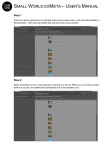
Make image search when you need to retrieve a high res picture for new publishing. The image results page
shows all pictures that were connected to published articles, including pictures not published. If you see
results without picture thumbnails, those pictures were from external folders and not stored in the archive.
Published pictures are indicated with a red frame. The blue i button displays picture info. The grey button
displays an enlargement. To re-use a picture, check the box under the picture and the high resolution
original will be copied to your picture production folder, in the original subfolder.
Advanced Search
Just click on the Advanced Search link. That offers several search parameters.
Trouble
If you can’t see some characters, set your web browser’s character encoding to Unicode (UTF-8).
FAQ
Two newspapers belong to the same group. Can both papers use the same database?
Yes. Plain search lists articles from both. Advances search lets you select ”Product” before search.
A published article is not visible in the archive.
Check that it was exported by the page editor, if needed, export it again. Check with your administrator that
the nightly archiver was executed.
Scoop Publishware AB • www.scoop.se • Edited by Per Åkesson, rev Oct 2010.