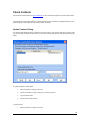
1
GRAPEVINE INTERACTIVE Outlook SMS User Manual Contact us: GRAPEVINE HOUSE, STEENBERG OFFICE PARK, SILVERWOOD CLOSE, TOKAI , 7945 PO BOX 104, STEENBERG, 7947 TEL: +27-21-702-3333, FAX: +27-21-702-3334 Table Of Contents 1. 2. Welcome................................................................................................................................................................... 1 Getting Started ......................................................................................................................................................... 2 Register for Outlook SMS .............................................................................................................................................. 2 Install Outlook SMS ....................................................................................................................................................... 2 SMS Button ................................................................................................................................................................... 2 SMS Options ................................................................................................................................................................. 2 SMS Reports Button ...................................................................................................................................................... 3 About SMS Button ......................................................................................................................................................... 3 SMS Help Button ........................................................................................................................................................... 3 3. Options Dialog ......................................................................................................................................................... 4 Mobile1.......................................................................................................................................................................... 4 Mobile 2......................................................................................................................................................................... 5 Would you like to add a Signature to your messages..................................................................................................... 5 Signature ....................................................................................................................................................................... 5 SMS Format .................................................................................................................................................................. 5 Authentication Code ...................................................................................................................................................... 5 Default Country Code .................................................................................................................................................... 5 Automatic Send and Receive......................................................................................................................................... 5 Enable Automatic Upgrade ............................................................................................................................................ 6 Enable Excel SMS ......................................................................................................................................................... 6 4. Send SMS Dialog ..................................................................................................................................................... 7 Sending a Message ....................................................................................................................................................... 7 Send Button................................................................................................................................................................... 7 Save Button................................................................................................................................................................... 8 Check Contacts Button .................................................................................................................................................. 8 Message Options Button................................................................................................................................................ 8 To… Button ................................................................................................................................................................... 8 Subject .......................................................................................................................................................................... 8 Add Subject to SMS....................................................................................................................................................... 8 5. Message Options Dialog ......................................................................................................................................... 9 Do not deliver before ..................................................................................................................................................... 9 Request a delivery receipt for this message................................................................................................................... 9 6. Select Names Dialog.............................................................................................................................................. 10 Type Name or Select from List..................................................................................................................................... 10 Show Names from the: ................................................................................................................................................ 10 TO-> ............................................................................................................................................................................ 11 Advanced .................................................................................................................................................................... 11 7. Check Contacts ...................................................................................................................................................... 12 Update Contacts Dialog ............................................................................................................................................... 12 New Contact Properties Dialog .................................................................................................................................... 13 8. Sending Messages from Microsoft Excel ............................................................................................................. 14 Sending one message to many recipients.................................................................................................................... 14 Sending personalised messages - one to each recipient.............................................................................................. 15 ii Table Of Contents 9. About Outlook SMS ............................................................................................................................................... 17 Version and Build Numbers ......................................................................................................................................... 17 Check for Latest Version.............................................................................................................................................. 17 10. What's New?........................................................................................................................................................... 18 What's new in version 2.1? .......................................................................................................................................... 18 What's new in version 2.0? .......................................................................................................................................... 19 What's new in version 1.9? .......................................................................................................................................... 19 11. FAQ ......................................................................................................................................................................... 21 Which versions of Microsoft Outlook are supported by the Outlook SMS Plugin?......................................................... 21 Which versions of Microsoft Windows are supported? ................................................................................................. 21 Outlook SMS doesn't work with my Mailing List - none of the contacts have cell numbers. Why? ............................... 21 I get a ""The address list could not be displayed" error when I try to view my contacts in Outlook SMS? ..................... 21 I sent a message to a friend and he replied, but I never received the reply - what happened? ..................................... 21 What do I need in order to send SMS Messages? ....................................................................................................... 22 My Outlook SMS toolbar has disappeared! How do I get it back? ................................................................................ 22 My Outlook SMS Toolbar SOMETIMES disappears! Why?.......................................................................................... 22 The Installer doesn’t work on my computer.................................................................................................................. 22 Why do I have to type email addresses for my contacts when all I want to do is send SMS messages? ...................... 23 When I try to send a message, I get a reply with the subject, "Outlook SMS Notification" that says that my message failed............................................................................................................................................................................ 23 How can I tell whether I have the latest version of Outlook SMS? ................................................................................ 23 Outlook SMS seems to cause my Outlook 2000 to exhibit strange behaviour .............................................................. 23 When I check the status of the Automatic download it says, "Failed to download File". What happened? .................... 23 I sent a message from Outlook SMS and it never arrived on the recipient’s mobile phone. What happened? .............. 24 How do I un-install Outlook SMS?................................................................................................................................ 24 The SMS button doesn’t appear in my Outlook Toolbar. What do I do? ....................................................................... 24 When I click the To… button, I get an error message, "Either there is no default mail client set or the current mail client cannot fulfill the messaging request"............................................................................................................................ 25 12. Contact us .............................................................................................................................................................. 26 For more information ................................................................................................................................................... 26 For support .................................................................................................................................................................. 26 iii Welcome Welcome to Outlook SMS! Outlook SMS is a plugin that integrates directly into your Microsoft Outlook client. (For System Requirements, see FAQ) Send SMS messages directly to recipients in your Contacts folder or MS Exchange address book. Send SMS messages to mobile numbers typed directly into Outlook SMS. Save draft messages View sent messages in the Outlook Sent Items folder Receive replies in the Outlook Inbox See also: What's New - what's new in this version Getting Started – registering and installing Outlook SMS Send SMS Dialog – sending SMS messages FAQ – Frequently Asked Questions Options Dialog – configuring Outlook SMS Sending Messages from Microsoft Excel 1 Getting Started To get started with Outlook SMS, you must perform the following tasks: Register for Outlook SMS Contact us to register for Outlook SMS. You have to register the email address that you use when sending messages from Outlook. You will be sent (via email) the following information: Your authentication code for Outlook SMS Your username and password for online reporting The URL for online reporting Install Outlook SMS To install Outlook SMS: 1. Shut down Outlook. 2. Run the installation program (SMSInstaller.msi). In case of problems with the installation, see the FAQ. 3. Open Outlook. 4. Click on the SMS icon in the Outlook toolbar (see below). 5. The Outlook SMS Options dialog automatically opens. Type your details, including the authentication code into the form. 6. Click OK. 7. Send a message to your mobile phone to check that the system has been installed and configured correctly. You will see a new Outlook SMS toolbar as shown below. Note that you can drag the toolbar and anchor it on the Outlook toolbar, or you leave it floating. (See FAQ, My Outlook SMS toolbar has disappeared, how do I get it back?) The Outlook SMS toolbar includes the following buttons: SMS Button Click the SMS Button to open the Send SMS Dialog and send an SMS message. SMS Options Click the SMS Options button to open the Options Dialog and configure your settings. 2 Getting Started SMS Reports Button Click the SMS Reports button to open the web-based reporting console. You have to be connected to the Internet to view reports, and you must have your username and password ready. About SMS Button Click the About SMS button to see useful information such as the version number of your copy of Outlook SMS. You may be asked for this information if you call customer support (See Contact Us). SMS Help Button Click on the SMS Help button to open this help system. See Also: Send SMS Dialog – sending SMS messages FAQ – Frequently Asked Questions Options Dialog – configuring Outlook SMS 3 Options Dialog Use the Options Dialog to edit your Outlook SMS configuration settings (which include your mobile number, authentication code, signature, etc.) See below. The Options Dialog opens automatically the first time you start Outlook SMS. To open it at any other time, click on the SMS Options button in the Outlook toolbar. Mobile1 Type your mobile phone number. This is the number to which SMS Reminder Alerts (Outlook Appointments or Task Alerts) are sent. The number must be in international format i.e. it must start with your country code, followed by your mobile number. Example: South African number (country code 27): 27821234567 4 Options Dialog Mobile 2 Type a second mobile phone number. This is a second number to which SMS Reminder Alerts (Outlook Appointments or Task Alerts) are sent. For example, you may wish your PA to be alerted when you're late for an appointment! The number must be in international format i.e. it must start with your country code, followed by your mobile number. Example: South African number (country code 27): 27821234567 Would you like to add a Signature to your messages Click the check box to include or exclude your signature in your SMS messages. If you exclude the signature, the number of characters available for your message will increase by the length of the signature. Signature Type a signature to be (optionally) included in your SMS messages. Note that if the signature is included, the number of characters available for your message will decrease by the length of the signature. SMS Format Click the radio buttons to configure the SMS format. You can specify that all messages are restricted to a single SMS i.e. 160 characters in length. Alternatively, messages may be split across several (up to 5) SMSs. Note that: Each SMS in a split message costs the same. So if your message is split into five SMSs, you will be charged five times the amount charged for a single SMS. Each SMS in a split message has a page number inserted at the top in the format x/y e.g. 1/5 Authentication Code Type the authentication code that was given to you when you applied for your Outlook SMS activation. If you do not have the correct authentication code, your messages will be rejected. Default Country Code At several places (e.g. Check Contacts) you may enter a mobile number. All mobile numbers should start with the country code. Select the default country code to be automatically inserted. Automatic Send and Receive When you send an SMS message, it is placed into Outlook’s Outbox. If you check Automatic Send and Receive, a Send/Receive cycle will be triggered and it will be sent immediately. If you normally work offline and send a batch of messages when you dial in to your ISP, it may be preferable to leave this option unchecked. 5 Grapevine Outlook SMS User Manual Enable Automatic Upgrade When this option is checked, Outlook SMS uses Microsoft’s PITS (Background Intelligent Transfer Service) to check for and download in background upgrades to Outlook SMS. When an upgrade has been successfully retrieved, you will be notified via a pop-up message in your system tray. You can then choose whether or not to install the upgrade. Note that you can check for upgrades manually. Click on the About button and then on the "Check for latest version" link. Your browser will open with a message that indicates whether your version is up to date and if not, where to obtain the latest install. Enable Excel SMS When this option is checked, the Outlook SMS buttons are added to the Excel toolbar, enabling you to send SMS messages from within Microsoft Excel. 6 Send SMS Dialog Use the Send SMS Dialog to create and send SMS messages (see below). You can select recipients from your Outlook contacts folder or type adhoc mobile numbers. Type the message and click the Send button. To open the Send SMS Dialog, click the SMS Icon in the Outlook toolbar. Sending a Message To send an SMS message, you must: 1. Select recipients from your Contacts folder by clicking on the To… button OR type at least one adhoc Mobile Number. 2. Type the Subject. 3. Type the message text. 4. (Optional) Click on the Check Contacts button to make sure that all selected recipients have mobile numbers. 5. Click on the Send button Send Button Click on the Send button to send your message. The button is disabled until you have chosen at least one recipient. 7 Grapevine Outlook SMS User Manual Save Button Click the Save button to save your message to the Drafts folder. To reopen it, open the Drafts folder and double-click on the message. Check Contacts Button Click the Check Contacts button to ensure that your recipients have valid mobile numbers. If your have chosen some recipients that do not have mobile numbers, the Check Contacts Dialog opens. Message Options Button Click the Message Options button to open the Message Options Dialog and set options for your message. To… Button Click the To… button to select recipients from your Outlook Contacts folder in the Select Names dialog. You can also type adhoc mobile numbers to which to send your message. Subject You can use the subject as a reference to messages that you send. Add Subject to SMS Click the checkbox to enable or disable the adding of the subject line to your message. Note that adding the subject to the message reduces the number of characters available for your message. See also: 8 Sending Messages from Microsoft Excel Message Options Dialog The message options dialog allows you to set options for the message that you're about to send. Do not deliver before If you want to delay the sending of this message, select a date and time in the future. Outlook will keep the message in the outbox until the selected date and time has past. This is a useful feature to use when creating birthday greetings for example. Request a delivery receipt for this message If you want to be sure whether your message arrived on the recipient's mobile phone, click this option. When the cellular network reports on the success or failure of your message, you will be alerted via email. Note: Some cellular operators do not support this feature. If you have any doubts, call your help desk to confirm this. Note: If the mobile phone is switched off, the network will automatically retry the message for up to 24 hours. Until the message fails or succeeds you will not receive a receipt. 9 Select Names Dialog Use the Select Names Dialog to choose recipients for your SMS message from your Outlook Contacts folder. NB: only contacts that have email addresses are listed. This is a restriction imposed by Microsoft Outlook. (see below). Open the Select Names Dialog by clicking the To… button in the Send SMS Dialog. Type Name or Select from List To find a name quickly, type the first few letters of the name in this text box. The cursor in the Address Book list box scrolls down to the first matching name. Show Names from the: Select which address book’s contacts should be listed e.g. your personal contacts folder or the corporate address book on MS Exchange. 10 Select Names Dialog TO-> Click on the To-> button to add the selected contact to your message To: list. Advanced Click on the Advanced button to add a new contact, modify the selected contact or Mailing List or to search within the address book. 11 Check Contacts Click the Check Contacts button in the Send SMS Dialog to check that selected recipients have valid mobile numbers. If all recipients have valid mobile numbers, a popup reports this fact; otherwise a dialog is displayed that allows you to update recipients’ Contact details with their mobile numbers (see below). Update Contacts Dialog The update contacts dialog lists all the recipients that you have chosen for your message, that have no mobile number. You can either type the recipient’s mobile number, or remove the recipient from the list by clicking the Skip button (see below). To update a recipient’s contact details: 1. Select the recipient by clicking on the name. 2. Choose the recipient’s country by clicking on the country drop down. 3. Type the mobile number. 4. Click the Save & Continue button To skip a recipient: 1. Select the recipient by clicking on the name. 12 Check Contacts 2. Click the Skip button. 3. The recipient is removed from the list. To skip all recipients that have no mobile number: 1. Click the Skip All button. When all the recipients have either been updated or skipped, the "Save and Continue" button is enabled. Click "Save and Continue" to return to the Send SMS Dialog. New Contact Properties Dialog If Outlook SMS does not recognize a recipient, the New Contact Properties dialog opens. Type the Mobile number and EMail address for the new contact. Note that you must type an email address if you wish Outlook SMS to list the contact when you click the To… button. See below: 13 Sending Messages from Microsoft Excel Many people keep contact lists in Microsoft Excel. Outlook SMS integrates directly into Excel and you can send messages from Excel using Outlook SMS. You can send one message to many recipients or you can send a personalised message to each recipient. Sending one message to many recipients To send a message to multiple recipients, arrange the recipient mobile numbers in one column and write your message in a cell somewhere else in the spreadsheet. Step 1: Select the recipient cell numbers as shown below: Step 2: Select the message Hold the Ctrl button down and click on the message as shown below: Step 3: Click on the SMS button The Outlook SMS Send Message dialog opens with recipient addresses pre-populated in the To: line. Type a Subject and modify the message body (if required) and send the message. 14 Sending Messages from Microsoft Excel Sending personalised messages - one to each recipient It is very easy to construct personalised messages. Assume that you have a spreadsheet containing customer details as shown below: You want to send a personalised message to each recipient informing each one of his or her account balance. Step 1: Create the messages for each recipient Create a formula for the message. In cell E2, type the following: ="Hello " & B2 & " " & C2 & ". Your balance is: " & DOLLAR(D2, 2) Copy the formula into cells E3 and E4. The result should appear as shown below: Step 2: Select the recipients and messages Select the cell range A2:A4. 15 Grapevine Outlook SMS User Manual Holding the Ctrl button down, select the cell range E2:E4. Step 3: Click the SMS button A confirmation page displays that allows you to check that you have created the messages correctly. Click the SEND button to send the message, click Cancel to go back and make changes. 16 About Outlook SMS Click on the About button in the Send SMS dialog to view the About box. (See below.) Version and Build Numbers If you ever have to request help from your customer support centre, you may be asked for the version and build numbers. Check for Latest Version Click this link to check whether you have the latest version of Outlook SMS. Your browser will open and a page will display that tells you if your Outlook SMS is up to date. If it is not, a link is displayed where you can download the latest version. See also: Options Dialog – Enable Automatic Upgrade 17 What's New? What's new in version 2.1? The following features have been added to Outlook SMS. (Build 84) The ability to exclude Outlook SMS from Excel has been added to the Options Dialog. (Build 82) Outlook SMS was modified to support Outlook 2007. (Build 79) A great enhancement was added to Outlook SMS that allows you to reply to a reply... In other words, you send a message from Outlook SMS. The recipient replies and their message arrives in your Outlook inbox. You can now click on Reply and Outlook SMS will open with the recipient's number pre-loaded. (Build 72) Changes were made to Outlook SMS to enable it to work with Hosted MS Exchange Server. (Build 68) Implemented more efficient method of sending bulk SMS; a single email is generated with recipient (and message) data in an attachment. If the same message is being sent to multiple recipients, cellnumbers.txt is generated with the message in the email body; if personalised messages are created (e.g. in MS Excel), multiple.txt is generated with both messages & recipients. This is much more efficient as it avoids the generation of multiple emails. (Build 67) Added item to FAQ "My Outlook SMS Toolbar SOMETIMES disappears! Why?" (Build 63) Added item to FAQ "Outlook SMS doesn't work with my Mailing List - none of the contacts have cell numbers. Why?" (Build 62) Added the ability to switch off warnings when the toolbar is being built. If the clipboard is locked while the application toolbar is being built, a warning message pops up. This enhancement allows the user to switch off the warning message. (Build 59) The installer application was changed so that it is no longer required that the user has administrator rights on the workstation. (Build 52) Format of alert notifications improved so that the appointment time, location and subject are all included in the notification in the case of a calendar alert, and Task alerts also show more information. (Build 52) Added a second number in the options dialog for alert notification. So now you can send a reminder to yourself AND your PA when you're supposed to be at an appointment! Better support for Microsoft Exchange. Microsoft changed their interfaces to the address book with Exchange 2003 and this crippled the interface to the extent that it was so slow as to be unusable. With this version of Outlook SMS, the Microsoft Outlook Select Names dialog is used and this has increased performance of address book access dramatically. The following bugs have been fixed in version 2.1 (Build 84) Excel was only loading the options once, on startup. If the user changed options such as the signature setting, this would only be reflected in Excel the next time Excel was started up. (Build 83) Using a signature caused messages sent using Excel to be created incorrectly (with a CRLF in the text). This has been fixed. (Build 81) On some computers Outlook SMS would cause Outlook to crash when shutting down. This has been fixed. (Build 80) If Outlook SMS was switched to sending multi-part messages (i.e. longer than 160 chars) and long messages were sent from Excel, the multi-parts were not created correctly resulting in single-part messages truncated to 160 characters. This has been fixed. (Build 75) If an SMS message was reopened from the Outlook Outbox, on resending, the attachment would contain invalid format mobile phone numbers. This has been fixed. 18 What's New? (Build 73) A problem was found with Excel that caused error messages to display. This has been fixed. (Build 71) A change was made to Outlook SMS that was incompatible with Outlook 2000 and would cause Outlook to crash when the user attempted to open an email. This has been fixed. (Build 67) If the user double-clicked on an address in the To: field, Outlook SMS would crash. This has been fixed. (Build 61) If the clipboard was locked by another application, an error message was displayed. This has been changed so that a warning message is displayed instead as the condition does not affect the use of Outlook SMS. (Build 58) Spurious error messages were being displayed on verification of recipient addresses. This has been fixed. (Build 57) A spurious error message was being displayed after an auto-Send/Receive when the user's machine was connected to MS Exchange. This has been fixed. (Build 56) There was a problem with unpacking multiple nested distribution lists in Outlook and Exchange Server Address Books. This has been fixed. (Build 56) The Outlook SMS Icons did not have a transparent background. This has been fixed. (Build 56) In the Missing or Invalid Phone Number dialog, the name of the selected contact was not displayed correctly. This has been fixed. (Build 56) With Office XP SP3, new security restrictions implemented by Microsoft caused a dialog to pop up whenever an email was opened, which requested the user to give Outlook SMS access to the Outlook Address Book. This has been fixed. (Build 52) Send/Receive was not being triggered automatically. This has been fixed. What's new in version 2.0? The following features have been added to Outlook SMS. Microsoft Excel Support. See Sending Messages from Microsoft Excel The Check Contacts dialog now has a "Skip All" button The following bugs have been fixed in version 2.0 (Build 48) Whenever MS Excel was opened, the Outlook SMS toolbar would be floating whether or not the toolbar had been docked into the Excel toolbar in a previous session. (Build 47) The content of the Subject line is now added to the message correctly when the Add Subject to SMS checkbox is checked. (Build 46) An error that caused Outlook to crash when Outlook SMS updated contact records has been fixed. (Build 46) When creating a single message for multiple recipients in Excel, the message was not being carried through to the Send SMS dialog What's new in version 1.9? The following features have been added to Outlook SMS. Delayed messages: You can now set your SMS message to be delivered after a specified date and time in the Message Options Dialog. Receipts: You can now request a delivery receipt (in the Message Options Dialog) so that you know whether that important message was delivered to the mobile phone. 19 Grapevine Outlook SMS User Manual 20 Improved contact sorting: you can now choose in which order (first name/last name) contacts are sorted. Contacts that don't have first and last names (e.g. companies) are now handled in a better manner. Improved handling of Exchange contacts: in the past contacts were listed in the order supplied by Exchange and this sometimes resulted in unexpected sort orders. This has been fixed by resorting the records as they arrive. Fixed long message handling: in the past, messages that were 157 characters or longer were split when the long message option was selected - they should be split only when they reached 161 characters. Fixed outbox message handling: in the past if you opened a message in the outbox and re-sent it, a duplicate message was created. Fixed sort suborder: contacts were listed in last name order but were not then sorted into first name order within last name order. FAQ Which versions of Microsoft Outlook are supported by the Outlook SMS Plugin? All versions from Outlook 2000 SP-1 onwards, including Outlook 2007 Beta 2 (from Outlook SMS Build 82). Note: Outlook 2000 ver. 9.0.0.2711 has bugs that make it incompatible with plug-ins and users of this specific version must update to Outlook 2000 SP-1 by installing the Service Pack 1 available from the Microsoft website at no charge. Which versions of Microsoft Windows are supported? Windows 98 Windows Me Windows 2000 Windows XP Windows 2003 Server Outlook SMS doesn't work with my Mailing List - none of the contacts have cell numbers. Why? There are two ways of creating Mailing Lists. One is by clicking "Select Members" to add contacts from the address book - this is the correct way. But it is possible to click "Add New" - this is the wrong way as it simply adds email addresses (and no other contact information) to the Mailing List. For Outlook SMS to work with Mailing Lists, you MUST click "Select Members" to add contacts from the address book. I get a ""The address list could not be displayed" error when I try to view my contacts in Outlook SMS? This usually means that the address book is damaged. See the article at http://support.microsoft.com/default.aspx?scid=kb;en-us;Q319901 for an explanation and how to fix the problem. I sent a message to a friend and he replied, but I never received the reply what happened? Replies are sent to you by email and the sender address is set to <cellnumber>@domain e.g. [email protected]. 21 Grapevine Outlook SMS User Manual Because the sender address looks abnormal, some spam software suppresses the message. If you are not receiving your messages, check with your network administrator that such messages will be allowed by your network anti-spam software. What do I need in order to send SMS Messages? You have to have an account, which is linked to your email address. When you apply for access to Outlook SMS you’ll be given the following information: Authentication code. This must be typed correctly in the Options Dialog. Username and Password. These are used when you access your reports on the Internet. My Outlook SMS toolbar has disappeared! How do I get it back? Outlook sometimes disables plug-ins and their toolbars in the case of a program conflict, for example. To restore your toolbar, perform the following checks: 1. Open Outlook. 2. Click on View, Toolbars. You should see Outlook SMS listed. If not, proceed to step 4 3. Click on Customize. Click on Outlook SMS and click Delete to delete the toolbar. Proceed to step 7. 4. Click on Help, About. 5. Click on Disabled Items. 6. If Outlook SMS is listed, click on it and click Enable. 7. Close Outlook. Open Outlook. The toolbar should have regenerated. See also My Outlook SMS Toolbar SOMETIMES disappears! Why? My Outlook SMS Toolbar SOMETIMES disappears! Why? A known issue is caused by third party applications that start MS Outlook in order to perform (for example) address book synchronisation. An example of this is the Microsoft Active Synch product that works with many Smart Phone and PDA devices. If such a device is attached to the computer at start-up, Active Synch may start Outlook automatically - and when this happens, Outlook may not start up plug-ins such as Outlook SMS correctly. To fix the problem, make sure that such devices are not attached to the computer at start up. The Installer doesn’t work on my computer Note that the installation program (SMSInstaller.msi) requires the Microsoft® Windows® Installer to be present on your computer. If it is not, or if the installation on your computer is out of date, then you may have to update it. To see more information, and to obtain the update, browse to the following URL: http://support.microsoft.com/default.aspx?scid=kb;en-us;292539 Alternatively, the updates are available from the URL where you obtained your Outlook SMS Installer. If in doubt contact us for the URL. 22 FAQ Why do I have to type email addresses for my contacts when all I want to do is send SMS messages? Outlook SMS has to connect to Microsoft Outlook in order to list the contacts. MS Outlook cannot list contacts without email addresses (unless you are viewing the contacts folder directly). Unfortunately that’s just the way that MS Outlook was designed, and there is no other efficient method to list the contacts. When I try to send a message, I get a reply with the subject, "Outlook SMS Notification" that says that my message failed. This usually means that either a) the authentication code that you configured in the options dialog is incorrect, or b) you’ve been provisioned with a different email address to the one that you are using in your Microsoft Outlook. To fix the problem: 1. Check that the authentication code is correct in the options dialog. 2. Check that the email address quoted in the notification email is the same as the one in your Outlook (i.e. the email address set when you send someone an email). If this is incorrect, then you need to contact customer care (see Contact Us) to ask them to change the email address in your account. How can I tell whether I have the latest version of Outlook SMS? 1. Click on the About button. 2. Click on the Check for Latest Version link. Your browser will open and a page will display that tells you if your Outlook SMS is up to date. If it is not, a link is displayed where you can download the latest version. Outlook SMS seems to cause my Outlook 2000 to exhibit strange behaviour Some users have reported that their Outlook behaves strangely after Outlook SMS has been installed. Such behaviour includes: The body of some forwarded emails is lost i.e. when forwarded, the body of the email is blank. Outlook persists in asking whether an email just opened should be saved (although no changes have been made). Outlook 2000, specifically version 9.0.0.2711 is known to have bugs that cause problems when plug-ins are installed. The solution is to apply the service packs available for Office 2000 from the Microsoft web site http://www.microsoft.com/downloads When I check the status of the Automatic download it says, "Failed to download File". What happened? Company networks are often configured to disallow the download of files from the Internet. If so, you will see an error message that looks like the text below: 2004/03/05 07:01:42 AM: Failed to download File http://www.gvi.bms.vine.co.za:8080/outlooksmsversioncheck/Downloads.ini 23 Grapevine Outlook SMS User Manual Context: The error occured while processing the remote file. Error Message: The server, while acting as a gateway or proxy, received an invalid response from the upstream server it accessed in attempting to fulfill the request. You may need to ask your network administrator to allow the files to be downloaded. I sent a message from Outlook SMS and it never arrived on the recipient’s mobile phone. What happened? 1. Click on Reports, log in using your username and password. Search for the message. 2. If you find the message, check its status. If the status is "failed", it means that the mobile network was unable to deliver the message, perhaps because the phone was switched off; out of range; its inbox is full or the mobile number was invalid. 3. If you don’t find the message, then check that a copy of the message is in your Outlook "Sent Items" folder. If it is, then you should call customer care. If it is not, try sending the message again. If you still experience problems, call customer care. (See Contact Us.) How do I un-install Outlook SMS? 1. Close Outlook. 2. Click on Start, Settings, Control Panel. 3. Click on Add/Remove Programs. 4. Scroll down until you see Outlook SMS. 5. Click on the Change/Remove button. The SMS button doesn’t appear in my Outlook Toolbar. What do I do? 24 1. Open Outlook. 2. Click on Tools, Options. 3. Click on the "Other" tab 4. Click on the "Advanced Options" button. 5. Click on the "COM Add-ins" button. 6. If there is a check box named "Grapevine SMS Plugin", check (i.e. click on) it. 7. If there is not, click on Add and navigate to the installation directory (usually c:\Program Files\Grapevine\Outlook SMS) and select smsplugin.dll. 8. Click OK, OK, OK and the button should appear. FAQ When I click the To… button, I get an error message, "Either there is no default mail client set or the current mail client cannot fulfill the messaging request" You must make Microsoft Outlook the default email client for your computer. Perform the following steps: 1. Open Microsoft Internet Explorer. 2. Click on Tools. 3. Click on Internet Options. 4. Click on the Programs tab. 5. Choose Microsoft Outlook as the E-mail program. 6. Click OK. 25 Contact us For more information Contact: Grapevine Interactive (Pty) Ltd Steenberg Office Park Silverwood Close Tokai 7945 South Africa Phone (local): 082-16400 Phone (International): +27-821-6400 Fax (local): (021) 701-3334 Fax (International): +27-21-702-3334 Email: [email protected] Website: http://www.grapevineinteractive.com/ For support Contact: Email: [email protected] 26