1
The .out and .aax files are saved by default to the
\Mopac Interface subfolder in your My
Documents folder. You may specify a different
location from the General tab of the Mopac
Interface dialog box.The following information is
found in the summary file for each run:
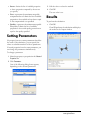
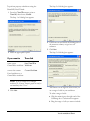
To create a MOPAC input file:
1. From the MOPAC Interface submenu of the
Calculations menu, choose Create Input File.
• Electronic Energy (Eelectronic)
• Core-Core Repulsion Energy (Enuclear)
• Symmetry
• Ionization Potential
• HOMO/LUMO energies
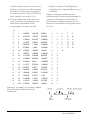
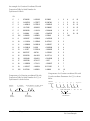
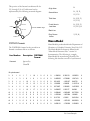
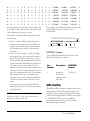
The *.out file contains the following information by
default.
• Starting atomic coordinates
• Starting Z-matrix
• Molecular orbital energies (eigenvalues)
• Ending atomic coordinates
The workings of many of the calculations can also
be printed in the *.out file by specifying the
appropriate keywords before running the
calculation. For example, specifying MECI as an
additional keyword will show the derivation of
microstates used in an RHF 1/2 electron
approximation calculation. For more information
see “Using Keywords” on page 170.
NOTE: Close the *.out file while performing MOPAC
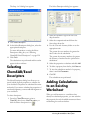
2. Select the appropriate settings and click
Create.
Running Input Files
Chem3D allows you to run previously created
MOPAC input files.
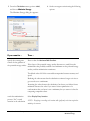
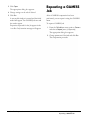
To run an input file:
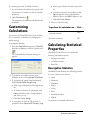
1. From the MOPAC Interface submenu of the
Calculations menu, click Run Input File.
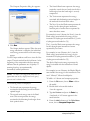
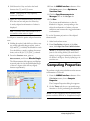
The Run MOPAC Input File dialog box
appears.
computations or the MOPAC application stops functioning.
Creating an Input File
A MOPAC input file (.MOP) is associated with a
model and its dialog box settings.
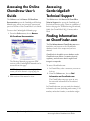
2. Type the full path of the MOPAC file or
Browse to the file location.
3. Select the appropriate options. For more
information about the options see “Specifying
the Electronic Configuration” on page 172.
ChemOffice 2005/Chem3D
MOPAC Computations
MOPAC Files
• 177