1
R&R Data Dictionary Editor
User Manual
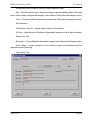
SQL Table Data Source Controls
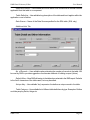
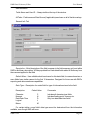
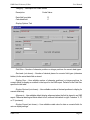
Close -- Exits the screen and returns to the consolidation screen, where applicable SQL
and xBase dictionary tables may be uploaded.
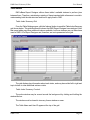
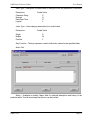
Data Dictionary Grid
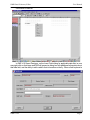
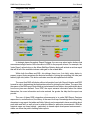
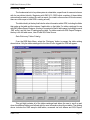
All data fields (except any memo fields) of the dictionary table are displayed. Use the
scroll bar to view portions of the Table grid. The columns may be resized by clicking and holding
on the lines to the right of the column headings. The grid will return to standard sizes upon screen
refresh.
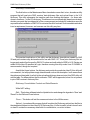
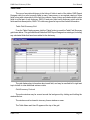
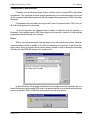
Only the Data Source column can be edited. Use the drop-down to select the ODBC
datasource that applies to the table and / or field combination. (See below for instructions on
adding ODBC data sources.)
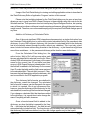
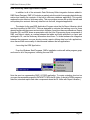
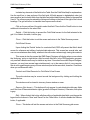
When a Data Source name is selected for a field from a particular table, the system will
ask if you want to make ALL fields for that table assigned that Data Source name. If you answer
'Yes', any field from that table not already assigned a data source name will have the one selected
copied to it. (Note that there is a question upon entering this screen regarding removing the data
source name values for all the records in the table.)
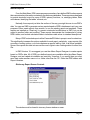
Defining ODBC Data Sources
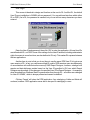
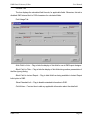
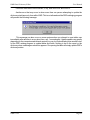
ODBC datasources must exist on the computer to be available for selection. To define
one (close this help and the underlying screen):
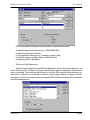
1. Start / Settings / Control Panel
2a. In Windows 95 / 98 / NT4, double-click the 'ODBC Data Sources (32 bit)' icon
2b. In Windows 2000 / ME / XP, double-click the 'Administrative Tools' icon and then
double-click the 'Data Sources (ODBC)' icon
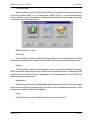
3. Click the 'Add' button
4. Select a driver (any will do for this purpose)
5. Create a Data Source Name corresponding to the name you wish to add
6. Provide a description
7. Click 'OK'
Click again on the 'SQL Data Sources' button.
R&R V10.0
Page 21