1
lected Color field, press 'ENTER': a window with 8 different colors appears. Use the
Joystick to select the color and press 'ENTER'. If Coordinates field is selected, press
'ENTER' and then use the Joystick to insert the value. The Notes field is used to
insert an alphanumeric text (max 15 characters). Then press '1. ACCEPT' to confirm
the data entered.
4.1.2.5
Goto
Add Waypoint ('ENTER' + "WAYPOINT" + 'ENTER') or Place cursor on existing
Waypoint
Press 'GOTO': a circle encloses the Waypoint symbol. On the screen a straight
line is shown, connecting the Target with the ship's position. When the Target is
placed, all navigation data are referred to this Target.
4.1.2.6
Inserting Waypoint
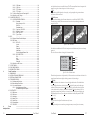
Every time you place the cursor on the segment connecting two existing
Waypoints of a Route the following function is available.
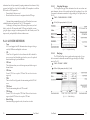
Place cursor on Route leg
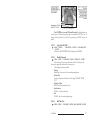
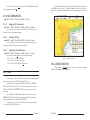
Fig. 4.1.2.6a - Placing Waypoint between two existing ones (II)
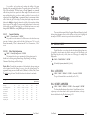
Once you have positioned the cursor at new location, press '1. ACCEPT':
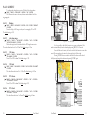
Fig. 4.1.2.6 - Placing Waypoint between two existing ones (I)
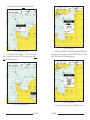
Press '1. INSERT'. The line between the two Waypoints is turned into a dotted line:
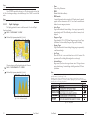
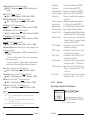
move the cursor to the new position. When the cursor is stationary for 1 second or 2, the
line will "rubber-band", drawing a dotted line between the last Waypoint and the cursor,
and another dotted line between the cursor and the next Waypoint:
64
User Manual
Fig. 4.1.2.6b - Placing Waypoint between two existing ones (III)
4.1.2.7
Finding Waypoint
'MENU' + "FIND" + 'ENTER' + "USER POINTS" + 'ENTER'
User Manual
65