1
User Guide
Flip4Mac 3.3 User Guide
Flip4Mac User’s Guide | 159841
May 2015
3
Contents
Preface 7
Copyrights and Trademark Notices 7
Telestream Contact Information 10
Overview 11
Introduction 11
Flip4Mac® 11
Flip4Mac Products 11
Windows Media Digital Rights Management (DRM) 12
Windows Media® Components for QuickTime 12
Licensing Levels 13
Flip4Mac Player 13
Flip4Mac Player Pro 13
Flip4Mac Studio 14
Flip4Mac Studio Pro HD 14
Feature Comparison 14
QuickTime Applications, Compatibility, & Players/Converters 16
System Requirements 17
Installing and Upgrading 19
Introduction 19
Installing Flip4Mac 19
Uninstalling Flip4Mac 22
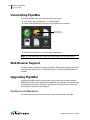
Web Browser Support 22
Upgrading Flip4Mac 22
Purchase in Preferences 22
Purchase Online at the Telestream Store 23
Checking for Updates to Flip4Mac Player 23
Manually Entering a Serial Number 24
4
Contents
Deactivating a Serial Number 26
Activating a Serial Number 27
Flip Player
Basic Features 29
Introduction 29
Starting Flip Player 30
Opening Media with Flip Player 31
Opening a video file 31
Opening a Movie Stream 31
Opening Recent Media Files 32
Simultaneously Playing Multiple Movies 32
Editing Media Files 32
Cropping the Movie Frame 33
Rotating the Video 34
Trimming the Video 35
Scaling Picture Resolution 37
Movie Playback and Editing Controls 38
Play Bar 39
Play Controls 40
Setting Audio Volume and Muting 41
Viewing Controls 41
Full Screen Display 42
Highlighting the Flip Player Window 43
Screen Sizing 43
Aperture Control 43
Flip4Mac
Basic Features 45
Playing Windows Media in Flip Player 45
Playing Windows Media in Web Browsers 46
Browser Plug-in Settings 47
Movie Player Settings 48
Audio Settings 49
Advanced Features 51
Introduction 51
Importing and Converting Windows Media 52
Exporting Media 53
Exporting to Applications 53
Exporting to Devices 54
Exporting to a Format 54
Exporting Windows Media 56
Guidelines for High Quality Text Overlays 57
Flip4Mac User’s Guide | 159841
Contents
Export Settings 57
Video Encoder Settings 59
Advanced Video Settings 61
Audio Encoder Settings 63
Advanced Audio Settings 65
Metadata Settings 66
Silverlight Settings 66
Creating Custom Encoder Profiles
67
User Interface 69
Flip Player Menu 69
File Menu 70
Edit Menu 70
Control Menu 71
Audio Menu 72
View Menu 72
Export Menu 72
Window Menu 72
Help Menu 73
Reference 75
Supported Codecs, Formats, & Protocols
Network Stream Protocols 77
Flip4Mac User’s Guide | 159841
75
5
6
Contents
Flip4Mac User’s Guide | 159841
7
Preface
Copyrights and Trademark Notices
Copyright © 2015 Telestream, LLC. All rights reserved. No part of this publication may
be reproduced, transmitted, transcribed, altered, or translated into any languages
without the written permission of Telestream. Information and specifications in this
document are subject to change without notice and do not represent a commitment
on the part of Telestream.
Telestream, CaptionMaker, Episode, Flip4Mac, FlipFactory, Flip Player, Lightspeed,
ScreenFlow, Switch, Vantage, Wirecast, GraphicsFactory, MetaFlip, and Split-and-Stitch
are registered trademarks and Pipeline, MacCaption, and e-Captioning are trademarks
of Telestream, LLC. All other trademarks are the property of their respective owners.
QuickTime, Mac OS X, and Safari are registered trademarks of Apple, Inc. Bonjour, the
Bonjour logo, and the Bonjour symbol are registered trademarks of Apple, Inc.
MainConcept is a registered trademark of MainConcept LLC and MainConcept AG.
Copyright 2004 MainConcept Multimedia Technologies.
Microsoft, Windows NT|2000|XP|XP Professional|Server 2003, Vista, Media Player, Media
Encoder, .Net, Internet Explorer, SQL Server 2005 Express Edition, and Windows Media
Technologies are trademarks of Microsoft Corporation.
Dolby and the double-D symbol are registered trademarks of Dolby Laboratories.
Redistributions of source code must retain the above copyright notice, this list of
conditions and the following disclaimer.
Redistributions in binary form must reproduce the above copyright notice, this list of
conditions and the following disclaimer in the documentation and/or other materials
provided with the distribution.
Neither the name of Diversified Sales and Service, Inc. nor the names of its contributors
may be used to endorse or promote products derived from this software without
specific prior written permission.
THIS SOFTWARE IS PROVIDED BY THE COPYRIGHT HOLDERS AND CONTRIBUTORS “AS
IS” AND ANY EXPRESS OR IMPLIED WARRANTIES, INCLUDING, BUT NOT LIMITED TO, THE
IMPLIED WARRANTIES OF MERCHANTABILITY AND FITNESS FOR A PARTICULAR
PURPOSE ARE DISCLAIMED. IN NO EVENT SHALL THE COPYRIGHT OWNER OR
CONTRIBUTORS BE LIABLE FOR ANY DIRECT, INDIRECT, INCIDENTAL, SPECIAL,
8
Preface
Copyrights and Trademark Notices
EXEMPLARY, OR CONSEQUENTIAL DAMAGES (INCLUDING, BUT NOT LIMITED TO,
PROCUREMENT OF SUBSTITUTE GOODS OR SERVICES; LOSS OF USE, DATA, OR PROFITS;
OR BUSINESS INTERRUPTION) HOWEVER CAUSED AND ON ANY THEORY OF LIABILITY,
WHETHER IN CONTRACT, STRICT LIABILITY, OR TORT (INCLUDING NEGLIGENCE OR
OTHERWISE) ARISING IN ANY WAY OUT OF THE USE OF THIS SOFTWARE, EVEN IF
ADVISED OF THE POSSIBILITY OF SUCH DAMAGE.
Other brands, product names, and company names are trademarks of their respective
holders, and are used for identification purpose only.
VC-1 Disclaimer
THE VC-1 PATENT PORTFOLIO LICENSE FOR THE PERSONAL AND NON-COMMERCIAL
USE OF A CONSUMER TO (i) ENCODE VIDEO IN COMPLIANCE WITH THE VC-1 STANDARD
("VC-1 VIDEO") AND/OR (ii) DECODE VC-1 VIDEO THAT WAS ENCODED BY A CONSUMER
ENGAGED IN A PERSONAL AND NON-COMMERCIAL ACTIVITY AND/OR WAS OBTAINED
FROM A VIDEO PROVIDER LICENSED TO PROVIDE VC-1 VIDEO. NO LICENSE IS GRANTED
OR SHALL BE IMPLIED FOR ANY OTHER USE. ADDITIONAL INFORMATION MAY BE
OBTAINED FROM MPEG LA, L.L.C. SEE HTTP://WWW.MPEGLA.COM
Limited Warranty and Disclaimers
Telestream, LLC. (the Company) warrants to the original registered end user that the
product will perform as stated below for a period of one (1) year from the date of
shipment from factory:
Hardware and Media—The Product hardware components, if any, including equipment
supplied but not manufactured by the Company but NOT including any third party
equipment that has been substituted by the Distributor for such equipment (the
“Hardware”), is free from defects in materials and workmanship under normal
operating conditions and use.
Warranty Remedies
Your sole remedies under this limited warranty are as follows:
Hardware and Media—The Company will either repair or replace (at its option) any
defective Hardware component or part, or Software Media, with new or like new
Hardware components or Software Media. Components may not be necessarily the
same, but will be of equivalent operation and quality.
Software—If software is supplied as part of the product and it fails to substantially
confirm to its specifications as stated in the product user's guide, the Company shall, at
its own expense, use its best efforts to correct (with due allowance made for the nature
and complexity of the problem) such defect, error or nonconformity.
Software Updates—If software is supplied as part of the product, the Company will
supply the registered purchaser/licensee with maintenance releases of the Company’s
proprietary Software Version Release in manufacture at the time of license for a period
Flip4Mac User’s Guide | 159841
Preface
Copyrights and Trademark Notices
of one year from the date of license or until such time as the Company issues a new
Version Release of the Software, whichever first occurs.
To clarify the difference between a Software Version Release and a maintenance
release, a maintenance release generally corrects minor operational deficiencies
(previously non-implemented features and software errors) contained in the Software,
whereas a Software Version Release adds new features and functionality. The Company
shall have no obligation to supply you with any new Software Version Release of
Telestream software or third party software during the warranty period, other than
maintenance releases.
Restrictions and Conditions of Limited Warranty
This Limited Warranty will be void and of no force and effect if (i) Product Hardware or
Software Media, or any part thereof, is damaged due to abuse, misuse, alteration,
neglect, or shipping, or as a result of service or modification by a party other than the
Company, or (ii) Software is modified without the written consent of the Company.
Limitations of Warranties
THE EXPRESS WARRANTIES SET FORTH IN THIS AGREEMENT ARE IN LIEU OF ALL OTHER
WARRANTIES, EXPRESS OR IMPLIED, INCLUDING, WITHOUT LIMITATION, ANY
WARRANTIES OF MERCHANTABILITY OR FITNESS FOR A PARTICULAR PURPOSE. No oral
or written information or advice given by the Company, its distributors, dealers or
agents, shall increase the scope of this Limited Warranty or create any new warranties.
Geographical Limitation of Warranty—This limited warranty is valid only within the
country in which the Product is purchased/licensed.
Limitations on Remedies—YOUR EXCLUSIVE REMEDIES, AND THE ENTIRE LIABILITY OF
TELESTREAM, LLC. WITH RESPECT TO THE PRODUCT, SHALL BE AS STATED IN THIS
LIMITED WARRANTY. Your sole and exclusive remedy for any and all breaches of any
Limited Warranty by the Company shall be the recovery of reasonable damages which,
in the aggregate, shall not exceed the total amount of the combined license fee and
purchase price paid by you for the Product.
Damages
TELESTREAM, LLC. SHALL NOT BE LIABLE TO YOU FOR ANY DAMAGES, INCLUDING ANY
LOST PROFITS, LOST SAVINGS, OR OTHER INCIDENTAL OR CONSEQUENTIAL DAMAGES
ARISING OUT OF YOUR USE OR INABILITY TO USE THE PRODUCT, OR THE BREACH OF
ANY EXPRESS OR IMPLIED WARRANTY, EVEN IF THE COMPANY HAS BEEN ADVISED OF
THE POSSIBILITY OF THOSE DAMAGES, OR ANY REMEDY PROVIDED FAILS OF ITS
ESSENTIAL PURPOSE.
Flip4Mac User’s Guide | 159841
9
10
Preface
Telestream Contact Information
Further information regarding this limited warranty may be obtained by writing:
Telestream, LLC.
848 Gold Flat Road
Nevada City, CA 95959
You can call Telestream, LLC. via telephone at (530) 470-1300.
Telestream Contact Information
To obtain product information, technical support, or provide comments on this guide,
contact us using our web site, email, or phone number.
Table 1. Telestream Contact Information
Resource
Contact Information
Telestream Technical
Support
Web site: www.telestream.net/telestream-support
Flip4Mac Technical
Support
Web site: www.telestream.net/telestream-support/
flip4mac-wmv/support.htm
Telestream, LLC.
Web site: www.telestream.net
Support Email: [email protected]
Sales and Marketing Email: [email protected]
Telestream, LLC.
848 Gold Flat Road
Nevada City, CA. USA 95959
International
Distributor Support
Web site: www.telestream.net
Telestream Technical
Writers
Email: [email protected]
See the Telestream Web site for your regional authorized
Telestream distributor.
If you have comments or suggestions about improving
this document, or other Telestream documents—or if
you've discovered an error or omission, please email us.
Flip4Mac User’s Guide | 159841
11
Overview
Introduction
Flip4Mac®
Telestream® Flip4Mac Windows Media Components for QuickTime® allow you to easily
play, import and export Windows Media files within most of your favorite QuickTime
applications including Microsoft PowerPoint and Apple Keynote. Flip4Mac also
includes Flip Player, a multiformat video player that provides high quality video
playback and optional premium editing features.
Flip4Mac Products
Flip4Mac Player enables you to play Windows Media files in QuickTime applications and
view Windows Media content on the Internet using Safari, Firefox and Google Chrome
web browsers.
Flip4Mac Player Pro enables you to import Windows Media files for conversion to other
popular formats such as:
•
•
•
•
MOV (Final Cut Pro, iMovie)
MP4 (iTunes, iPod, iPhone, iPad, Apple TV)
MPEG-2 (Video DVD)
MP3 and AAC (iTunes, iPod, iPhone, iPad)
Flip4Mac Player Pro also enables additional features in Flip Player such as:
•
•
•
•
•
•
•
Visual Cropping
Visual Scaling
Rotating
Trimming
Advanced playback controls
iPhone Ringtone export
ProRes 422 export for Final Cut Pro
12
Overview
Windows Media® Components for QuickTime
Flip4Mac Studio and Flip4Mac Studio Pro HD enable you to create Windows Media files
for distribution. These features are available in trial mode in Flip4Mac Player and Player
Pro until you're ready to purchase an upgrade. But to export the entire file (beyond the
30 second limit) you must purchase an upgrade directly from within the software by
selecting Flip4Mac in System Preferences.
Windows Media Digital Rights Management (DRM)
While the Flip4Mac plug-in provides superior playback performance, it is unable to play
content that has been protected using Windows Media Digital Rights Management
(DRM).
Topics
Windows Media® Components for QuickTime
Feature Comparison
QuickTime Applications, Compatibility, & Players/Converters
System Requirements
Windows Media® Components for QuickTime
Telestream® Flip4Mac Windows Media Components for QuickTime® allow you to easily
play, import and export Windows Media files within most of your favorite QuickTime
applications. Flip4Mac can be used with Flip Player and most of your other favorite
QuickTime-compatible applications such as Apple Compressor, iMovie, Keynote,
PowerPoint as well as Web browsers such as Safari, Firefox and Chrome. Flip Player
works with Flip4Mac components providing an easy to use tool for viewing and
exporting media; exact Flip Player features vary depending on which version of
Flip4Mac you have.
By upgrading Flip4Mac Player to Player Pro, Studio, or Studio Pro HD, you can also
import Windows Media files for editing, and create Windows Media files in SD or HD for
distribution. These features are available in demo mode until you are ready to purchase
an upgrade to another Flip4Mac edition.
Note: Demo mode is the default mode of operation when using unlicensed software.
This results in truncated (or watermarked, for Windows Media) exports.
From Flip Player, you can purchase an upgrade to Flip4Mac by going to Preferences >
License, clicking the lock icon at the bottom of the screen to unlock, and then clicking
the “Purchase License” button on the screen. Alternately you may also upgrade in
Flip4Mac—see Manually Entering a Serial Number in the Flip4Mac User Guide. Finally,
you can also purchase an upgrade online at the Telestream Store.
The easiest way to purchase an upgrade and unlock these features is directly in
Flip4Mac (see Purchase in Preferences).
Flip4Mac User’s Guide | 159841
Overview
Licensing Levels
Licensing Levels
Flip4Mac has four licensing levels: Player, Player Pro, Studio, and Studio Pro HD.
Flip4Mac Player
Flip Player enables you to play Windows Media files (.wma and .wmv) directly in
QuickTime applications and view Windows Media content on the Internet using a web
browser. You can play everything QuickTime supports by default such as MOV, MP4,
H.264, and AAC files. Flip4Mac adds support for WMV and WMA to Flip Player.
Flip Player dynamically fades-in navigation controls, but only when you need them and
never on top of your video. With a simple, uncluttered design, Flip Player makes it easy
to navigate through your video. You can scrub, fast-forward, rewind, skip, jump or step,
without ever obscuring your video content.
For brilliant and distraction-free video playback, use the Dim Lights feature to dim the
background of your screen. Full pixel-to-pixel fidelity without any scaling or
interpolation is also provided.
You can convert your media with easy-to-use export templates optimized for import
into applications such as:
•
•
•
•
iPhoto
iPhone
iPod
Apple TV
Flip4Mac Player Pro
Flip4Mac Player Pro includes all Player features, plus it enables you to import Windows
Media video and audio for editing or for conversion to other QuickTime formats.
Player Pro enables you to convert Windows Media files to other formats for iPod,
iPhone, iPad, Apple TV, iMovie, iPhoto, iTunes or Final Cut Pro. The license will also
enable the following editing, exporting, and playback features in Flip Player:
•
•
•
•
•
Scale
•
•
•
•
Revert
Trim
Crop
Rotate
Save As
Export to Final Cut Pro ProRes
Export to iPhone Ringtone
Slow Motion Playback
Flip4Mac User’s Guide | 159841
13
14
Overview
Feature Comparison
• JKL Controls
• Comma/period frame stepping
Flip4Mac Studio
Flip4Mac Studio includes all Player Pro features, plus it enables you to create Windows
Media files by exporting video and audio from a QuickTime application.
You can export Windows Media directly from QuickTime applications including Flip
Player, QuickTime Player 7 Pro, Final Cut Pro 7, and Final Cut Pro X (using Compressor).
You can also export Window Media from Telestream’s ScreenFlow and it enables you to
create your own standard definition, one-pass encoding progressive and interlaced
profiles. The export process is simplified by using a variety of preset encoding profiles
to meet most needs, which cannot be modified. (See Telestream Store.)
Note: To export WMV from Final Cut Pro X, you must do so via Final Cut Compressor.
(see: http://www.telestream.net/pdfs/app-notes/app_Flip4Mac_FinalCutPro.pdf)
Flip4Mac Studio Pro HD
Flip4Mac Studio Pro HD includes all Studio Pro features, plus it adds the ability to create
high-definition video and two-pass HD encoding profiles. The WMV 9 Advanced Video
codec, WMA 9 Professional codec, and WMA 9 Lossless audio codec are also available.
Note: License badges are used in this User’s Guide when a feature requires a license
level above the free player:
PRO
STUDIO
STUDIO PRO HD
Feature Comparison
Use these tables to determine which features are provided at each license level (basic
and upgrades). One-pass standard definition encoding presets are provided on all
license levels. However, Studio Pro HD also enables you to create custom two-pass high
definition presets.
Table 2. Flip Player Import and Export Features at each License Level
License
Features
Restrictions
Player
• Playback
• Video and audio watermarks on Windows Media file
conversions to MOV files.
• Windows media exports truncated to thirty seconds. If
the source file is less than thirty seconds, it is truncated
to half the duration.
Flip4Mac User’s Guide | 159841
Overview
Feature Comparison
Table 2. Flip Player Import and Export Features at each License Level
License
Features
Restrictions
Player Pro
• Playback
• Importing (Transcoding
• Windows Media exports truncated to thirty seconds. If
from WMV)
Studio
• Playback Importing
(Transcoding from WMV)
• Exporting
• (Transcoding to WMV)
• Custom settings available
the source file is less than thirty seconds, it is
truncated to half the duration.
• Only one-pass encoding presets available.
• Only standard-definition encoding presets available.
• Only one-pass encoding.
• Only standard-definition encoding.
• Custom settings available
• WMV 9 Advanced not available.
• WMA 9 Professional and WMA 9 Lossless not available.
• Unavailable 4:3 frame sizes: 960 x 720, 1280 x 1080
• Unavailable 16:9 frame sizes: 960 x 540, 1280 x 720,
1920 x 1080
• Maximum 48 kHz audio in exports.
Studio Pro
HD
• Playback
• Importing
• Exporting
• Creating Custom Presets
• Two-Pass Encoding
• High Definition Exports
• WMV 9 Advanced
• WMA 9 Professional
• WMA 9 Lossless
• Up to 96 kHz audio
• Variable Bit Rate (VBR)
• No restrictions.
encoding methods are
available.
Table 3. Flip Player Application Features at each License Level
License
Features
Restrictions
Player
• Playback
• Editing (crop, rotate, trim, and scale) can be performed
in the Flip Player, but not saved or exported.
• Slow motion playback is not available.
• iPhone Ringtone exports are not available.
• Final Cut Pro exports are not available.
• Frame stepping using comma and period keys is not
available.
• JKL keyboard controls are not available.
Flip4Mac User’s Guide | 159841
15
16
Overview
QuickTime Applications, Compatibility, & Players/Converters
Table 3. Flip Player Application Features at each License Level
License
Features
Restrictions
Player Pro
• Playback
• Editing
• Slow Motion Playback
• iPhone Ringtone Exports
• Final Cut Pro Exports
• Command/Period Frame
• Windows media exporting requires Flip4Mac Studio or
Studio Pro HD
Stepping
• JKL keyboard controls are
available.
Use this chart to determine which features are provided in each Flip4Mac upgrade.
Table 4. Flip4Mac Features
Features
Player
Player
Pro
Studio
Studio
Pro HD
Play Windows Media in Quicktime
Includes Flip Player multiformat video
player.
High quality video playback in a wide
range of file formats with playback
and premium editing features.
Import WMV and WMA files for
conversion to QuickTime and
QuickTime compatible formats
Export WMV using fixed preset
encoding profiles (SD, 1-pass
encoding) up to 768x576
Export WMV using HD, 2-pass VBR
encoding with pro audio up to
1920x1080
QuickTime Applications, Compatibility, & Players/
Converters
In general, QuickTime-based OS X applications can use Flip4Mac.
Flip4Mac User’s Guide | 159841
Overview
System Requirements
Here is a list of common applications that enable you to import, play, and export
Windows Media:
• Compressor 3 and 4 (Compressor 4 recommended for Final Cut Pro X)
(See: http://www.telestream.net/pdfs/technical/Flip4Mac_FCP-X_Compressor-4.pdf)
•
•
•
•
•
•
•
•
•
•
•
•
•
see Sandy about “Link to PDF” in above?
Episode 5 and higher
ScreenFlow 1.5 and higher
QuickTime Player 10
QuickTime Player 7 Pro
PowerPoint
Keynote
Mail
iMovie '11
Flip Player
Safari
Firefox
Chrome
System Requirements
The operating system requirement is: OS X 10.6.8, and and later.
Flip4Mac User’s Guide | 159841
17
18
Overview
System Requirements
Flip4Mac User’s Guide | 159841
19
Installing and
Upgrading
Introduction
This section will demonstrate how to install, remove, update, and customize Flip4Mac.
Note: Installers are available on Telestream.net for installing Flip4Mac and Flip Player
together.
Topics
Installing Flip4Mac
Uninstalling Flip4Mac
Web Browser Support
Upgrading Flip4Mac
Checking for Updates to Flip4Mac Player
Manually Entering a Serial Number
Deactivating a Serial Number
Activating a Serial Number
Installing Flip4Mac
To install Flip4Mac, you must be logged on as a user with administrator rights, and you
must provide your administrator name and password during installation. Quit all
QuickTime applications (Safari, Firefox, Google Chrome, Flip Player, QuickTime Player,
etc.) and follow these steps:
1. Download the DMG file from the Web site or obtain it on media.
2. Locate the DMG file (in your Downloads folder, if you obtained it from the Web).
3. Double-click the disk image file to mount the disk image.
20
Installing and Upgrading
Installing Flip4Mac
4. Double-click Flip4Mac.pkg icon, and follow the steps to install Flip4Mac software.
Double-click
icon.
Note: If you want an upgrade license for Flip4Mac, you can purchase one during
installation.
5. You will be asked to enter your license serial number or purchase a license from the
Telestram Web site, if you do not have a Flip4Mac license, or if your license has been
deactivated.
Flip4Mac User’s Guide | 159841
Installing and Upgrading
Installing Flip4Mac
6. If you select Enter Serial Number, a dialog box for entering your serial number
displays. If your serial number has a name associated with it, you can (optionally)
enter that name.
Click down arrow
Enter name (optionally)
Click Activate
7. Relaunch your Web browser and QuickTime applications.
You can run Flip4Mac at any time by double-clicking the Flip Player application icon.
You can drag the icon to your dock for easy access in the future.
Double-click
icon.
Note: Flip Player is not available when installing on OS X 10.6.8. Instead, the WMV
Player application is provided.
When the installer reaches the More Info step, it will display a message asking if it is OK
for Telestream to send anonymous usage information to its secure server. The purpose
of sending this data is to make Flip4Mac a better product by examining how our
services are utilized. If you do not want this information sent, click Disable, otherwise
click OK.
Flip4Mac User’s Guide | 159841
21
22
Installing and Upgrading
Uninstalling Flip4Mac
Uninstalling Flip4Mac
To remove Flip4Mac from your computer, follow these steps:
1. In the Finder, open the Applications > Flip4Mac folder.
2. Double-click Flip4Mac Uninstaller.pkg icon and follow the instructions.
Double-click
uninstaller icon.
3. Relaunch your Web browser and QuickTime applications.
Note: The uninstaller does not remove the serial numbers you have purchased.
Web Browser Support
Flip4Mac includes a Web browser plug-in that plays Windows Media streams directly in
Safari and other Web browsers. The Flip4Mac plug-in is enabled by default when it is
installed.
Upgrading Flip4Mac
Upgrading Flip4Mac unlocks certain features which enable you to import Windows
Media files for editing and create Windows Media files for distribution. You do not need
to download a new version. When you upgrade you will be given a new license that
will unlock your newly purchased features.
Purchase in Preferences
The easiest way to upgrade is to purchase a serial number directly in Flip4Mac.
Flip4Mac User’s Guide | 159841
Installing and Upgrading
Checking for Updates to Flip4Mac Player
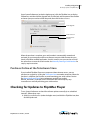
Open System Preferences (under the Apple menu), click the Flip4Mac icon to display
Preferences, and then click the Upgrade tab. Click the lock at the bottom of the window
and enter your password to unlock the panel, then click Purchase License.
Click Upgrade.
Click Lock icon
Click Purchase
License
When the purchase is complete, your serial number is automatically entered and
activated on your computer, and the new features are accessible the next time you
launch a Flip4Mac-enabled application. Save this email in case you need to re-install
the software or re-enter the serial number. See Manually Entering a Serial Number for
step-by-step instructions.
Purchase Online at the Telestream Store
If you installed Flip4Mac Player on a computer without Internet access, you can
purchase an upgrade by visiting the Telestream Store on another computer. When the
purchase is complete you’ll receive an email containing your serial number. Review
the Manual Activation Guide (www.telestream.net/pdfs/user-guides/
Manual_Activation_Guide.pdf ) on the Telestream Web site for step-by-step
instructions on manually activating your serial number.
Checking for Updates to Flip4Mac Player
To use System Preferences to check for software updates manually (or at scheduled
intervals), follow these steps:
1. Select System Preferences (under the Apple menu) and click the Flip4Mac icon, then
click the Update tab.
Flip4Mac User’s Guide | 159841
23
24
Installing and Upgrading
Manually Entering a Serial Number
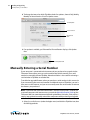
2. To change the interval at which Flip4Mac checks for updates, choose Daily, Weekly,
Monthly or Never from the Check For Updates menu.
Click Update
Select interval
Click Check
Now
3. If an update is available, you’ll be notified. If a notification displays, click Update
Now.
Click Update Now
Manually Entering a Serial Number
If your computer is connected to the Internet and you purchased an upgrade via the
Telestream Store online, you may use the email receipt (which contains your serial
number) to manually activate Flip4Mac. Manual activation is also used for activating a
serial number in Flip4Mac on another Mac.
To enable the upgraded features when you purchase a serial number in this manner (or
if you are entering the same serial number in additional copies of Flip4Mac), you must
have access to the Internet, and you must manually enter the serial number to activate
the features you purchased.
Note: If your Mac does not have Internet access, do not use this process. Instead, use
a separate computer with Internet access to open the Manual Activation Guide on the
Telestream Web site (www.telestream.net/pdfs/user-guides/Manual_Activation_Guide.pdf) for a
step-by-step guide to manually activate the component after purchasing an upgrade.
1. Select System Preferences (under the Apple menu) and click the Flip4Mac icon, then
click the Upgrade tab.
Flip4Mac User’s Guide | 159841
Installing and Upgrading
Manually Entering a Serial Number
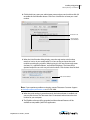
2. Click the lock icon, enter your administrator name and password, and then click OK
to enable the Serial Number button. Click Enter Serial Number to enter your serial
number.
Click lock icon
Click Activate
Serial Number
3. When the Serial Number dialog displays, enter the registration serial number
exactly as it exists in your receipt email. (It is best to copy and paste the serial
number to avoid typing mistakes.) When typing it in, be sure to enter only zeroes
(no letter O's), capitalize all letters, and include all hyphens. The Name field is
optional except for users with very old serial numbers. Click Activate when finished.
Enter serial number
Note: If you experience problems activating, contact Telestream Customer Support
at: [email protected] or 877-681-2088.
4. When the serial number is entered correctly, the Activate button is enabled, and
you can click Activate. The Telestream Store is contacted and activates the serial
number for your computer.
5. The Flip4Mac software will be upgraded and the enhanced features will be
available to compatible QuickTime-applications.
Flip4Mac User’s Guide | 159841
25
26
Installing and Upgrading
Deactivating a Serial Number
Note: For Flip4Mac to work correctly, you must relaunch your Web browser and all
QuickTime applications.
Deactivating a Serial Number
A Flip4Mac serial number can only be active on one computer at a time. But, you can
enter it on multiple computers (see Manually Entering a Serial Number), making it
available on many. Before activating Flip4Mac on a different computer, you must
deactivate where ever it is currently activated. In other words, you can deactivate it and
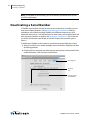
then activate it elsewhere as needed. (See Activating a Serial Number.) This makes the
use of the serial number more flexible, and avoids unnecessarily purchasing extra
licenses.
To deactivate a Flip4Mac serial number on a particular computer follow these steps:
1. Select System Preferences (under the Apple menu) and click the Flip4Mac icon, then
click the Upgrade tab.
2. Click the lock icon and enter your administrator name and password and click OK to
enable the buttons. Click Deactivate Serial Number.
Click Upgrade
Click lock
icon
Click Deactivate
Serial Number
Flip4Mac User’s Guide | 159841
Installing and Upgrading
Activating a Serial Number
3. When the dialog box displays, click Deactivate to deactivate your serial number on
your computer (which must have Internet access). This enables you to activate this
same serial number on another computer.
Activating a Serial Number
If you previously deactivated a serial number to make it available on another computer,
you can activate it by following these steps:
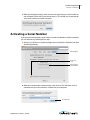
1. Select System Preferences (under the Apple menu) and click the Flip4Mac icon, then
click the Upgrade tab.
Click Upgrade
Click lock
icon
Click Activate
Serial Number
2. When the Serial Number window displays, click Activate. The Telestream Store is
contacted and your serial number is activated on your computer.
Click Activate
Flip4Mac User’s Guide | 159841
27
28
Installing and Upgrading
Activating a Serial Number
Flip4Mac User’s Guide | 159841
29
Flip Player
Basic Features
Introduction
This section presents the basic features of Flip Player which is a stand-alone application
from Flip4Mac. Available only in OS X 10.7 and later.
Topics
Starting Flip Player
Opening Media with Flip Player
Editing Media Files
Movie Playback and Editing Controls
Setting Audio Volume and Muting
Viewing Controls
30
Flip Player Basic Features
Starting Flip Player
Starting Flip Player
Note: Flip Player is not available when installing on OS X 10.6.8. Instead, the WMV
Player application is provided.
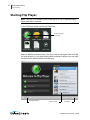
To start Flip Player, double-click the Flip Player icon.
Double-click Flip
Player icon.
When the Welcome window displays, click Open Other and navigate to the media file
you want to open. Or, if you have already opend media files in the past, you can select
one from the list of Recent Medias and click Open.
Click Open Other
Select a media
Click Open
Flip4Mac User’s Guide | 159841
Flip Player Basic Features
Opening Media with Flip Player
Opening Media with Flip Player
When Flip Player is installed, Windows Media files become automatically associated
with Flip Player. When you open a Windows Media file, Flip Player is automatically
launched and plays that file.
To manually associate a Windows Media file with Flip Player hold down the control key
and click the file icon in Finder (or right-click) to display the shortcut menu, then select
Open With > Flip Player. Finder changes the file association and opens the file.
To permanently change the file association, select a file in Finder, right-click and select
Get Info, click Open With, choose Flip Player, then click Change All.
Other media file types, in addition to Windows Media, can also be opened and played
similarly. (See the list of Supported Codecs, Formats, & Protocols.)
For convenience, you can add the Flip Player application to your dock by dragging it
from the Applications folder. To open other Windows Media files, drag and drop them
onto the Flip Player icon.
Drag and drop Windows
Media files onto the Flip
Player icon
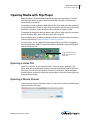
Opening a video file
Select File > Open File, or press the command + O keys, to open a media file in Flip
Player. When the Open dialog box displays, navigate to the file you want to open and
click Open. Click Cancel if you decide to not open any media files. The file navigation
window provides a variety of display and sorting options, accessed by clicking the icons
at the top of the window.
Opening a Movie Stream
To open a movie stream in Flip Player, select File > Open Stream, enter a valid URL for the
movie source then click Open.
Flip4Mac User’s Guide | 159841
31
32
Flip Player Basic Features
Editing Media Files
Opening Recent Media Files
You can re-open previously opened media files by selecting File > Open Recent. This
displays your most recently accessed media files. Every time a file is opened or saved it
is entered into the list.
Note: The number of recent items is dependent on the user's settings in the General
pane of the System Preferences.
Simultaneously Playing Multiple Movies
You can have more than one Flip Player window open at a time.
To open more than one Flip Player window, do one of the following:
• Double-click another video file.
• Control-click (or right-click) a movie file and then select Open With Flip Player.
When you have more than one Flip Player window open, the audio plays only on the
active (top) window.
Editing Media Files
The Edit Menu offers selections for Undoing or Redoing your most recent actions, plus
editing of video and audio content.
Cut, Copy, Paste, Delete, and Select All can be used when in Trim mode for basic video
clip editing. You can also cut, copy, and paste between multiple video clip files. Crop,
Trim, Rotate, and Scale are editing functions to edit the movie clip itself; these functions
are described in the topics that follow.
Flip4Mac User’s Guide | 159841
Flip Player Basic Features
Editing Media Files
Cropping the Movie Frame
PRO
The crop tool enables you to use just a portion of the visible picture. You might use this
to make the picture frame smaller for fitting in a Web window application, or for fitting
a 4:3 or 16:9 aspect ratio that is sized smaller than the existing frame geometry. You can
access the crop tool by selecting Edit > Crop, or by pressing the command + K keys.
Crop
settings
The crop tool enables you to set the crop size, crop offset, and constraints (full screen,
wide screen, or none). The settings selected in the crop settings window above are
manifested in the video screen shown below. Each of the four settings represents one
of the cropping edges.
Crop Size Height
Crop Offset
Width
Crop Size
Width
Crop Offset Height
Crop Offset Width is the amount of pixels that the selection is offset from the left side of
the frame.
Crop Size Width is how wide the crop selection is in pixels.
Flip4Mac User’s Guide | 159841
33
34
Flip Player Basic Features
Editing Media Files
Crop Offset Height is the amount of pixels that the selection is offset from the bottom of
the frame.
Crop Size Height is how tall the crop selection is in pixels.
When you enter a new value, the screen will adjust its cropping frame when you enter
another setting field. You can also click and drag on any of the handles of the crop
selection to resize it, or in the center to move it.
Note: Do not click Apply or press the Enter key until you have made all your cropping
settings.
Once you are satisfied with the crop area selected, click Apply to implement your
settings. Or, you can click Cancel to discard your changes. Once applied, you can reenter the crop settings window and make cropping changes. Clicking Revert undoes all
edits and restores the video to its original size. Revert cannot be undone.
Rotating the Video
PRO
You can change the orientation of a video by rotating it 90, 180, or 270 degrees. To
rotate a video, open the rotation settings window by clicking Edit > Rotate or by
pressing the command + R keys.
Flip4Mac User’s Guide | 159841
Flip Player Basic Features
Editing Media Files
The rotate window enables you to rotate the video either clockwise or counterclockwise by 90 degrees. Shown below is the result of a counter-clockwise rotation.
Rotated
video
Normal video
Multiple clicks of either rotation button causes additional rotations of the video. After
rotating, click Apply, or press the Enter key, to implement your settings. Click Cancel to
discard your changes. Once applied, you can re-enter the rotation settings window and
make changes. Clicking Revert undoes all edits and restores the video to the way it
exists in the file when it was first opened. Revert cannot be undone.
Trimming the Video
PRO
You can choose where a video clip begins and ends by setting trim points. Select Edit >
Trim, or press the command + T keys, to open the trim settings window. The time
format is: days, hours, minutes, seconds, fractional seconds, and scale (d:mm:hh:ss.ss/
scale).
You can also enter partial values and have the rest filled in automatically, such as
entering 30 for thirty seconds. However, you should make sure the scale is the same for
all three fields, otherwise the calculations might not be what you expect (10.00/50
Flip4Mac User’s Guide | 159841
35
36
Flip Player Basic Features
Editing Media Files
would be the same as 20.00/100). Scale is not the frame rate, even though it looks
similar.
Enter a start time for the In marker and click Go to set the marker. Then enter an end
time for the Out marker and click Go to set that marker. You can also set in and out
markers by sliding them in the edit bar below the video.
To select a portion of a movie, move the In and Out selection markers or use the “I” and
“O” keys on your keyboard. The lighter colored area between the two markers indicates
the selected portion. To fine-tune the selection, select a marker and move it with the
arrow keys.
Edit bar
In marker
Out marker
Flip4Mac User’s Guide | 159841
Flip Player Basic Features
Editing Media Files
Cut, Copy, Paste, Delete, and Select All can be used when trimming video clips. Select
the portion of the clip you want to Cut, Copy, or Delete, then select the Paste to place it
in your target location. You can also cut, copy, and paste between multiple movies.
After trimming, click Apply, or press the Enter key, to implement your settings. Click
Cancel to discard your changes. Once applied, you can re-enter the trim settings
window and make changes. Clicking Revert undoes all edits and restores the video to its
original length. Revert cannot be undone.
Scaling Picture Resolution
PRO
You can scale the picture (and optionally change the aspect ratio) for different devices
or applications. Select Edit > Scale, or press the command + G keys, to display the scale
settings window. In this window you can set the video resolution by entering the pixel
size for the video height and width. You can also choose if the aspect ratio will be
maintained or not in the Dimensions menu.
Set resolution
Select Dimension
Select preset
The Scale settings window displays the Natural Size (original size) and Current Size in
pixels. If Maintain aspect ratio is selected, re-sizing will keep the aspect ratio intact as
you change the size of the video. You ca not scale less than 240 x 240.
Flip4Mac User’s Guide | 159841
37
38
Flip Player Basic Features
Movie Playback and Editing Controls
A variety of screen presets are available from the Preset menu. When a selection is
made, the video re-sizes accordingly. Here are the available presets:
After scaling, click Apply, or press the Enter key, to implement your settings. Click Cancel
to discard your changes. Once applied, you can re-enter the scale settings window and
make changes. Clicking Revert undoes all edits and restores the video to its original size.
Revert cannot be undone.
Movie Playback and Editing Controls
Flip Player provides a variety of Control menu options and a Play Bar to allow you to
move around within the movie for viewing or editing.
Flip4Mac User’s Guide | 159841
Flip Player Basic Features
Movie Playback and Editing Controls
Play Bar
The features of the Play Bar are shown below.
Play Bar
Scrubber
Elapsed Time
Progress Bar
Volume Control
Time Remaining
Play/Pause
Play/Pause Click to play the video; click again to pause it.
Note: In addition to clicking Play/Pause on the Play Bar, you can also play and pause
by pressing the spacebar. It acts as a toggle between play and pause modes.
Elapsed Time Displays time the video has been playing.
Scrubber Click and slide to change the location in the video you are viewing. You can
also click on any position in the scrubber to jump the play head to that location.
Progress Bar The progress bar indicates how much of the media has been
downloaded.
Elapsed Time Displays time remaining for the video to play.
Volume Control Click to display a volume control slider.
Flip4Mac User’s Guide | 159841
39
40
Flip Player Basic Features
Movie Playback and Editing Controls
Play Controls
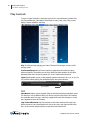
To access Control selections, select the Control menu. Control features include: Play,
Fast Forward/Reverse, Slow Motion (Flip Player Pro only), Step, Jump, Skip, Instant
Replay, Chapter selection, and Loop.
Play Click Play to begin playing your video. The word Play changes to Pause while
playing media.
Fast Forward/Reverse Fast Forward speeds up playback and Fast Reverse plays
backward rapidly. This enables you to move quickly to other locations in the video.
Repeated clicks cause increased speeds (2x, 4x, etc.) of forward and reverse.
Speed Speed enables you to set the playback speed in increments of 1x, 2x, 4x, 8x, 16x,
32x, and 64x. When playing, the playhead displays the speed selected.
Speed display
PRO
Slow Motion Enables you to playback video at one fourth of normal playback speed.
This feature is only available in the Pro (or above) version of Flip Player. Slow motion
also available when pressing L and K keys together (forward slow motion) or J and K
keys together (reverse slow motion).
Step Forward/Backward Step Forward moves the video one frame forward; Step
Backward moves it one frame backward. You can also press the right and left arrow
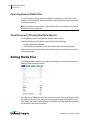
keys, or the comma and period keys to step forward and backward.
Flip4Mac User’s Guide | 159841
Flip Player Basic Features
Setting Audio Volume and Muting
Jump Forward/Backward Selecting Jump forward or backward results in moving 10
seconds ahead or behind in the video.
Jump To End/Start Jump To End moves the video to the last frame; Jump To Start
moves it to the first frame. If the video is paused, it will remain paused after the jump is
executed.
Skip Skip enables you to jump forward 30 seconds into the video.
Instant Replay Instant Replay enables you to jump backward 8 seconds in the video. If
video is playing, it will jump back and continue playing; if paused, it will jump back and
stay paused.
Previous/Next Chapter Moves from the current location in the video to the previous
or next chapter.
Chapters Moves to the chapter selected in the chapter list.
Chapter list
Note: The Chapter menu items (Next Chapter, Previous Chapter, and Chapter) are
only enabled if the video has chapter markers embedded in it. If no chapter markers
are present, the menu items are greyed out. Chapter markers are sometimes
embedded in longer movie clips to divide sections of the media topically or by edit
points.
Loop Enables you to play a video repeatedly. If Loop is selected, the movie will play
again from the beginning whenever it reaches the end.
Setting Audio Volume and Muting
Flip Player enables you to change playback volume. From the Audio menu select
Increase Volume to increase the volume of the video, select Decrease Volume to
decrease it, and select Mute to silence it entirely.
Viewing Controls
Flip Player provides a number of viewing controls: full screen display, Flip Player
window highlighting, screen sizing, and aperture control.
Flip4Mac User’s Guide | 159841
41
42
Flip Player Basic Features
Viewing Controls
Full Screen Display
You can set the screen so that only the movie is visible. This presentation setting is
called Full Screen mode. (You can also size the movie player so it will play at whatever
screen size you need.)
To play a movie at full screen, do one of the following:
• Select View > Enter Full Screen.
• Press the command + F keys.
• In the Flip Player screen, click on the Full Screen arrows icon in the top right hand
corner
To quit Full Screen mode, press the esc key, or press the command + F keys.
To adjust the picture to fit your screen, move the pointer to any corner of the active
picture area, click to select the corner, and then drag the corner to the needed size.
Note: You must click on the corner of the viewing area of the screen—not on the Title
Bar or Play Bar—to resize the movie player.
Full Screen arrows icon
Title Bar
Viewing
area
Play Bar
Scrubber
Progress Bar
Note: As long as Full Screen is selected, you can make hidden controls appear by
moving the cursor over the video. However, the Play Bar can be made visible by
moving the cursor over the video at any time, whether in full screen or not. The Title
Bar will not appear in Full Screen or edit modes.
Flip4Mac User’s Guide | 159841
Flip Player Basic Features
Viewing Controls
Highlighting the Flip Player Window
To make viewing the Flip Player player window easier when you have lots of windows
open, select View > Dim Lights. This isolates the Flip Player player window visually from
all others on the desktop by fading everything else to a dark gray. Select Dim Lights
again to disable this feature.
Screen Sizing
Flip Player lets you adjust the size of the video display by providing four sizes: Half Size,
Actual Size, Double Size, and Fit To Screen. Actual Size is a combination of the
dimensions of the video essence in the file, the aperture mode, any scale edits, any crop
edits, and any rotation edits. Half Size adjusts the display to half of the actual size.
Double Size makes the display twice the size of actual. Fit To Screen causes the display
to expand to the limits of the display.
Aperture Control
The Aperture setting enables you to control the dimensions of the video, which may
change the aspect ratio.
Flip Player provides five aperture settings:
Classic Content appears as it did in previous versions of QuickTime.
Clean The recommended setting for most video. Crops the video to the area of frame
free from digitization artifacts and applies pixel aspect ratio correction. A 4:3 DV NTSC
track appears as 640 x 480; a 16:9 DV NTSC track appears as 853 x 480.
Production Used for video production. Shows all pixels in the video including the
edges and corrects for pixel aspect ratio. A 4:3 DV NTSC track appears as 654 x 480; a
16:9 DV NTSC track appears as 873 x 480.
Encoded Pixels Neither crops nor scales the video. A DV NTSC (4:3 or 16:9) track
appears as 720 x 480.
None No aperture control is used.
For more detailed information on Aperture settings, see QuickTime Pro: About the
"Conform aperture to" setting and About QuickTime Aperture Display Modes.
Flip4Mac User’s Guide | 159841
43
44
Flip Player Basic Features
Viewing Controls
Flip4Mac User’s Guide | 159841
45
Flip4Mac
Basic Features
Introduction
This section presents the basic features of Flip4Mac, including how to play media in
QuickTime and Web browsers and how to make video and audio settings.
Topics
Playing Windows Media in Flip Player
Playing Windows Media in Web Browsers
Browser Plug-in Settings
Movie Player Settings
Audio Settings
Playing Windows Media in Flip Player
With Flip4Mac installed, Windows Media files are associated with Flip Player (a
standalone multi-format video player included with Flip4Mac). Now, when you open a
Windows Media file from the Finder, it should automatically launch the Flip Player
application.
If Flip Player does not open a Windows Media file, hold down the control key and click
the file icon (or right-click) to display the shortcut menu, then select Open With > Flip
Player. This opens the file for this instance in Flip Player.
To permanently change the file association, select a Windows Media file in Finder, rightclick and select Get Info, click Open With, choose Flip Player, then click Change All.
46
Flip4Mac Basic Features
Playing Windows Media in Web Browsers
Playing Windows Media in Web Browsers
Flip4Mac provides a browser plug-in, which enables you to view Windows Media in
Safari and other Web browsers. The Flip4Mac browser plug-in plays Windows Media
using a custom movie controller.
See Browser Plug-in Settings for instructions on how to make changes to the browser
plug-in.
Flip4Mac User’s Guide | 159841
Flip4Mac Basic Features
Browser Plug-in Settings
Browser Plug-in Settings
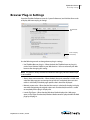
Open the Flip4Mac Preferences pane (in System Preferences) and click the Browser tab
to display the browser plug-in settings.
Click Browser
tab
Click to display
online help
Use the following controls to change browser plug-in settings:
• Use Flip4Mac Browser plug-in—When checked, the Flip4Mac browser plug-in is
used to view Windows Media in your Web browser. You must relaunch your Web
browser after changing this setting.
Note: This option is always checked and disabled if the legacy Windows Media Player
is not installed.
• Always show movie controller—When checked, the movie controller is visible, even
when the Web page you are viewing tries to hide it. If unchecked, the movie controller is visible only if the Web page specifies that it should be displayed.
• Maintain aspect ratio—When checked, the movie is scaled to fit the plug-in display
area while maintaining the original aspect ratio. If unchecked, the movie is scaled
to completely fill the plug-in display area.
• Launch Flip Player—When checked, Windows Media displayed in a Web page
opens in Flip Player. If unchecked, Windows Media content is played within the Web
page by the plug-in.
Flip4Mac User’s Guide | 159841
47
48
Flip4Mac Basic Features
Movie Player Settings
Movie Player Settings
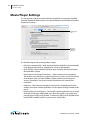
The movie player settings control how Windows Media files are opened by Flip4Mac.
Open the Flip4Mac Preferences pane (in System Preferences) and click the Player tab to
display these settings.
Click Player
tab
Click for
advanced
settings
Use the following controls to change Player settings:
• Play movies automatically—When checked, Windows Media files will automatically
begin playing whenever they are opened or as they are downloaded.
• Open AVI Files—When checked, Flip Player opens and plays AVI files that contain
Microsoft MPEG-4 video.
• Send Diagnostic and Usage Information — When checked, you are permitting
Telestream to send anonymous usage information to its secure server. The purpose
of sending this data is to make Flip4Mac a better product by examining how
services are utilized. If you do not want this information sent, leave this box
unchecked.
• Advanced—Click Advanced to display the Import Files Completely panel which
enables you to choose which applications use this option resulting in better performance
• Reclaim (File & Link Associations)—Occasionally, another application may associate
itself with ASF file types (WMV, WMA, etc.). When this happens, you cannot automatically play ASF files using Flip4Mac. To reclaim ASF file types for Flip4Mac (both
local ASF files and MMS streams in your browser), click Reclaim.
Flip4Mac User’s Guide | 159841
Flip4Mac Basic Features
Audio Settings
• Use the plus (+) and minus (-) buttons to add and delete applications
By default, when you import a file using WMV in any supported application (QuickTime
Player 7, for example), it is opened and imported in the background, and immediately
begins to play as the file is opened.
In cases where you just want to play the file (QuickTime Player 7, for example), this
functionality is usually best and provides the fastest playback response. However, if you
want to scrub the file, you have to wait until import is complete.
In applications which allow you to scrub, edit, or export the file, you may want access to
the entire file. Local files load immediately for Applications in the Import files completely
list, and they (optionally) display a progress window before providing playback access.
While this may cause a slight delay as the file opens, it ensures that the entire movie is
available for scrubbing, editing, or export, and the file usually loads in significantly less
total time than when loaded in background mode.
Use the Plus button (located at the bottom-left of the window) to add a new
application to the list of applications that import files immediately (QuickTime Player 7,
for example). The Show Progress indicator is checked by default when you add an
application to this list. When checked, the progress window displays during lengthy
imports. For applications that do not support the progress window, uncheck this
option.
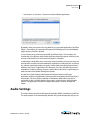
Audio Settings
The audio settings control how Windows Media Audio (WMA) is handled by QuickTime.
The audio options are all automatically selected. they cannot be adjusted, but you can
Flip4Mac User’s Guide | 159841
49
50
Flip4Mac Basic Features
Audio Settings
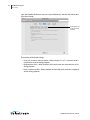
open the Flip4Mac Preferences pane (in System Preferences) and click the Audio tab to
view these settings.
Audio options are
all automatically
selected
Descriptions of the Audio settings:
• Down mix surround sound to stereo—When checked, 5.1 or 7.1 surround sound is
mixed down to stereo during playback.
• Requantize to 16 bit—When checked, 24 bit audio tracks are requantized to 16 bit
during playback.
• Down sample to 48 kHz—When checked, 96 kHz audio tracks are down-sampled to
48 kHz during playback.
Flip4Mac User’s Guide | 159841
51
Advanced Features
Introduction
This section presents the advanced features of, including how to import and export
Windows Media files, how to edit video and audio settings, and how to create custom
encoder profiles.
Topics
Importing and Converting Windows Media
Exporting Media
Exporting to Applications
Exporting to Devices
Exporting to a Format
Exporting Windows Media
Guidelines for High Quality Text Overlays
Export Settings
Video Encoder Settings
Advanced Video Settings
Audio Encoder Settings
Advanced Audio Settings
Metadata Settings
Silverlight Settings
Creating Custom Encoder Profiles
52
Advanced Features
Importing and Converting Windows Media
Importing and Converting Windows Media
PRO
When you upgrade to Flip4Mac Player Pro (or any Studio version) you can import
Windows Media files into supported QuickTime editing applications, and convert
Windows Media files into other media formats.
Flip4Mac cannot import Windows Media content that has been protected using
Windows Digital Rights Management (DRM). Flip4Mac displays this error message when
you open a protected file:
Here is an example that illustrates how to import a Windows Media file into iMovie.
1. Start the iMovie application.
2. Select File > Import > Movies, navigate to and select a Windows Media file, then click
Import. To cancel an import in progress, press Escape, Command-Period, or
Command-Period on your keyboard.
Select File
Click Import
Note: iMovie converts all ingested files to the Apple Intermediate Codec. This can
take some time and the program will be blocked while converting. Telestream
Flip4Mac User’s Guide | 159841
Advanced Features
Exporting Media
recommends converting long WMV files to AIC by using Flip Player, Compressor, or
Episode before ingesting into iMovie.
Exporting Media
A powerful feature of Flip4Mac Player Pro is the ability to re-encode video and export a
new movie clip for use by other applications and many popular devices (iPhone, iPod
etc.). Flip Player is handy for doing quick conversions of all container formats, audio
codecs, and video codecs that are available in QuickTime.
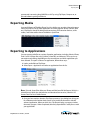
Exporting to Applications
You can export media files to a variety of popular applications including: iMovie, iPhoto,
Final Cut Pro X (Player Pro only), Episode, ScreenFlow, and Wirecast. This may or may
not require transcoding, depending on the source format and which application you
have selected. To export a video to an application, follow these steps:
1. Load a media file into Flip Player.
2. Select Export > Application and select an application from the list.
Note: Episode, ScreenFlow, Wirecast, iPhoto, and Mail are all H.264 format. (H.264 is a
video format in which the audio format and container format varies.) iMovie is AIC
format. Final Cut Pro is ProRes format.
3. Once you have made a selection, Flip Player presents a Save dialog box asking you
for a filename and a location then creates a new media file that works with the
selected application. When you click Save, Flip Player displays a progress window
that tracks progress. When completed, the newly exported file is ready for use with
your application.
Flip4Mac User’s Guide | 159841
53
54
Advanced Features
Exporting to Devices
Note: To automatically launch export-receiving applications such as Episode,
ScreenFlow, Wirecast, iMovie, etc., they must reside in the Applications folder and they
must not be renamed.
Exporting to Devices
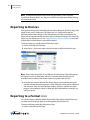
Since so many devices play video (iPod, iPhone, iPhone-Ringtone (Player Pro only), iPad,
AppleTV, Mac, and PC computers), Flip Player acts as a simple and fast tool for
exporting video to them. Based on the selected device and the source format, Flip
Player picks the appropriate file container, codec, and encode settings. This makes Flip
Player very fast and easy to use. (See Supported Codecs, Formats, & Protocols for a table
of applications and file formats supported for export.)
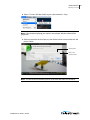
To export a video to a specific device, follow these steps:
1. Load a media file into Flip Player.
2. Select Export > Device and select a device from the list (iPhone, iPad, iPod, etc.)
Note: iPhone, iPad, iPod, Apple TV, and Mac are all H.264 format. iPhone (Ringtone) is
AAC format. H.264 is a video codec and AAC is an audio codec, but they are not
mutually exclusive. Many of the devices export using both H.264 and AAC.
3. Once you have made a selection, Flip Player creates a new media file that works
with the selected device then presents a Save dialog box asking you for a filename
and a location. Click Save and Flip Player displays a progress window that tracks
progress and completion. When it’s done, the newly exported file is ready for use
with your device.
Exporting to a Format
STUDIO
You can also export a Windows Media file from Flip Player. Which media formats you
can export from Flip Player depends on the upgrade you have licensed.
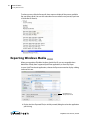
To export a Windows Media file, follow these steps:
1. Load a media file into Flip Player.
Flip4Mac User’s Guide | 159841
Advanced Features
Exporting to a Format
2. Export > Format > Windows Media, or press the command + J keys.
Note: If the window displaying your media is not selected, Windows Media will be
greyed out.
3. Select a preset from the list of presets, then click the down-arrow to edit/view the
preset’s values.
Select preset
Click to see
preset’s values
Note: You can create and edit these presets if you have the Studio Pro HD license.
Flip4Mac User’s Guide | 159841
55
56
Advanced Features
Exporting Windows Media
To select a preset, click the Preset pull-down menu to display all the presets available
(for your license level). You can also select New Preset to create a new preset (if you have
a Studio Pro HD license).
Exporting Windows Media
STUDIO
When you upgrade to Flip4Mac Studio or Studio Pro HD, you can create Windows
Media files directly from supported QuickTime applications, or from Flip Player.
In most QuickTime-based applications, choose the Export command to display a dialog
similar to this one:
Click Options to
edit preset’s values
1. Display the Save Exported File (or similarly named) dialog based on the application
you’re using:
Flip4Mac User’s Guide | 159841
Advanced Features
Guidelines for High Quality Text Overlays
• QuickTime Player 7 Pro and QuickTime Player 10—Select File > Export.
Note: You must have QuickTime Pro to use the export option in QuickTime Player 7
• Final Cut Pro 5-7—Select File > Export > Using QuickTime Conversion.
• Final Cut Pro X—See the Flip4Mac_FCP-X_Compressor 4 PDF document for details.
2. Enter a name for the Windows Media file in the Save As field. By convention, you
should use the .wmv extension for video files and .wma for audio files.
3. Select Movie to Windows Media from the Export drop-down menu
4. Select an encoding profile from the Use drop-down menu. See Creating Custom
Encoder Profiles for details on creating your own encoding profile or editing existing
profiles.
5. Click Options to view or change the current settings.
Guidelines for High Quality Text Overlays
When using Flip4Mac in QuickTime-based applications to export media in Windows
Media format, follow these guidelines for best results with text overlays:
• Do not use odd values for the output movie's frame height or width. Always use
even numbers. Also, converting source media with odd height or width values can
result in illegible or poor-quality titles.
• Output non-interlaced (progressive) video. Interlaced video may induce flickering
on rendered text.
• Use larger point size fonts (at least 25 points for best results). Larger fonts display
better than small ones.
• Don not use serif fonts (for example, Times Roman). Sans serif fonts (such as Arial
and Helvetica) are best.
• Use boldface fonts, since they render better, especially at smaller sizes.
• Adding some noise/grain effect on clean graphic content can help to keep the
encoder busy and to avoid static compression artifact.
Export Settings
To edit the preset’s values, click the down-arrow or Options to display the Media Export
Settings window which contains four tabs:
• Video Displays video encoder settings
• Audio Displays audio encoder settings
• Metadata Displays metadata values stored into the output file
• Silverlight Displays Silverlight settings
How you can export media in Flip4Mac depends on which F4M license you have:
Flip4Mac User’s Guide | 159841
57
58
Advanced Features
Export Settings
• Player—You can export complete WMV files to MOV files (or any other format), but
the file is watermarked. You can also export MOV files to WMV files, but the exports
are limited to 30 seconds (or half the source media duration) and the files are not
watermarked.
• Player Pro—You can export WMV files to MOV files. You can export MOV files to
WMV files, but the exports are limited to 30 seconds (or half the source media duration) – the files are not watermarked.
• Studio—You can export WMV files to MOV (and other format) files, and you can
export MOV files to WMV files. You can select from a wide variety of preset encoder
profile choices, and customize. Export resolution is limited to 768x576 pixels.
• Studio Pro HD—Includes all features of Player Pro and Studio. When exporting MOV
files to Windows Media, you can change individual encoder setting and save those
changes in a new profile (note the Profiles drop-down list at the top of the Flip4Mac
Export Settings dialog). You can also select New Profile from the popup menu (near
the bottom of the drop-down list), to create a new, custom interlaced or progressive encoder profile with custom settings. See Creating Custom Encoder Profiles for
more information. With Studio Pro HD you can make high definition and two pass
encoding profiles.
Flip4Mac User’s Guide | 159841
Advanced Features
Video Encoder Settings
Video Encoder Settings
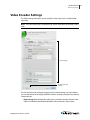
The Video settings tab enables you to specify how the video track is encoded when
exporting.
Note: The video settings tab is disabled if your source media does not contain a video
track.
Video settings
Click for advanced
settings
Use the controls on this dialog to change your basic video settings. For more options,
you can click Advanced to display additional controls. (Settings displayed vary with the
selected preset).
• Export using When checked, the video track is encoded using the selected video
codec. If unchecked, the Windows Media file will not contain a video stream.
Flip4Mac User’s Guide | 159841
59
60
Advanced Features
Video Encoder Settings
Note: Progressive profiles are available in Studio; both interlaced and progressive
profiles are enabled in Studio Pro HD.
• Coding Method For constant bit rate (CBR) encoding, enter the desired bit rate.
The encoder dynamically adjusts quality to maintain that bit rate by adjusting the
quality of each frame or by dropping frames completely. The quality setting
emphasizes which method the encoder should use.
STUDIO PRO HD
For variable bit rate (VBR) during encoding, the bit rate varies based on frame size,
rate, and complexity. You can only choose from a list of presets when exporting
from a QuickTime-based application other than Flip Player. However, users can create custom profiles if they have the Studio Pro HD license.
• Quality The quality setting emphasizes which method the encoder should use. For
variable bit rate (VBR), set the desired quality to emphasize smoother or sharper
output. Smoother quality produces better motion, but may reduce the quality of
each frame. Sharper quality produces better images. During encoding, the bit rate
varies (based on frame size, rate, and complexity). In two-pass VBR, you can specify
the target bit rate, but in one-pass VBR you cannot edit the bit rate.
• Bit Rate Select data rate from the drop-down list.
• Peak Bit Rate Select the peak data rate from the drop-down list.
• Frame Size and Rate Determines the width, height and frame rate of the encoded
video track.
• Advanced Click to display the Advanced panel to make special adjustments for
encoding.
Flip4Mac User’s Guide | 159841
Advanced Features
Advanced Video Settings
Advanced Video Settings
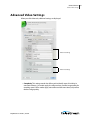
When you click Advanced, additional settings are displayed:
Advanced settings
Advanced settings
• Complexity This setting controls the effort used to identify areas of similarity in
consecutive frames. Live modes apply less effort and may sacrifice image quality for
encoding speed. Offline modes apply more effort and take more time, but produce
the best image quality.
Flip4Mac User’s Guide | 159841
61
62
Advanced Features
Advanced Video Settings
• Profile Specify Simple or Main (WMA 9 Standard), or Advanced (WMV 9 Advanced).
– Simple—This profile targets low-rate Internet streaming and low-complexity
applications (mobile communications, or playback of media in personal digital
assistants).
– Main—This profile targets high-rate Internet applications (streaming, movie
delivery via IP, or TV/VOD over IP).
– Advanced—This profile targets broadcast applications. It is the only profile
available for WMV 9 Advanced.
• Key frames Select the maximum interval allowed between successive key (I)
frames.
• Buffer Delay Select the duration of the delay buffer used for bit rate control. Longer delays produce better overall quality (at the expense of larger fluctuations in
the bit rate).
• B Frames The Windows Media video codec employs intra (I), predictive (P) and bidirectional (B) coded frames. Select the number of B frames to insert between successive I or P frames.
• Input Type/Output Type Select the format of the source (input) video track and
the desired format of the encoded (output) video stream. The encoder uses this
information to optimize the conversion between interlaced and progressive formats.
Flip4Mac User’s Guide | 159841
Advanced Features
Audio Encoder Settings
Audio Encoder Settings
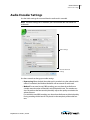
Use the Audio settings tab to control how the audio track is encoded.
Note: The audio settings tab is disabled if your source media does not contain an
audio track.
Audio settings
Click for advanced
settings
Use these controls to change your audio settings:
• Export using When checked, the audio track is encoded using the selected audio
codec. If unchecked, the Windows Media file will not contain an audio track.
• Method For constant bit rate (CBR) encoding, you can select the audio format
(sample rate and number of channels) and the desired bit rate. The encoder converts the track to that format and dynamically adjusts the quality to maintain the
selected bit rate.
For variable bit rate (VBR) encoding you select the audio format and desired quality.
During encoding the bit rate will vary based on the complexity of the audio content.
Flip4Mac User’s Guide | 159841
63
64
Advanced Features
Audio Encoder Settings
• Coding Method For constant bit rate (CBR) encoding, enter the desired bit rate.
The encoder dynamically adjusts quality to maintain that bit rate by adjusting the
quality. The quality setting emphasizes which method the encoder should use.
For variable bit rate (VBR), set the desired quality output. During encoding, the bit
rate varies. In two-pass VBR, you can specify the target bit rate, but in one-pass VBR
you cannot edit the bit rate.
• Quality The quality setting emphasizes which method the encoder should use.
Smoother quality produces better sound flow, but potentially reduces the quality
of each sample. Crisper quality produces better sound, but potentially drops more
samples.
•
•
•
•
•
•
Bit Rate Select data rate from the drop-down list.
Peak Bit Rate Select the peak data rate from the drop-down list.
Channels Select the number of audio channels.
Frequency Select the sampling frequency.
Depth Select an audio sample bit depth from the radio buttons presented.
Advanced Click to display the Advanced panel to make special adjustments for
encoding.
Flip4Mac User’s Guide | 159841
Advanced Features
Advanced Audio Settings
Advanced Audio Settings
When you click Advanced, additional settings are displayed:
Advanced setting
• Buffer Delay Specifies the duration of the delay buffer used for bit rate control.
Longer delays can produce better overall quality at the expense of larger fluctuations in the bit rate.
Flip4Mac User’s Guide | 159841
65
66
Advanced Features
Metadata Settings
Metadata Settings
The MetadataContent tab provides optional metadata information stored inside the
exported file:
This information is stored in the Windows Media file and displayed by most Windows
Media players.
Silverlight Settings
When encoding media for use with Silverlight, click the Silverlight settings tab. Check
Embed video in Silverlight package to embed video into Silverlight. Select a Silverlight
Flip4Mac User’s Guide | 159841
Advanced Features
Creating Custom Encoder Profiles
template. Templates specify a particular skin that will encase your video, which can be
one of any number of stylized designs that include playback elements.
Due to the way QuickTime works, you cannot name the exported media the same as
another file that exists. Check Copy presentation to unique subfolder to create a new
folder for the presentation (in a new directory) named with a date and time stamp.
Note: If QuickTime prompts you to overwrite an existing file, click No and change the
filename. Attempting to overwrite an existing file when exporting a Silverlight
presentation will cause the export to fail at the end of the encoding process.
Creating Custom Encoder Profiles
STUDIO PRO HD
Flip Player Studio provides a number of preset audio and video encoder profiles. These
presets are designed to meet a wide variety of media distribution needs, including Web
streaming, Web download, and desktop presentation. When you upgrade to Flip Player
Studio Pro HD, you can create your own encoder profiles (a specific set of encoder
settings).
To create a new profile, follow these steps:
Flip4Mac User’s Guide | 159841
67
68
Advanced Features
Creating Custom Encoder Profiles
1. Select Export > Format > Windows Media, pull down the Presets menu, then go to
the bottom of the drop-down list and select New Preset.
Pull down Presets menu
Click to see settings
Select New Preset
2. When the dialog window displays, enter a name for the new profile and click Done.
Your new custom profile displays at the top of the Presets list.
3. Click the expand settings button to edit/view individual video and audio encoder
settings as described in the preceding sections. Once edited, click OK to save your
changes to the new profile.
Flip4Mac Studio provides a number of preset audio and video encoder profiles for
QuickTime-based media applications. These presets are designed to meet a wide
variety of media distribution needs, including Web streaming, Web download, and
desktop presentation.
When you upgrade to Flip4Mac Studio Pro HD, you can create your own encoder
profiles (a specific set of encoder settings). You can create a new profile from scratch or
create one by using an existing preset as a starting point.
If you have upgraded to Flip4Mac Studio Pro HD your custom profiles can employ twopass encoding and HD video resolutions.
Flip4Mac User’s Guide | 159841
69
User Interface
Introduction
These topics describe the menus and menu items in Flip Player.
Topics
Flip Player Menu
File Menu
Edit Menu
Control Menu
Audio Menu
View Menu
Export Menu
Window Menu
Help Menu
Flip Player Menu
About Flip Player Displays the version of Flip Player you are running.
Check for Updates Provides a short-cut to Preferences > Check Now.
Preferences Opens the Preferences window. If the Preferences window is already open,
it becomes the active window.
Services Presents the Macintosh Services available.
Hide Flip Player Hides the Flip Player application window.
Hide Others Hides all application windows other than Flip Player.
Show All Shows all application windows.
Quit Flip Player Closes all files and exits. If a file has been modified but not saved, you
are notified and you must save the file (or discard changes) before exiting Flip Player.
70
User Interface
File Menu
File Menu
Open File Displays the Open dialog window for opening a media file.
Open Companion File Displays the Open dialog window for opening a file from a
location determined by the URL provided.
Open Recent Displays the most recently accessed media files. Every time a file is
opened or saved it is entered into the this list.
Close Closes the currently active media file window. If the file has not been saved, you
are asked to save the document before closing.
PRO
Save As Displays the Save As... dialog window enabling you to save the file using a new
file name.
PRO
Revert Enables you to discard all changes you have made to a file and revert it to its last
saved state.
Edit Menu
Undo Reverses your last change in Flip Player. Flip Player offers an unlimited number of
undo actions (within computer memory limitations). Undo information is stored on a
per-window basis. Also, if you close window then reopen it, your undo information is
lost. Undo does not undo edit actions.
Redo Reverses your last undo action. Flip Player offers an unlimited number of redo
actions (within computer memory limitations). Redo information is stored on a perwindow basis. Also, if you close window then reopen it, your redo information is lost.
Redo does not re-do edit actions.
Cut Copies (and removes) the selected media and stores it on the clipboard allowing
you to paste it into a selected target.
Copy Copies (but does not remove) the selected media and stores it on the clipboard
allowing you to paste it into a selected target.
Paste Duplicates the content in the clipboard into the currently selected location.
Media is placed in the clipboard using Cut and Copy.
Paste and Match Style Duplicates the content in the clipboard into the currently
selected location, maintaining the style resident in the target location.
Delete Deletes the currently selected media.
Select All Selects all items in the currently active window.
Select None Deselects all items in the currently active window.
PRO
Crop Displays the Crop window, enabling you to crop the selected media.
PRO
Rotate Displays the Rotate window, enabling you to rotate the selected media.
Flip4Mac User’s Guide | 159841
User Interface
Control Menu
PRO
Trim Displays the Trim window, enabling you to trim the selected media.
PRO
Scale Displays the Scale window, enabling you to scale the selected media.
Start Dictation Enables you to add dictation to your media..
Special Characters Displays the Special Characters window, enabling you to create a
list of favorite special characters. This is useful for entering characters into text fields
that are difficult or impossible to type using the keyboard.
Control Menu
Play/Pause Plays the selected media file. When playing, the word Pause is displayed
and when selected causes the media to stop playing. When paused, the word Play is
displayed.
Fast Forward Causes the selected media to enter the Fast Forward mode.
Rewind Causes the selected media to enter the rewind mode.
Speed Enables you to select the speed at which the selected media is played.
• Increase Increases the speed of the selected media
• Decrease Decreases the speed of the selected media
• 1x - 64x Enables you to select one of seven pre-set speeds of the selected media
Note: The unlicensed version of Flip Player allows you to pick 1x, 2x, 4x, 8x, 16x, 32x,
and 64x playback speeds, Player Pro users can use the JKL keyboard controls to
achieve 1x, 2x, 3x, 4x, 5x, 6x, …, up to 64x speeds.
PRO
Slow Motion Places the currently playing media into slow motion mode. Slow motion
can also be started while paused.
Step Forward Moves selected media forward one frame.
Step Backward Moves selected media backward one frame.
Jump Forward Moves selected media forward ten seconds.
Jump Backward Moves selected media backward ten seconds.
Skip Enables you to jump forward 30 seconds into the video.
Instant Replay Enables you to jump backward 8 seconds in the video.
Next Chapter Moves media to the next chapter.
Previous Chapter Moves media to the previous chapter.
Chapters Displays list of chapters. Moves media to selected chapter.
Jump To End Moves current location in media to first frame. If the media is playing, it
will continue playing. If it is paused, it will continue to be paused.
Flip4Mac User’s Guide | 159841
71
72
User Interface
Audio Menu
Jump To Start Moves current location in media to last frame. If the media is playing, it
will continue playing. If it is paused, it will continue to be paused.
Loop When checked (selected), media loops back to start when end is reached.
Audio Menu
Increase Volume Turns the media volume up.
Decrease Volume Turns the media volume down.
Mute Mutes the media audio.
View Menu
Enter Full Screen Expands the selected media to full screen. Press Escape to return to
normal mode. This differs from the Fit To Screen option in that it hides the menu bar,
and the desktop.
Dim Lights When checked (selected) dims the brightness of all windows other than the
currently selected Flip Player window.
Half Size Changes the size of the selected media to half of its actual size.
Actual Size Changes the size of the selected media to its actual size.
Double Size Changes the size of the selected media to twice its actual size.
Fit to Screen Changes the size of the selected media to the max size of the screen.
Aperture Enables you to specify how the outside edges of the video are cropped
during playback.
Export Menu
Application Exports selected media to other applications (Wirecast, iMovie, etc.).
Device Exports selected media to a device (iPhone, iPad, PC, etc.).
Format Exports selected media into a format (Windows Media, etc.).
Show Progress Displays the Progress window.
Window Menu
Minimize Minimizes the front-most window.
Zoom Maximizes the front-most window (zooms to the full size of the screen).
Bring All to Front Brings all Flip Player windows to the front (above any other open
application windows).
Available Windows All open windows are listed at the bottom of this menu. Selecting
a listed window makes it the active window.
Flip4Mac User’s Guide | 159841
User Interface
Help Menu
Help Menu
Search Enables you to search the help system for any topic or key word.
Flip4Mac & Flip Player Help Opens the online help version of the Flip Player User
Guide.
Flip4Mac & Flip Player User Guide Opens the PDF version of the Flip Player User
Guide.
Flip4Mac & Flip Player Forum Opens the Telestream Flip Player Community Forum
Web page.
Flip4Mac FAQ Opens the Flip4Mac FAQ Web page.
Gather Support Information Gathers support information and enables you to save a
file with this information to your Mac desktop. A unique filename is generated. Sending
this file to Telestream enables the support team to diagnose any problems you have
reported.
Flip4Mac User’s Guide | 159841
73
74
User Interface
Help Menu
Flip4Mac User’s Guide | 159841
75
Reference
Introduction
This section provides important reference information including supported codecs and
formats, and network protocols.
Topics
Supported Codecs, Formats, & Protocols
Network Stream Protocols
Supported Codecs, Formats, & Protocols
The following audio and video codecs and general file formats can be processed in Flip
Player and Flip4Mac.
Note: Flip Player can play all codecs, formats, and protocols provided by QuickTime.
Windows Media Audio Voice, Windows Media Video Screen (and variants), and
Windows Media Video Image (and variants) formats are not yet supported in Flip4Mac
or Flip Player.
Table 5. Supported Codecs
Audio Codecs
Windows Media Audio 9 Professional
(HD license required)
Windows Media Audio 9 Lossless
(HD license required)
Windows Media Audio 9 Standard
Play/
Import
Export
76
Reference
Supported Codecs, Formats, & Protocols
Table 5. Supported Codecs
Audio Codecs
Play/
Import
Export
Play/
Import
Export
Play/
Import
Export
Windows Media Audio 7/8
Microsoft G.726
Microsoft IMA ADPCM
Microsoft ADPCM
Video Codecs
Windows Media Video 9 Advanced (WMVA)—Broadcast
Profile (HD license required)
Windows VC1
Windows Media Video 9 Standard (WMV3)
Windows Media Video 8 (WMV2)
Windows Media Video 7 (WMV1)
ISO MPEG-4 V1.1 (M4S2)
ISO MPEG-4 V1.0 (MP4S)
Microsoft MPEG-4 V3 (MP43)
Microsoft MPEG-4 V2 (MP42)
Microsoft Motion JPEG (MJPG)
File Formats
Advanced Systems Format (ASF)
Advanced Stream Redirector (ASX) (ASX Support PDF)
Audio/Video Interleaved (AVI)—WMV media wrapped in
AVI file format.
WVX and WAX files
Note: 1ASF files are the same as .wmv and .wma files, and also .wm amd .wmp files.
Flip4Mac User’s Guide |159841
Reference
Network Stream Protocols
Table 6. Supported Export to Applications and Related File Formats
Application
Versions
Video
Final Cut Pro
10.0.3 and later. ProRes 422 HQ
Audio
Container Extension
AAC-LC 128 Kbps, QuickTime MOV
16-bit, 44.1kHz,
Stereo
iPhoto
9.2.1 and later.
H.264
AAC-LC 128 Kbps, QuickTime MOV
16-bit, 44.1kHz,
Stereo
iPhone Ringtone n/a
n/a
AAC-LC 128 Kbps MP4
Episode
6.2.2 and later.
AIC
PCM
ScreenFlow
3.0.3 and later.
H.264 (GOP Size 6)
AAC-LC 128 Kbps, QuickTime MOV
16-bit, 44.1kHz,
Stereo
Wirecast
4.1.3 and later.
H.264 (GOP Size 6)
AAC-LC 128 Kbps, QuickTime MOV
16-bit, 44.1kHz,
Stereo
QuickTime MOV
Network Stream Protocols
You can use MMS-RTSP, MMS-HTTP, HTTP, with Flip Player and/or Flip4Mac.
Table 7. Supported Stream Protocols
Stream Type
Name
Protocols
MMS
Microsoft Media Server
MMS, HTTP, RTSP, and TCP
HLS
HTTP Live Streaming
HTTP and TCP
Flip4Mac User’s Guide |159841
M4R
77
78
Reference
Network Stream Protocols
Flip4Mac User’s Guide |159841
79
Index
C
Copyright notice 7
E
Encoder Profiles
Creating Custom 67
Exporting
Media 53
To a Format 54
To Applications 53
To Devices 54
Windows Media 56
Exporting Media 53
F
Feature Comparison Table 14, 16
Features
Player 13
Player Pro 13
Studio 14
Studio Pro HD 14
File Menu 70
H
Help Menu 73
I
Importing Windows Media 52
Installation 19
80
Index
M
Menu
Edit 70
Flip Player 69
P
Playing
In Flip Player 45
In Web Browsers 46
Protocol
Network Stream 77
Purchase
In Flip4Mac 22
Online 23
S
Serial Number
Activating 27
Deactivating 26
Manually Entering 24
Settings
Advanced Audio 65
Advanced Video 61
Audio 49
Audio Encoder 63
Browser Plug-in 47
Export 57
Metadata 66
Movie Player 48
Silverlight 66
Video Encoder 59
Supported Codecs, Formats, & Protocols 75
System Requirements 17
T
Telestream
contacting 10
International 10
Telestream, contacting 10
Text Overlays 57
Trademark notices 7
U
Uninstalling 22
Updates
Checking for 23
Upgrading 22
Flip4Mac User’s Guide | 159841
Index
V
VC-1 disclaimer 8
W
Warranty and Disclaimers 8
Web Browser Support 22
Window Menu 72
Flip4Mac User’s Guide | 159841
81
82
Index
Flip4Mac User’s Guide | 159841