1
Updating your Firmware:
There will be periodic updates that will be available to you through
our website. To see which version you are currently running, follow
the instructions on page 18 (Firmware Version). Compare your current
firmware with the most current firmware. (Browse SUPPORT under
www.enhancedvision.com to find the most current firmware.) If you
are running an older version and would like to update it, follow
instructions below:
1) Download the most current version to your PC.
2) Plug in the Pebble-mini to your PC using the USB cable.
3) Your Pebble-mini will register as a normal storage device.
4) Copy the new firmware file downloaded from the internet to the
Pebble drive by dragging file “Pebble_M.elf” to the Pebble drive.
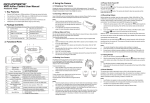
(See Figure 1)
5) Unplug your Pebble-mini unit from the PC and restart the Unit.
(Power off and then power on).
6) After unit is powered back on, navigate to Menu 3 and select
FIRMWARE VERSION by pressing ZOOM (+).
7) When UPDATE FIRMWARE YES/NO appears,
(See Figure 2) navigate with the scroll wheel to YES and press (+)
to activate. When update is complete the unit shall display a message
and wait for the user to power off the unit. Unit will power on with new
firmware. Old firmware will load if user selects NO.
Figure 1
Figure 2
Chapter 5 Connecting to your PC
21