1
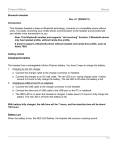
Configure Bluetooth SPP slave profile communication Establish Bluetooth communication LCD Icon indication for Bluetooth or blue LED on Bluetooth is on. Bluetooth network is working. or blue LED off Bluetooth is off. Bluetooth network is disconnected. Note: Make sure the Bluetooth module of the scanner is powered on (blue LED is on) and the selected profile is System SettingBluetoothBT SPP Slave. Step 1-9: The same as Configure Bluetooth HID keyboard step 1~9. Step 10: Run a Serial Port Tool, e.g. HyperTerminal on your computer. This step guarantees the scanner to complete establishing Bluetooth communication. And then scan a barcode to confirm the success of data transmission. Select Bluetooth functionality according to practical need HID Keyboard SPP Master/Slave The scanner connects to the PC via Bluetooth and behaves like a keyboard. The scanner connects to the PC via Bluetooth and behaves like there is a serial connection. A master SPP mainly differs from a slave one in the process of connection and they are identical in the process of use in terms of function. Note: Bluetooth-enabled smart phones and PDAs can host the scanner in general. However, ordinary mobile phones with Bluetooth function can not be a host of the scanner because in most cases neither HID nor SPP profile is supported by them. Step 9 Step 10 Configure Bluetooth SPP master profile communication Configure Bluetooth HID keyboard profile communication Note: Make sure the Bluetooth module of the scanner is powered on (blue LED is on) and the selected profile is System SettingBluetoothBT HID Keyboard. Step 1: Plug a Bluetooth USB adapter into the USB port of the PC. Step 2: Double-click the Bluetooth icon at the right bottom corner on Windows XP ( ). Alternatively, you may go to Control Panel->Bluetooth Device. Step 3: Click Add to search devices nearby. Step 4: Click to select “My device is set up and ready to be found” and click Next. Step 5: It takes a few seconds for the Wizard to search devices. The scanner will appear with its “serial number” as the device name, click and select the target scanner. Click Next. Step 6: Click and select “Let me choose my own passkey”. Enter a passkey, e.g. 1111, and click Next. Step 7: The scanner promotes the user to accept the connection request. Press Left Soft Key to accept. Step 8: Enter a passkey which is exactly the same as that entered from the PC. Step 9: Wait for a few seconds for Windows to exchange passkeys. Click Finish. Step 10: Run the desired application, such as a Notepad and scan barcodes to check data transmission. Step 7 Step 8 Step 3 Step 5 Note: Make sure the Bluetooth module of the scanner is powered on (blue LED is on) and the selected profile is System SettingBluetoothBT SPP Master. Step 1: Press Left Soft Key to the window below. Step 2: Press Left Soft Key to trigger searching. Step 3: Wait for about 20 seconds and then the devices list will be shown. Step 4: Use Navigation Key to move the cursor and press Scan/Select Key to connect. Step 5: The remote device will promote user to accept the connection request, and then user enters the passkey. The default passkey of the Bluetooth module of the scanner is “0000”. So enter “0000”, and click OK. The Bluetooth device connected to the scanner is labeled √. Step 1 Step 3 Step 2 Step 4 Step 5 Configure Bluetooth USB adapter BA2110 Note 1: BA2110 is provided by the manufacturer to support reliable wireless data transmission and is advised in applications whereas unacknowledged communication is unacceptable. Note 2: Make sure the Bluetooth module of the scanner is powered on (i.e. The blue LED is on). Step 1: Scan the barcode (see right) on the back of BA2110. The scanner will beep twice to indicate a successful scan. Step 2: Connect BA2110 to a PC within 10 seconds. Then wait for about 5 seconds. The scanner will give 2 long beeps upon a successful connection, or 3 short beeps upon a failed connection. Note: 1. More details refer to User Manual. 2. Version: MS3590_QG_EN_1.1.