1
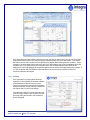
In the event that no Virtual Field Map has been defined for the currently selected database from within
which Integra Quick Reports is being run, then selection of the More Fields option will result in the Actual
Fields of the default form being displayed. Since Virtual Field Maps can have their confidentiality set to
be available to only selected users, groups and/or roles, or to be used only by users making use of a
specific language version of Lotus Notes, it is possible that the end-user will not be shown any virtual field
maps for the database in question.
For help with defining a Virtual Field Map, refer to the Integra for Notes Designer Manual.
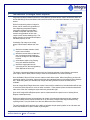
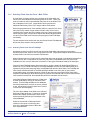
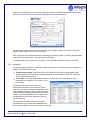
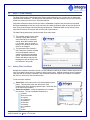
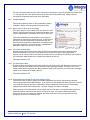
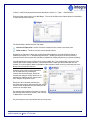
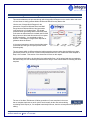
Once a virtual field has been added to the selected field list.
The name given to the Virtual Field by the designer who has
created the virtual fields will be added to the Columns in
Excel section. The field names given will by default be used
as the column heading in Excel. Should you wish to change
the field name given and thus the column heading in Excel,
select the field and use the Field Edit button
highlighted in the screenshot.
2.1.2.2 Selecting Fields Directly from a Form
Independently of whether any Virtual Field Maps have been
defined for a specific database, an end-user will always be
able to access the actual fields directly off the form.
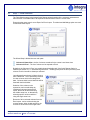
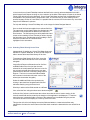
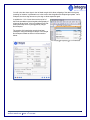
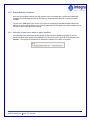
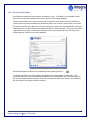
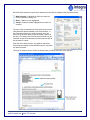
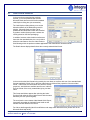
To access the fields directly off the form, select the
Actual Fields radio button shown in the screenshot
alongside.
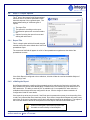
Integra Quick Reports will determine a list of all the
available fields on the form (not just the ones
selected in the view) based upon the form in use for
the currently selected document that the user was
positioned on at the time of launching Integra Quick
Reports. The form in use and the fields available
will be shown in the bottom left-hand corner of the
wizard (see screenshot alongside).
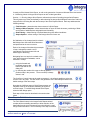
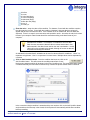
Select the additional fields to be reported on by
clicking in the check-box alongside each field and
add these fields by using the arrow icons.
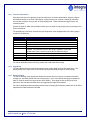
Should you wish to select fields stored on a different
form, select the form using the select arrow shown alongside.
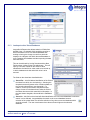
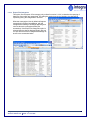
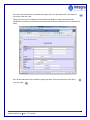
Unlike the list of columns, which shows the column name that the user is used to seeing, in this
case the actual field names created by the designer of the application are displayed. To ease the
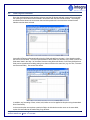
task of the user in selecting fields, a preview of the selected form is available using the preview
icon which will result in the display of a mock-up of the form used.
This preview of the form will display the various fields and labels in a manner that allows easy
identification of what is the actual name of the field which contains the data which the user would like to
select.
Integra Quick Reports 4.6 – User Manual V4.6 beta
th
Shireburn Software Ltd - © 2008 – 16 June 2008
7