1
Q. Pro 200/Pro 300 printer: How do I recalibrate independently of the computer?
A. To re-calibrate the sensitivity of all sensors, do the following:
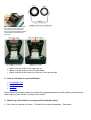
1. Switch the printer off and fit the labels and ribbon you wish to use.
2. Press the button on top of the printer and, while keeping it pressed, switch the printer on.
3. You will see the LED flash randomly as the printer resets, then you will see the LED begin a
series of five distinct red flashes. Release the button any time during these five flashes. If you
hold the button too long the LED will flash orange five times then green five times. If you miss
the red flashes, don’t worry, just switch the printer off with the button still pressed. Then try
again. You cannot harm the printer.
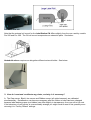
NOTE: Recalibration can become necessary after the ribbon or label has been changed, this is
because label backing paper (and ribbon) can differ slightly in transparency from one roll to the next,
but if the behaviour of your printer is unaccountably strange you might need to reset it first, possibly
even returning it to ‘Factory Default’ settings. The purpose of the ribbon sensor is to pause printing
when the ribbon expires.
Q. How do I set up a 245 or 343 driver (Pro 200/Pro300) directly using Properties?
A. Do as follows:
Right-click the appropriate driver in the Windows Driver folder, and select ‘Printer Properties’ from the
drop-list. Use the instructions below, depending on your requirements:
Post Print Action
General > Printing Preferences* > Stock > Post Print Action >
then
Use Current
None
Tear-Off
Peel-Off
Cut
Partial Cut
Click Apply
Speed/Density
General > Printing Preferences* > Options > Options >
then
Print Speed
Darkness
Click Apply
Page Set-up
General > Printing Preferences* > Page Setup >
then
New
Edit
Click Apply
* Printing Preferences might appear directly in right-click drop-list