1
Device
Do This
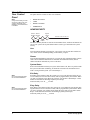
Shock Sensor
Tap the glass twice, away from the sensor. Wait at least
30 seconds before testing again.
Smoke Sensor
Press and hold the test button until the system sounds
transmission beeps.
Wireless Panic Button
Press and hold the appropriate panic button(s) for 3
seconds.
Keychain Touchpad
Press and hold LOCK and UNLOCK simultaneously for
3 seconds.
Remote Handheld Touchpad
Press and hold the 2 EMERGENCY buttons simultaneously for 3 seconds.
2-Way RF Touchpad
Press and hold the 2 EMERGENCY buttons simultaneously for 3 seconds.
RF Electronic Thermostat
No trip needed.
Testing Communication
Communication between your system, the central monitoring station and your pager
should be tested at least once per week to make sure you have the proper telephone
connection.
Note
If your system is not connected to a central monitoring station and you don’t use
a pager, you won’t be able to
perform the phone test.
¾To perform a phone test:
1. Open the panel cover.
2. Enter the master access code.
3. Press the Test button twice. The panel will announce Phone test, press again to
change or done to select.
4. Press the DONE button.
The panel will announce Phone test is on twice. If the test is successful the panel will
announce Phone test ok within 3 minutes. The panel will announce Phone test is on
three times if you have a pager. If the phone test to the pager was successful, your
pager will display -101-101. If the test is unsuccessful, the SYSTEM STATUS button
will light and within 10 minutes the panel will announce Phone communication failure. If a phone test fails, call your security system dealer.
Setting the Clock
If the panel loses power, the clock must be set. The default setting is 12 hour mode.
Your installer can set the clock to 24 hour mode if you wish.
1.
2.
3.
4.
5.
6.
7.
8.
Alarm System
Limitations
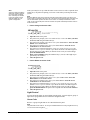
Open the panel cover. Panel announces, Use numbered keys to enter ID.
Enter the master access code. Panel announces, Please select from Start Menu.
Press Clock Set from the Start Menu. Panel announces, Time is ****, to change
press hours and minutes, then press done.
Follow the arrow from the Clock Set button to the Hours keys.
Press the Hours +/– keys and listen to the voice prompts. Stop when panel voice
announces the correct hour.
Press the Minutes +/– keys and listen to the voice prompts. Stop when the panel
announces the correct minutes.
Press Done. The panel will announce the set time.
Close the cover.
Not even the most advanced alarm system can guarantee protection against burglary,
fire, or environmental problems.
All alarm systems are subject to possible compromise or failure-to-warn for a variety
of reasons.
Simon Security System
24