1
The AirUWS portal screen – don’t close this window!
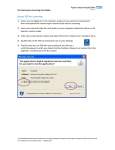
You’ll also see a banner message welcoming you to the campus Wireless Gateway. You must wait for
this message before going further (it may take a minute or so). Press OK. Now you’re fully connected
to AirUWS.
Note: If you don’t see the banner message, you haven’t connected – close Internet Explorer and start
the authentication process again.
Click OK on the welcome message. A Nortel NetDirect icon and bubble
notification will also appear in your system tray
For security reasons, each time you connect you’ll go through the authentication, download and
installation process.
Updated:14/09/2011
10