1
Section 3 - Configuration
Playback Manager Application
Step 1: Please insert the product CD.
Step 2: Install the D-ViewCam NVR Pro application from CD.
Step 3: Run the Playback Manager application from the Start -> Programs ->
D-Link -> D-ViewCam NVR Pro ->Playback Manager
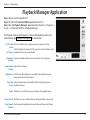
The Playback System control panel is similar to the playback panel in the
web interface. See “Playback” on page 52 for more details.
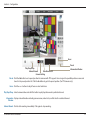
1/4/9/16 Split Users can select to view a single camera or 4 cameras at a time.
Screen:
Select to display the video with full screen. Press the ESC button on the
Full Screen: keyboard to return to normal display.
Information Display video date and time, cue in/out points, time, and speed.
Window:
Audio Volume Adjust the sound level.
Control:
Digital Zoom: Click the icon to digital zoom in or digital zoom out from the view.
Every camera can use this function.
Play/Stop/ Select a camera/video and click this button to play/stop/pause a
Pause: particular channel.
Speed: Click the + or - button to increase or decrease the playback speed.
Cue in/Cue out: Click the Cue In or Cue Out button to set the part of the video to save.
Step forward/ Click to pause the playback and move to the next frame or last frame.
Reverse:
D-Link DNR-326 User Manual
67