1
•
You use less resources on your mail server machine
•
The GFI MailEssentials machine can have a lower specification
then the mail server machine and can process email faster
•
Additional fault tolerance – if anything happens with your mail
server you can still receive email, which is queued on the GFI
MailEssentials machine.
NOTE 1: This separate machine does not need to be dedicated to GFI
MailEssentials; it can run other applications, such as GFI MailSecurity.
If you choose this option, you have to configure IIS before installing
GFI MailEssentials.
NOTE 2: If installing on a Microsoft Exchange Server 2007 machine
with the Edge Transport Server Role, you do not need to install or
configure the IIS SMTP service, since Microsoft Exchange Server
2007 has its own built in SMTP server.
Go to the paragraph 'Installing GFI MailEssentials on a separate
machine' for instructions on how to do this.
IMPORTANT: Do not judge the spam detection rate of GFI
MailEssentials until you have allowed the Bayesian filter to run for at
least one week. GFI MailEssentials can achieve the highest detection
rate compared to other anti-spam solutions because it adapts
specifically to your emails. Be patient and wait at least a week before
you evaluate it.
Upgrading from previous versions
If you are currently using a previous version of GFI MailEssentials,
you can upgrade your current installation whilst retaining all your
existing configuration settings. You will need to enter the fully
purchased license key within 10 days of installing the upgrade. For
information on how to obtain the new license key, visit
http://customers.gfi.com.
NOTE: Only GFI MailEssentials version 9, 10, 11 and 12 can be
upgraded to GFI MailEssentials 14. Upgrades cannot be undone i.e.
you cannot revert to older versions once you have installed the latest
version.
To upgrade:
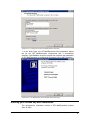
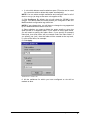
1. Launch the GFI MailEssentials 14 setup file on the machine on
which you have installed GFI MailEssentials. Setup will prompt you
whether you wish to remove the current version of GFI MailEssentials
and install GFI MailEssentials 14. Click Yes to proceed.
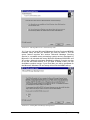
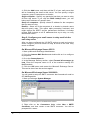
Screenshot 4 - Confirm the upgrade
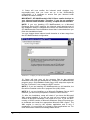
2. Setup will now proceed to install GFI MailEssentials 14 in exactly
the same manner as a new installation (for a detailed description, see
this chapter), however it will not let you change the destination folder.
6 • 1BInstalling GFI MailEssentials
GFI MailEssentials 14 user manual