1
U s e r’ s M a n u a l
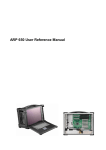
EMP Series User’s Manual
Index
1.0 Introduction-----------------------------3
2.0 Getting started------------------------4
3.0 Features of the EMP 370----------------5
4.0 Computer Operation-----------------7
5.0
Hardware
installation----------14
6.0 Software installation-----------26
7.0 Maintenance---------------------------27
8.0 Problem solving---------------------29
9.0 SKD Accessory Kits--------------31
EMP 370
Copyright ® 2006 All Right Reserved
EMP 370 User’s Manual
Ѿ
Specification of EMP 370
Model
EMP 370
Panel Size
17"
Panel Adjust
Fixed
Illumination
280 nits
Resolution
1280 x 1024
Working Temp.
0°- 50°C
Protection
Yes
Dazzled-Free
Screen
None
LCD
Digital Conversion Board
CB 5621
H x W x D (mm)
346 x 433 x 243
H x W x D (Inch)
13.60 x 17.05 x 9.57
Kgs.
13.5
lbs
29.7
Dimension
Weight
Active PFC Power
Expansion Slots
PS2 400W w/ 12cm Fan
7
2 x 2.25”
Open
2 x 3.5”
Drive Bay
Hidden
None
Placement
Vertical
Construction
Rugged, Shock Resistant
Material
Aluminum / Steel
Motherboard Form Factor
ATX
Keyboard
Reg.108 keys
Mouse
Touch Pad
Language
English (US)
Speaker
Preinstalled with build-In Amplifier
Approval
CE, FCC
K/B Language Option
CH, UK, GR, JP, KO, RU, SW, IT, SG
EMP 370 User’s Manual
ѿ
1.0 Introduction
Version: 2006.3
EMP 370 features:
z
z
z
z
z
z
z
z
Heavy duty & powerful rugged aluminum chassis.
All-Corner rubber bumpers.
Offer 7 slots expansion capability to accommodate ATX, Ext-ATX
motherboard form factor.
High performance processing power.
SXGA ΰ1280*1024αTFT LCD Screen (17”) steel frame
Dazzled-Free screen (Optional)
The new RJ-45 cabling style
Huge 12cm rear cooling fans
The EMP 370 is a heavy-duty rugged industrial portable computing
solution. And it is highly compatible across a broad range of
hardware, software and operating systems. It has more computing
power than that of most desktop, and traditional portable
computers. Its compact size add-in slots, Pentium 4 processing
power, and a SXGA resolution TFT color display make it a high
performance field solution. The EMP 370 portable complies with FCC
class B Part 15 and CE Mark. It is an unpredictably powerful choice
for workstation or server.
You can find EMP in industrial environment serving you with high
performance computer bus analysis & telecommunication testing,
multi-protocol network analysis, PLC programming, real time
automatic industrial application and much more. It is designed to
function with your needs in mind.
EMP 370 User’s Manual
Ҁ
2.0 Getting Started
2.0 Getting Started
The EMP is a well designed compact portable computing machine
that is both nimble as well as rugged. It will serve your needs for both
expansion as well as performance. An Important aspect of the EMP is
the concept of standardizations, which means all components that
you can find off the shelf or proprietary designed will fit into the EMP
370. If the peripheral is designed according to industry standard for
interconnectivity then it will fit. With that in mind, we will layout and
identify each of the component. In this section you can find each
component of the EMP with respect to its purpose and usage.
EMP 370 User’s Manual
ҁ
3.0 Feature of the EMP 370 series
Drive Bays:
EMP 370 – with 2 x 5.25” & 2 x 3.5” Drive Bays.
Keyboard:
108 key regular keyboard is integrated with the portable to allow
closing against the portable for both convenience and protection w/
rubber in transportation.
Keyboard Cable:
The keyboard cable connects to the keyboard internally with cable
jack on the other end for insertion into the portable lower right hand
corner; allow easy access and removal of the keyboard.
LED Status Indicator:
The green LED indicates power on, the red LED indicates hard disk
drive access.
Display:
Integrated TFT Active Matrix LCD provides SXGA 1.6M color display with
resolution of 1280*1024.
EMP 370 User’s Manual
҂
Speaker:
Integrated two speakers to allow media audio play back without
having to outsource attachment. Speaker has volume control for
different environmental usage.
Drive Bay:
The EMP 370 comes standard with 2 x 5.25” & 2 x 3.5” Drive Bays.
Rubber Bumper:
The EMP 370 has new-designed rubber bumper for each corner to
protect sudden shock from various angles.
Power Switch:
The power switch to turn on the computer is located on the right side.
Fan:
Located inside & rear side of the chassis, these fans will help draw out
and push in cool air to alleviate excessive heat built-up for
components inside the portable, allowing worry free operation.
Filters:
Filters located on both sides of the portable help block out dust and
particle from entering the machine.
Expansion Slots:
Opening to provides access to the I/O ports on the installed add-in
cards.
Handle:
Large handle provide convenient transportation of the portable with
comfort and ease.
Keyboard Release Buttons:
These buttons when pushed will release the locking mechanism to
detach the keyboard from the main portable chassis.
EMP 370 User’s Manual
҃
4.0 Computer operation
Features of the EMP
4.1 Keyboard and Touch pad:
How to release Keyboard
There are two release buttons
located on the top-left and
top-right of the keyboard.
When pushed, the keyboard is
disengage from the portable
and will release the keyboard
structure. There are also two
mounting leg located at the
bottom of the keyboard that
are inserted into the portable
for fitting and stability, in which
case you can start lifting the
keyboard
upward.
The
keyboard now can then be
removed for usage.
Push
up
How to close keyboard
Closing the keyboard back onto the portable
follows the same procedure as opening, in a
reverse manner.
It is noted that the
keyboard cable should be put back into its
proper lodging location. Make sure the two
locking mechanisms are properly secure after
it is put back.
Press to release
What to look for
The keyboard cable is located
on the top portion of the
keyboard; it is a coil cable with a
RJ45 connector at the end. The
jack should now be attached to
EMP 370 User’s Manual
҄
the portable (at the lower right hand corner) to be operational.
K/B usage
Keyboard is the main medium for inputting data into the system.
The keyboard of the EMP 370 portable contains both a keyboard
and a touch pad. Keyboard is a NB type 88-keys Windows ready
keyboard with power function and shortcut keys.
Keyboard position
You may want to adjust the keyboard angle by folding the top
portion of the keyboard or just by taking off the main case.
TOUCHPAD operation
TOUCHPAD surface can be used
to move the cursor in the GUI
environment by placing and
moving your finger.
The two
buttons located below the touch
pad act as same as the mouse
left/right button. Or you may wish
to tap on the touch pad to
indicate a left click.
EMP 370 User’s Manual
҅
4.2 Side Panel:
Depending on the system board and
your add-on cards, you may also have
other ports such as Ethernet port, and
Audio ports. When in use, side panel
can also be stored in a slot located on
the back cover.
4.3 Power switch and plug:
The power receptacle is located on the front panel of the machine
near the right-center. The three-prong power plug is supplied.
Depending on your Power supply type, you may find a main power
switch located next to the power receptacle and the position of the
switch is of the following: O=Off, I=On. To power up the system, user
still require to power on the machine on the front of the portable,
labeled Power. If your power supply does not have a main switch,
user will control power on/off using the power switch located in the
front.
4.4 Power supplyΰPS/2α
It’s auto-sensing full range with Active
PFC, dual-fan 450W output.
And it could be upgraded to 550W or
600W as options.
EMP 370 User’s Manual
҆
4.5 Hooking up external monitor:
The external CRT monitor / Projector can be hooked up via the side
panel VGA (15pin) port while the system is off. The CRT/Projector will
provide the cable to be inserted into this port. When connected, the
display should appear if the machine is powered on. The signal is
standard with the internal viewing resolution and the default setting is
simultaneous display on both portable’s LCD and CRT. To change the
output mode (Simultaneous/LCD only/CRT only), please refer to your
VGA setting.
4.6 Audio:
The audio of the system does require user
to install a sound card or at On-Board I/O
of ATX Motherboard.
The built-in internal amplified speakers
provide a phono stereo plug that will fit into
the output port of the sound card.
Audio Area
EMP 370 User’s Manual
Ѿѽ
4.7 Volume adjustment:
There are two volume
adjustments on the side
panel.
Each volume adjustment
may adjust right or left
sound performance by
any situation if possible.
4.8 CD-ROM & FDD Drive:
CD-ROM is important in that many of the applications available
today are store on the CD due to their larger storage capacity.
CD is read-only media (a CDR or CDRW are medium that are for
user creation of data on CD medium) and is pre-loaded with
data. You may open the CD-ROM drive door by pushing the
eject button located on the door of the drive. During access to
the DVD-ROM, the light on the CD door will light up. Floppy disk
drive is essential as they are still an important medium for
transferring data before systems. Floppy disks are available in all
computer stores and are ready for usage in most case if preformatted.
EMP 370 User’s Manual
ѾѾ
4.9 Bottom Holders:
The bottom holders may support the whole frame up in higher
position, thus providing better angles for operating.
4.10 VGA
Based on your model you may have either:
1. 16MB ATIM3, 2x AGP ΰwith special backplane α
2. 64MB ATIM6, 4x AGPΰwith special backplaneα
3. A/D Conversion Board
4. On-board system VGA
5. 64MB ATI M6 D/C Video Ram
Please refer to your VGA user’s manual for details
4.11 Extended USB Port
There are two USB ports on the front panel.
You could insert the thumb drive or other
usage.
EMP 370 User’s Manual
Ѿѿ
4.12 Side Cooling Fans
To release the heat inside of the chassis, there are two cooling
fans on the left side.
4.13 Rear Cooling Fans
To release the heat inside of the chassis, there is one 12cm huge
cooling fan near the slot area on the back cover.
EMP 370 User’s Manual
ѾҀ
5.0 Hardware Installation
Before you attempt to open the EMP-370 and do any hardware
installation, make sure you have the proper knowledge of
installation and compatibility features of any upgrade. And
understand the concept of electrostatic damage that can occur
during handling of sensitive electronic equipments. Proper
precaution should be taken before proceeding.
1. Open back cover----------------Unscrew
Unscrew
Unscrew
Unscrew
Unscrew
Unscrew
2.Remove stabilizer bars -----Unscrew x 4
EMP 370 User’s Manual
Ѿҁ
3. Remove the bottom cover----------
Unscrew x 2
Unscrew x 2
4
4. Remove the drive bay----------
Unscrew x 8
3mm
Be sure to use the Allen key
driver while removing the
side cover.
Unscrew x 2
EMP 370 User’s Manual
Ѿ҂
Unscrew x 4
Slide & move out the fan
slowly.
Unscrew x 2
Be sure to put on the
rubber ring while
mounting the screws.
Slide & move out the drive bay
slowly
EMP 370 User’s Manual
Ѿ҃
5. Remove the power supply----------
3mm
Be sure to use the Allen key
driver while removing the
side cover.
Unscrew x 2
Unscrew x 4
EMP 370 User’s Manual
Ѿ҄
6.Insert system board mounting
standoff-------Standoff
Standoff
Standof
*Please refer to your system board manual for detailed references.
7.Install system board
with CPU and RAM------PCI slots
Power
Connection
RAM
CPU
*Please refer to your system board manual for detailed references.
EMP 370 User’s Manual
Ѿ҅
8.Connect keyboard and
TOUCHPAD cables-------Cables
Plug
ϠPlease refer to your system board manual for detailed references.
9.Connect power, LED, and
speaker wires--------
Power wires
LED wires
Speaker wires
Please refer
to System
Board Manual
for actual
location.
EMP 370 User’s Manual
Ѿ҆
10.Install CD-Rom into
Drive bay housing-----
Side Screw x 2
Side Screw x 2
CD-ROM
11.Install FDD and HDD into drive
bay housing---
Side Screw x 2
Same
as Another
Screw
x2
EMP 370 User’s Manual
ѿѽ
12. Install the Drive Bay
into Chassis------
Side Screw x 2
Bottom Screw x 8
ϡPlease be careful with the cable while removing the drive bay.
13.Connect IDE and
power cables------
IDE cable
Power cable
Under Drive
Bay
ϡPlease refer to your model’s removal process for reinstallation.
EMP 370 User’s Manual
ѿѾ
14.Install VGA card &
LCD ON/OFF wire--LCD on/off wire
VGA card wire
ϠPlease refer to your system board manual for detailed references.
15.Reinsert the bottom cover---------
Reinsert x 2
Reinsert x 2
EMP 370 User’s Manual
ѿѿ
16.Reinsert the side cover---------
3mm
Reinsert x 2
Be sure to use the Allen key
driver while removing the
side cover.
Reinsert x 2
EMP 370 User’s Manual
ѿҀ
17. Remount the stabilizer bar --------
Unscrew x 4
18. Put the rear cover back-------------
Reinsert
Reinsert
Reinsert
Reinsert
Reinsert
Reinsert
EMP 370 User’s Manual
ѿҁ
19. Additional Notice ----------------------
Card
EMP 370 User’s Manual
ѿ҂
6.0 Software Installation
CD-ROM Driver: CD-ROM driver is supplied with most operating
system.
DOS Boot up: DOS boot up requires you to have a version of the
DOS installed on hard disk drive or floppy. Depending on the
execution sequence you have set in the batch file, you will
usually get a DOS prompt after loading.
Window Boot up: Windows boot up requires you to have Windows
installed in the hard disk drive. During Windows boot up, you will
see a sequence of access to your hard disk drive which will
eventually take you into a graphical user interface environment.
As in the EMP, a copy of the Windows NT 4.0 Workstation is preinstalled in the machine.
Other O/S description: Many other operating systems are
available in the market, such as Linux, Windows, Solaris and DOS.
These operating systems will behave differently and you should
react accordingly.
EMP 370 User’s Manual
ѿ҃
7.0 Maintenance
7.1 Handling of EMP:
You should always make sure the keyboard assembly is properly
closed onto the EMP before transporting it. This will ensure you do
not loose the keyboard as well as protecting the LCD screen.
You may transport the portable in its carrying case, or you can
carry the EMP on its handle located on top of the machine. The
handle is located securely to the strongest part of the machine,
and distributes the load of the EMP evenly as to allow easy
carriage and proper balance.
7.2 Handling of Cable:
All cable should be treated with care. Do not over extend any
cable and this could result in breakage internally in the cable. It
is essential that cable with its plug be handled in the proper
manner without force.
7.3 Handling of LCD:
Do not use any abrasive material to scratch the LCD screen, as
they can leave marks on the surface. Do not apply any pressure
to the surface of the LCD screen either with objects or hands; this
will ensure that the screen do not suffer from internal damage or
cracks.
7.4 Handling of Power:
Always make sure the power cord is in top condition before using
them with the EMP. Make sure your power source is reliable and
of proper standard. The EMP power supply is capable of
handling 100-240V and 50-60Hz. Do not use the EMP on an
already overloaded circuit.
7.5 Handling of K/B:
The keyboard is essential in that it helps protect the LCD during
transportation. You should always watch for spill liquid or small
objects from entering the keyboard. And the touch pad surface
should be kept dry and clean for proper usage.
EMP 370 User’s Manual
ѿ҄
7.6 Cleaning LCD:
1. Do not use cleaner that contain alcohol.
2. Do not use cloths that could be abrasive to the surface of the
LCD.
3. Always gently wipe the LCD surface when cleaning.
7.7 Cleaning K/B:
1. Do not spill any liquid on to the keyboard.
2. Do not drop particle into the spacing between keys.
3. Using a compress air cleaner, you can remove the dust built-up
within.
7.8 Cleaning Fan Filter:
1. Remove the filter from its housing.
2. Use a compress air cleaner to blow off the dust from the filter.
3. If necessary, you can wash the filter material, but do remember
to dry it before inserting it back.
EMP 370 User’s Manual
ѿ҅
8.0 Problem Solving
8.1 Installation problem:
1. Normally problem with a fail start up is due to installation
problem.
2. Double check all the peripheral cards or items you have
added to the EMP.
3. Are all the items seated properly?
4. Are all the cables connected back to its original or correct
position?
5. Are the items you have added compatible?
6. Before you check for these, turn the computer off and unplug
the power cord.
7. Check for 1 thru 5 and then re-power up the computer.
8. Remove all items that were added and re-try system power
up.
9. If the system starts now, try inserting 1 new item in at a time
and try powering up.
10. Repeat this step until you get the desired result.
8.2 BIOS Beep Code:
The BIOS beep code indicates error in system initialization. The
BIOS of the system board will associate with video and memory
error. Please check your video card is properly seated and your
memory is installed properly.
8.3 System Fails to power up:
1. Check you power connection first.
2. Check the main power switch is in the ON position (I).
3. Press the power button located in front of the machine.
8.4 No display (LCD):
1. Check all the proper power up procedure have been taken.
2. Hook up an external CRT to the VGA port, to check if video is
present.
3. If video is present on external CRT, check the internal LCD
cable connection.
4. Or check your VGA setting using a CRT to make sure LCD
video is enabled.
5. If there is no video on external, check your system to make
sure everything is seated properly.
EMP 370 User’s Manual
ѿ҆
6. If everything is seated properly and still no video, call us for
further assistance.
8.5 External CRT no display:
1. Check to see if you have internal LCD video.
2. Check if your CRT is functioning properly.
3. Check your VGA setting to make sure external video is
enabled.
8.6 Keyboard fails:
1. Make sure the keyboard plug is inserted completely into the
portable.
2. Make sure you do not have another keyboard connected to
the side I/O PS/2 port.
8.7 TOUCHPAD fails:
1. Make sure the keyboard plug is inserted completely into the
portable.
2. If you have an external PS/2 mouse hook up on the side I/O
PS/2 port, the touch pad will not function simultaneously.
3.If your operating system requires and does not load the mouse
driver automatically, make sure you have the proper mouse
driver loaded.
8.8 Floppy fails:
1. Make sure the diskette is of the proper specification (1.44MB,
720KB)
2. If floppy fail during POST, check internal cable fit.
8.9 CD-ROM fails:
1. Make sure the CD is readable.
2. If CD-ROM fails to be recognized during POST, check internal
cable fit.
EMP 370 User’s Manual
Ҁѽ
9.0 Standard SKD Accessory Kits
EMP 370
Model
EMP
370
Accessory Kit SKD
Accessory Kit System
Qty
1
User’s Manual
User’s Manual
1/1
2
Driver CD
Driver CD
1/1
3
ESD Bag
ESD Bag
1/1
4
110 Power Cord
220 Power Card (Option)
110 Power Cord
220 Power Card (Option)
1/1
5
Screw Pack (stabilizer)
Screw Pack (stabilizer)
1/1
6
Stabilizer Supports Pack
Stabilizer Supports Pack
1/1
7
Hardware Pack (system)
1/1
8
9
EMP 370 User’s Manual
ҀѾ