1
Working with standard reports
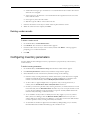
Sales report and Sales Analysis report
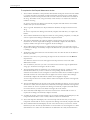
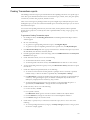
The Sales report lists items and summary sales information. Once you have generated the Sales report,
you can generate the Sales Analysis report that provides additional detail about the information on the
Sales report.
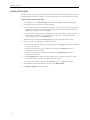
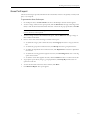
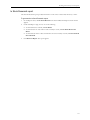
To generate the Sales report and the Sales Analysis report:
1.
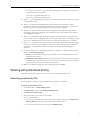
On the Report menu, click Sales. The Sales Report Criteria window appears.
2.
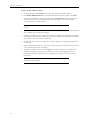
To specify the report period, choose one of the following:
3.
4.
If you want the report period to be for today’s date, click Current Business Date.
If you want the report period to be for yesterday’s date, click Previous Business Date.
To select a range of dates for the report period, click Period and type a date range in the fields,
or click the button beside the fields and select a date from the pop-up calendars. Click OK.
If you want the report period to be for a selected week, click Week Ending and type the date
of the end of the week in which you want the report, or click the button beside the field and
select a date from the pop-up calendar. Click OK.
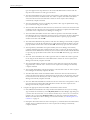
To specify how much sales information you want, choose one of the following:
To include sales information for the entire store, click By Store.
To include sales information for a single register, click Register.
To include sales information for a group of registers, click Register Group.
To include sales information for all registers, click All registers.
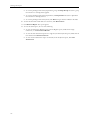
To generate the Sales report, click Generate Report.
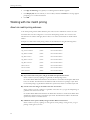
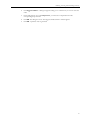
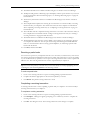
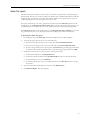
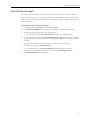
The following table contains the formulas used to calculate the data in some of the columns:
Column
Formula
Total Gross Non Merch
Sales
Total sales of non-merchandise items.
Note: Your head office uses the Configurator to define non-merchandise items.
Only non-merchandise items with the Add to Gross check box selected in the
Configurator, are included in this total.
Total Reductions to
Gross
Total of returns and discounts, not including vendor’s coupons.
Net Sales
Total gross sales — total taxes — total reductions to gross.
Total Other Non Merch
Sales
Total sales of the non-merchandise items not included in the Total Gross Non
Merch Sales figure.
Note: Your head office uses the Configurator to define discounts. Only
discounts with the Affect Net check box selected in the Configurator, are
included in this total.
Note: Your head office uses the Configurator to define non-merchandise items.
Only non-merchandise items without the Add to Gross check box selected in
the Configurator, are included in this total.
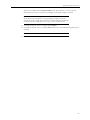
Total Other Receipts
Total of tender coming into the store that is not a direct result of a merchandise
sale, including additional amounts, deposits, and fees.
159