1
Ordering, receiving and transferring inventory
7.
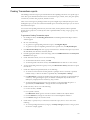
Required Qty. This field defines the quantity of the item you are ordering.Type a number into
the field.
Pkg. Qty. This field defines the number of the item that is shipped in each case. For example,
if the number 4 is in this field, the item is shipped in cases of 4. No action required. Store
Manager automatically completes this field with the number in the Pack Factor field in the
Vendor’s SKU Maintenance window if vendor’s SKUs are being used. If you do not enter a
number into the Pack Factor field, the Store Manager enters the number “1” into this field.
Pkg. Count This field defines the number of packages being ordered, based on the values you
enter into the Required Qty. field, and the number in the Pkg. Qty. field. If you order an odd
number of items, the Store Manager calculates the number of packages required to fill the
order. For example, if you enter 7 into the Required Qty. field, and there is a package size of 6,
then 2 packages are ordered. The second package is ordered to accommodate the seventh
item. No action required. Store Manager calculates the number of packages required, and
completes the field.
Extended Units This field defines the total number of the items you are ordering. The total
number is based on the package size, and the package count. No action required. Store
Manager calculates the number of items and completes this field.
Cost Price This field defines the cost to the store of the item you are ordering. The item’s cost
is defined in the Cost field in the Vendor’s SKU Maintenance window or the PLU
Maintenance window. The cost for the number of the item you are ordering is displayed in the
Extended Cost field in this window. No action required. Store Manager automatically
completes this field.
Extended Cost This field represents the total cost of the items being ordered. The total cost is
based on the values in the Extended Unit and the Cost Price fields in this window. No action
required. Store Manager completes this field.
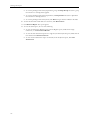
Complete the appropriate fields at the bottom of the Purchase Order window.
Retail Price This field defines the retail price for the item. You define the retail price in the
Retail Price field in the PLU Page 1 tab of the PLU Maintenance window. No action required.
Store Manager automatically completes this field.
Ext. Retail This field defines the retail price for the items being ordered. The total price is
based on the values in the Extended Unit and the Retail Price fields in this window. No action
required. Store Manager automatically completes this field.
Dept. This field defines the department to which the item you want to order is assigned. You
can assign PLUs to departments using the Dept. Number drop-down list in the PLU Page 1
tab of the PLU Maintenance window. For information about defining departments, see
“Defining departments” on page 23. No action required. Store Manager automatically
completes this field.
Gross Mrg. This field defines the gross margin the store earns on the item. The calculation is
based on the difference between the values in the Retail Price and the Cost Price fields. No
action required. Store Manager automatically completes this field.
Seq. This field indicates the line that is highlighted in the purchase order. The Retail Price, Ext.
Retail, Dept, Gross Mrg., Seq., and Order Number fields contain the information for the line
that is highlighted in the purchase order. No action required. Store Manager automatically
completes this field.
Order Number This field contains a unique number that is used to track the item during order,
receive, and transfer transactions. You define the order number in the Ordering No. field in
the PLU Page 1 tab of the PLU Maintenance window. No action required. Store Manager
automatically completes this field.
65