1
Mac Printing in Detail
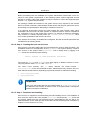
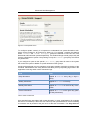
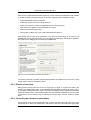
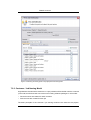
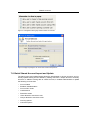
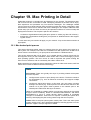
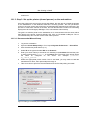
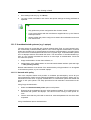
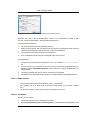
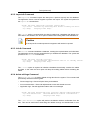
If you have problems obtaining a driver for your printer, try the Generic Postscript Driver.
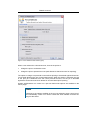
This option will work with most printers. If after a test print the printer stops with a connection error, check the printer sharing permissions on the server or try the alternate method
discussed below.
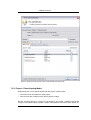
19.1.3.2. Alternate Manual Setup (LPD/LPR)
1.
Log onto a workstation
2.
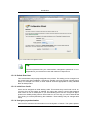
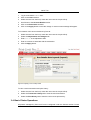
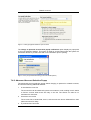
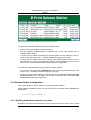
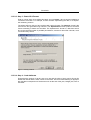
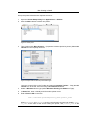
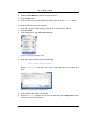
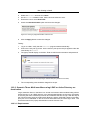
Open the Printer Setup Utility or if on Leopard System Preferences → Print & Fax
3.
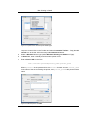
Click the add new printer button (or +).
4.
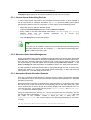
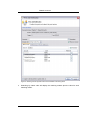
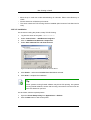
Select IP as the type and select LPD as the Protocol.
5.
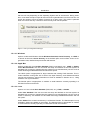
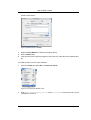
Enter your server name (or the server's IP Address) in the Address field and the printer name in the Address field. The name of the printer will be the same as configured
on the server.
6.
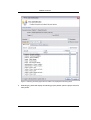
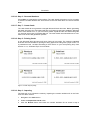
Select the appropriate printer model. If this is not listed, you may need to install the
manufacturer's driver, then repeat steps 2 through 6.
7.
Take some time to print from the workstation and confirm that printing succeeds.
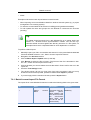
19.1.4. Publishing the printer via Workgroup Manager
Manually installing the printer on each desktop on a large network may be tedious. Large
networks using Open Directory may benefit from automating the process using Workgroup
Manager. The key to successfully deploying/publishing printers via the Workgroup Manager is to publish the configuration from a working workstation rather than the server itself.
This is counter intuitive as normally administration is conducted by running Workgroup
Manager on the server itself. This however would publish the server's printer configuration
(the server is configured to print direct to the device and not to the queue hence this is why
it's not appropriate to publish its configuration). Instead we need to install the Workgroup
Manager software on a configured workstation/client and publish its known configuration.
Use the following procedure:
1.
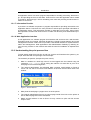
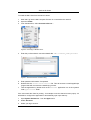
Select one workstation on your network. Follow the manual setup procedure as discussed above.
2.
Test and confirm this workstation is configured and printing correctly. Also choose other settings as appropriate such as tray, duplex and other defaults.
3.
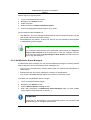
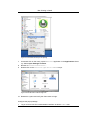
Install the Workgroup Manager on this client workstation (found on the Mac OS X
Server install disk).
4.
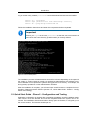
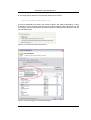
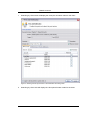
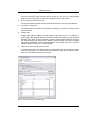
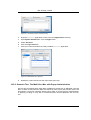
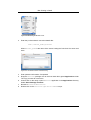
Open the Workgroup Manager, connect to your directory and select an appropriate
user group or computer group used to manage client settings.
5.
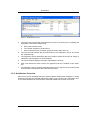
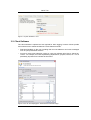
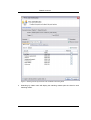
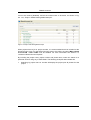
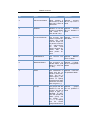
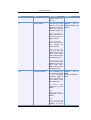
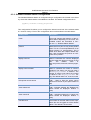
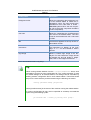
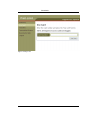
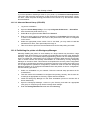
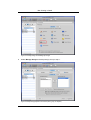
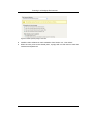
Enter the Settings/Preferences area and select Printing.
230