1
Trouble shooting.
Run “HAT-Track” program trouble – Link test
1. Check whether your USB port is dead or not.
2. If you are using UBS hub, check whether it is compliant with UBS 2.0 standard or not.
Vector line trouble – Arrangement & Configuration test
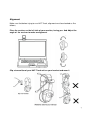
1. Check whether the transmitter is clipped on your headset or not.
2. If “Vector line” is not shown, place your head to face the receiver of your HAT-Track.
3. Confirm whether “Show Dot” is checked or not (Even if HAT-Track is working, the vector
line may not be shown. It means “Show Dot” is checked.)
4. Read Calibration the sensitivities (page 13) again.
5. If you move to a new place, reset “Center” for your “Vector line”
No movement of game view – Game Interface
1. Please check that you have downloaded & installed “FSUIPC”.
On “FSUIPC”, refer to “Download & install FSUIPC” at Download.
2. If you play MSFS9 2004, please go to the “Game Interface” of “Setting” of HAT-Track
software and check “FSUIPC” is checked.
3. If you play MSFSX, please go to the “Game Interface” of “Setting” of HAT-Track
software and check “Simconnect” is checked.
4. Check your game view is in 3D mode or not.
MSFS9 2004 : Default cockpit view is 2D. Press “S” button to change 3D virtual cockpit
view.
MSFSX : Go to main game screen. Find “Setting” and click. Find “Customize…” and
click. Find “Aircraft” and verify “3-D virtual cockpit” of “Default cockpit view”
is checked.
5. If you play MSFSX, before using HAT-Track, please do software patch
(Acceleration, SP1, SP2) first.
6. Even if FSUIPC4.x is properly installed and it says its okay, but you load MSFSX
and still find no "Add-Ons" menu. In this case, it is simply a matter of telling the
firewall or privacy program to trust FSX, to move it to the trusted and internet
zones.
7. Avid using HAT-Track at any strong rays around user.
8. Any mirror around a user may cause malfunction.
Other troubles or further more question contact us ([email protected])
18