1
Perfect Effects 34
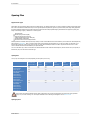
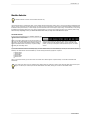
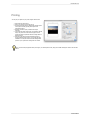
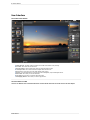
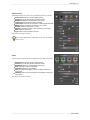
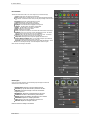
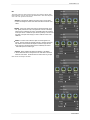
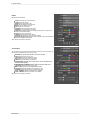
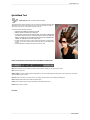
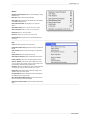
Preview Window Modes
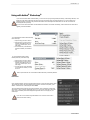
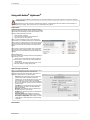
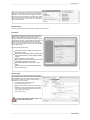
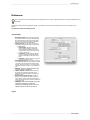
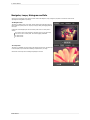
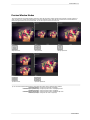
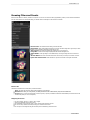
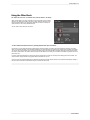
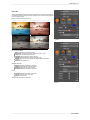
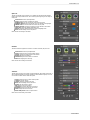
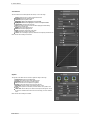
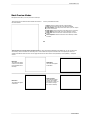
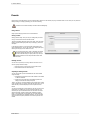
The preview window has several modes including; single image, side-by-side (horizontal or vertical) and split-screen (horizontal or vertical) versions of an
image. This allows you to compare layers side-by-side or to view a layer mask and the layer side-by-side. At the bottom left of the Preview Window is a
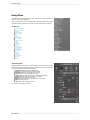
button that toggles and shows the current Preview Mode. You can also change the mode from the View menu.
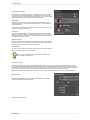
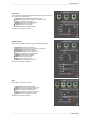
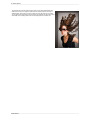
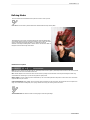
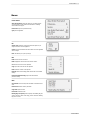
Single Mode Screen.
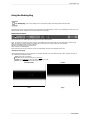
Left-Right Screen.
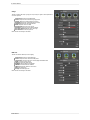
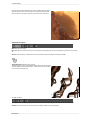
Top-Bottom Screen.
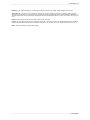
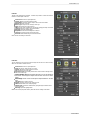
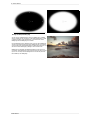
Top-Bottom Split Screen.
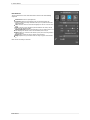
Left-Right Split Screen.
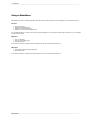
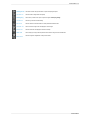
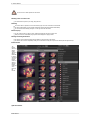
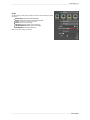
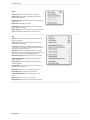
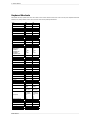
Tip: You can use the keyboard shortcuts below to quickly switch view modes. Items in parenthesis are for Windows.
Command (Control) L:
Command-Option (Control-Alt) L:
Command (Control) T:
Command-Option (Control-Alt) T:
Command (Control) Y:
Change the preview mode to Left/Right.
Change the preview mode to Left/Right Split screen.
Change the preview mode to Top/Bottom.
Change the preview mode to Top/Bottom Split screen.
Change the view mode to single image.
Perfect Effects