1
11: Exporting Data
This chapter provides you with instructions on how to export data from MEDIA
Access Pro™ for import into other databases, spreadsheet and word processing
programs.
Exporting Data Overview
MEDIA Access Pro™ gives you the powerful capabilities of exporting data to nearly
any type of program. Exporting features for some of the more popular programs are
built into MEDIA Access Pro™ (see below). Follow the simple instructions below to
export your search results.
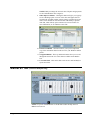
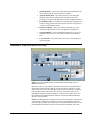
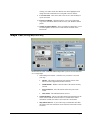
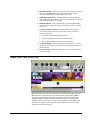
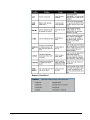
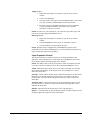
1.
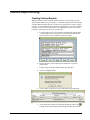
After completing your search and receiving the results you desired,
click on the Export menu.
2.
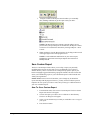
Click on the program or file format to which you wish to export
(Delimited ASCII, Microsoft Excel, etc.).
3.
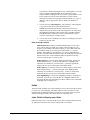
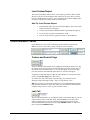
In the Windows Save As box, select the appropriate directory and
folder to place your exported file.
4.
Type in a File Name in the space provided. NOTE: No file extension is
necessary (i.e., .xls, .dbf, etc.). MEDIA Access Pro™ will
automatically assign a file extension based on the export format you
selected.
5.
Click on the Save button.
6.
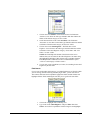
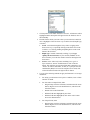
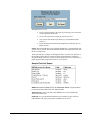
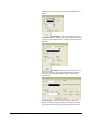
MEDIA Access Pro™ will rerun the search and an Export Field List
request box will appear. Click on either Preview, Print or No Report,
depending on your preference. Entering a Report Title is optional.
7.
An export file has now been created in the directory and folder to
which you assigned it.
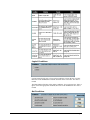
See each export type for more information and any special conditions that can be
expected.
Delimited ASCII (.txt)
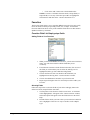
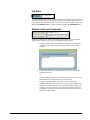
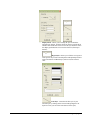
Delimited ASCII is the most generic export type. While there is usually no header or
formatting information, just raw data with each field separated by commas, MEDIA
Access Pro™ provides the option of placing a header row in your text file. Just click
MEDIA Access Pro™ Version 4.0 User Manual
11: Exporting Data • 135