1
5.
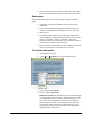
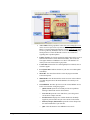
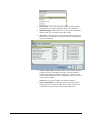
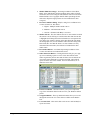
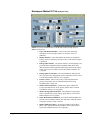
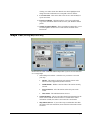
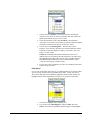
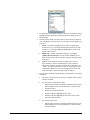
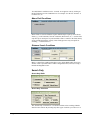
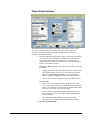
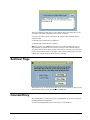
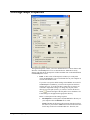
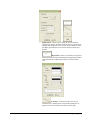
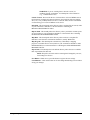
Click on the down arrow to select when you want to perform your
download (any time between now and 12 hours from now in 1-hour
increments)
6.
As a safety measure in the off-chance there is a problem with the new
data download, check Backup First to retain a copy of your old data.
7.
Under “Update Options” select whether you want to update your
Station Data and/or Coverage Map data. The date to the right of each
selection indicates the last time you downloaded a data update for each
type of data.
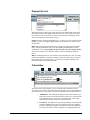
8.
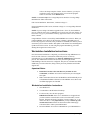
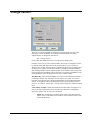
Click on the Proceed button to activate the countdown clock or start
the downloading process.
NOTE: For a successful download, you must…
•
leave the Update Data screen open (you can minimize both it and
MEDIA Access Pro™ and work in other programs on your
computer during this process); and
•
when installing a data update on a network, make certain all other
users have closed MEDIA Access Pro™ on their workstations.
Manual Internet Updates
If for some reason the automated updating process does not work for you, there is a
manual process via BIAfn’s website. This method does involve several steps as
outlined below.
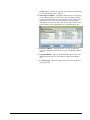
1.
From your Internet browser, go to BIAfn’s home page: www.bia.com.
2.
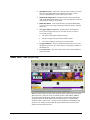
Click on the MEDIA Access Pro Users button located on the left hand
side of the page.
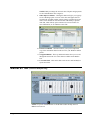
3.
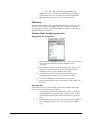
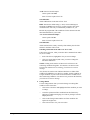
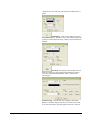
This opens the Members Area of the BIAfn website. If there have been
any important notices posted as it regards MEDIA Access Pro™, a
pop-up window will appear. Read these messages. Click on the X in the
upper right corner of the pop-up window to close it.
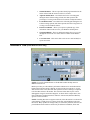
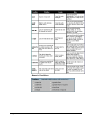
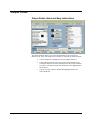
4.
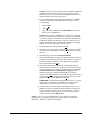
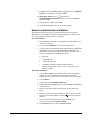
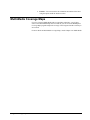
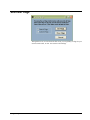
On the Members Area screen, click on the Data Updates button
.
NOTE: the other offerings available in the Members Area.
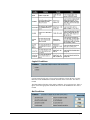
5.
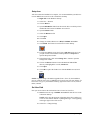
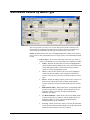
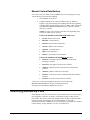
Select the Version of MEDIA Access Pro™ you wish to update by
clicking on the appropriate icon for either Version 4.0 or Version 3.1.
6.
Click on OK or Yes for any security messages you may encounter.
MEDIA Access Pro™ Version 4.0 User Manual
2: Installation and Data Updates • 29