1
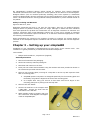
FIELD INSTALLATION OF SIMPLEABI SOFTWARE This section applies only to systems where the software is installed in the field – computers shipped from Newman Medical already have the software loaded and this section does not apply. WARNING: simpleABI is only supported on the following Windows Operating Systems: Windows XP (32 or 64 bit) Windows 7 (32 or 64 bit) Do not install on any other operating systems prior to contacting Newman Medical Technical Support for information. WARNING: Use of other applications (word processing, games, internet) is not an appropriate use of a medical device and must be avoided to ensure proper operation of the simpleABI system. Software Installation Directions 1. Plug in included USB Flash Drive into PC 2. Copy *.msi to C:\ purchased) (.msi file will have different names depending on simpleABI system 3. Double Click *.msi file to begin installation PVR Driver Installation-Windows XP 1. Plug in PVR box. 2. At prompt, select ‘Install from a list or specific location (Advanced) and click the ‘Next>’ button 3. Check the box that says ‘Include this location in the search:’ and browse to C:\PROGRAM FILES\NEWMAN MEDICAL\***\PVRDRIVER, where *** is the simpleABI system purchased 4. Click OK and then Click the ‘Next>’ button. This will begin the install for the driver for the PVR boxes. 5. Driver should be properly installed and can be checked by opening simpleABI Reporting Software and clicking on either PVR button on an opened ABI Report. If installed properly, pop-up window will display ‘Left/Right PVR Device Connected’ a. If not installed properly, pop-up will read ‘Left/Right PVR Box Not Detected’ PVR Driver Installation-Windows 7 6. Plug in PVR box. 7. Double Click on icon in taskbar that says ‘Installing device driver software’ 8. On pop-up window click link that says ‘Skip obtaining driver software from Windows Update’. Click Yes on pop-up confirming skipping finding driver using Windows Update. 9. Click the ‘Start’ Button (Windows Logo) and click ‘Devices and Printers’ 10. Scroll to ‘Unspecified’ Devices and double click the Newman Medical PVR Device. 11. Click the ‘Hardware’ Tab 12. Click the ‘Properties’ button 13. Click the ‘Change Settings’ button Page 4 of 19 NM0018-G