1
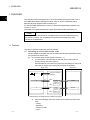
6 UTILITY PACKAGE (GX Configurator-DN)
MELSEC-Q
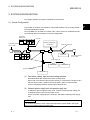
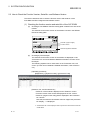
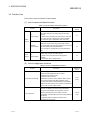
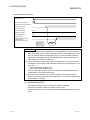
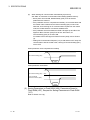
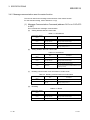
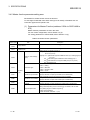
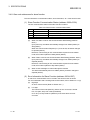
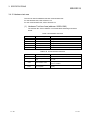
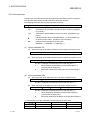
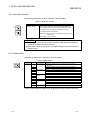
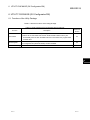
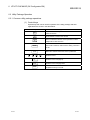
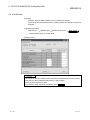
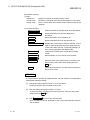
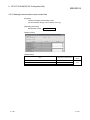
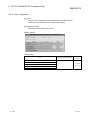
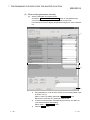
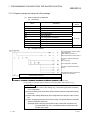
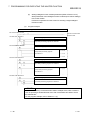
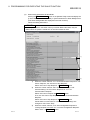
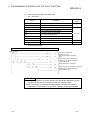
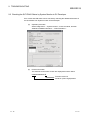
(3) Menu bar
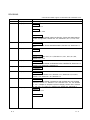
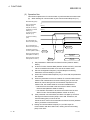
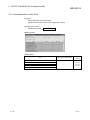
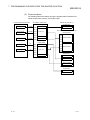
(a) File menu
Intelligent function module parameters of the project opened by GX
Developer are handled.
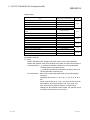
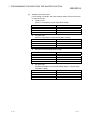
[Open parameters]: Reads a parameter file.
[Close parameters]: Closes the parameter file. If any data are modified, a
dialog asking for file saving will appear.
[Save parameters]: Saves the parameter file.
[Delete parameters]: Deletes the parameter file.
[Exit]: Closes the current screen.
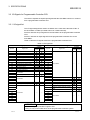
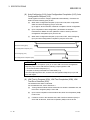
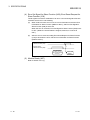
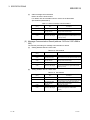
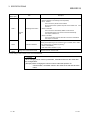
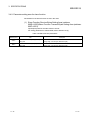
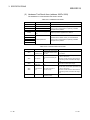
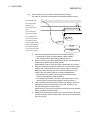
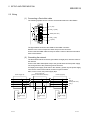
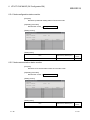
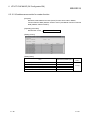
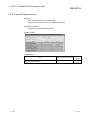
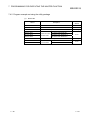
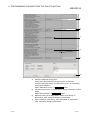
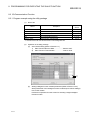
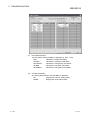
(b) Online menu
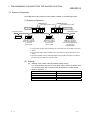
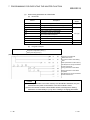
[Monitor/Test]: Activates the Select monitor/test module screen.
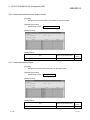
[Read from PLC]: Reads intelligent function module parameters from the
CPU module.
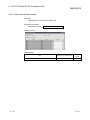
[Write to PLC]: Writes intelligent function module parameters to the CPU
module.
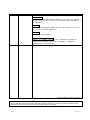
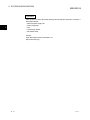
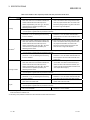
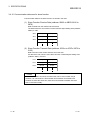
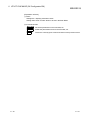
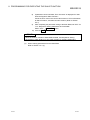
POINT
(1)
(2)
(3)
6 - 12
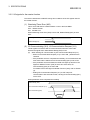
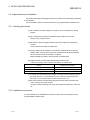
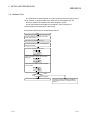
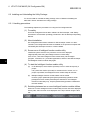
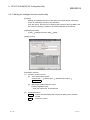
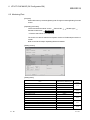
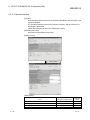
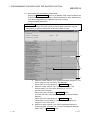
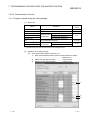
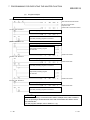
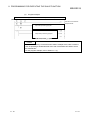
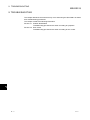
Saving intelligent function module parameters in a file
Since intelligent function module parameters cannot be saved in a file by the
project saving operation of GX Developer, save them on the shown module
selection screen.
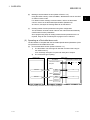
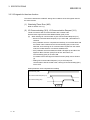
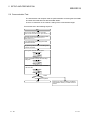
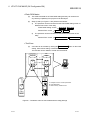
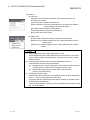
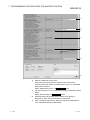
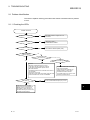
Reading/writing intelligent function module parameters from/to a
programmable controller using GX Developer
(a) Intelligent function module parameters can be read from and written into
a programmable controller after having been saved in a file.
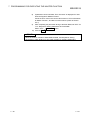
(b) Set a target programmable controller CPU in GX Developer:
[Online] [Transfer setup].
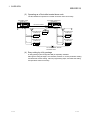
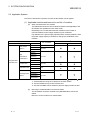
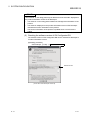
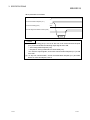
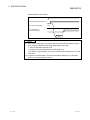
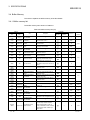
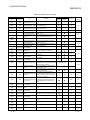
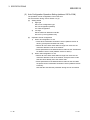
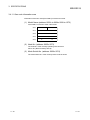
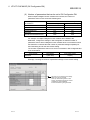
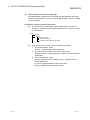
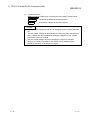
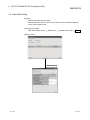
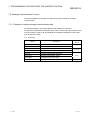
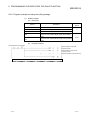
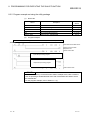
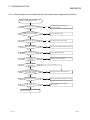
Checking the required utility
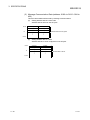
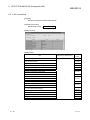
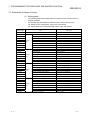
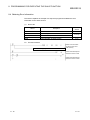
While the start I/O is displayed on the Intelligent function module utility setting
screen, "*" may be displayed for the model name.
This means that the required utility has not been installed or the utility cannot
be started from GX Developer.
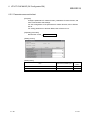
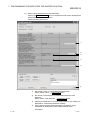
Check the required utility, selecting [Tools] - [Intelligent function utility] - [Utility
list...] in GX Developer.
6 - 12