1
exposure simulation – brightness of the live view reflects brightness of the real photo. It also
allows you to control the lighting and the rotation platform of „Jumbo”.
Language is chosen when the software is launched for the first time or after selecting
“Settings/Change language” option”.
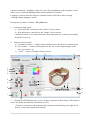
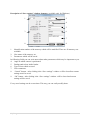
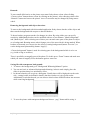
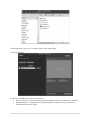
Description of window elements – Easy Photo 2.1.
1. Connection status panel:
a) Green indicates connection to the "Jumbo” device/camera;
b) Red indicates no connection to the "Jumbo” device/camera.
(Attention! If there is no connection check cables and make sure you have successfully
install device drivers).
2.
Program selection panel:
a) „continuous rotation” – rotation of the platform in one direction at a constant speed
b) „free rotation” – rotation of the platform to the left or to the right using the arrow
keys (see point no. 6)
c) „series” – choice of number of shots in series
17
18
19
7
3
4
5
8
2
15
6
14
12 13
9
16
11
1
10
3. Clicking the START button near “series” begins a sequence of shots chosen. This button is
active only when all conditions listed below are met:
• Camera is connected to the computer and is turned on (indicated by green light in leftbottom corner of the application window)
7|Page