1
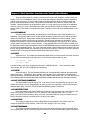
8.6.4 Formatted ELF File Copied to TFS:
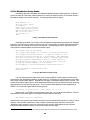
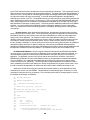
The most common way the application is stored on the target is to transfer the elf-formatted file directly
to TFS. TFS understands elf, so it can then be used to extract the memory map information from the file and
transfer the various sections (.text, .data, .bss) into RAM space. The formatted file also contains information
about the entrypoint and TFS extracts that and automatically turns over control to the image at that point. For
example, in addition to the assumptions of the previous example, assume the file ‘image’ (no .bin extension) is
the elf formatted file on the host, the following steps would be taken to download and run that image:
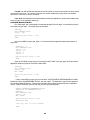
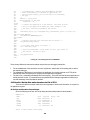
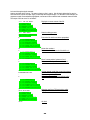
HOST COMMAND: strip image
This removes all symbol table information from the elf file.
HOST COMMAND: ttftp 1.2.3.4 put image image,E
This transfers the elf-formatted ‘image’ file on the host to the same filename in TFS. Notice that the
destination has an ‘,E’ appended to it. This tells MicroMonitor’s TFTP server to store it in TFS with the
‘executable image’ flag set (refer to section 5.1 above for discussion on TFS’s file attributes).
TARGET COMMAND: image
MicroMonitor’s CLI (command line interface) first looks for the command in it’s set of built-ins, then,
assuming a match is not made, it looks through TFS to see if there is an executable file with the same
name. This invokes TFS’s loader to read the elf section headers in the ‘image’ file and transfer each
section as specified to the appropriate address in RAM. In addition, the .bss section is automatically
cleared by TFS. After this is complete, the entrypoint (another snippet of information contained in the
headers of the elf file) is jumped into and the application then takes over the system.
Note that this is a much simpler procedure. It allows the user to take advantage of TFS’s ability to load
the image from TFS file storage space to RAM runtime space all in one step. Alternatively, the above singlestep could be broken down into individual load and run commands if so desired…
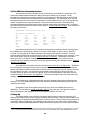
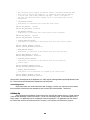
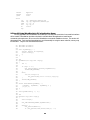
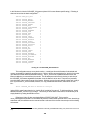
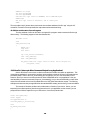
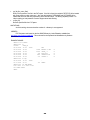
TARGET COMMAND: tfs –v ld image
This uses the TFS subcommand ‘ld’ (load) with the verbose flag set to show the user where it is placing
each of the sections within the elf file.
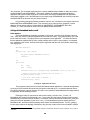
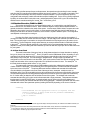
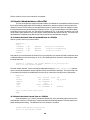
TARGET COMMAND: call $ENTRYPOINT
This uses the ENTRYPOINT shell variable as an argument to the call command. The shell variable
ENTRYPOINT is automatically created by the “tfs ld” command for use by a subsequent ‘call’ command.
As a result, these two commands could have been put in a script and executed. The purpose behind
wanting to split the load and run into two steps is to allow the user (under certain circumstances) to do
something after the load but before execution starts. For example, some targets support insertion of a trap
or breakpoint-like instruction into the RAM based instruction stream.
8.6.5 Compressed & Formatted ELF File Copied to TFS:
This section is essentially the same as the previous section except that the elf-formatted file is
compressed using the ‘elf’ tool on the host. Then, when stored in TFS on the target, the ‘c’ flag is included so
that TFS knows that the individual sections within the elf file format have been compressed. For example, using
the same assumptions as the previous example, the following steps would be taken to download and run that
image:
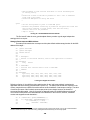
HOST COMMAND: strip image
Remove all symbol table information.
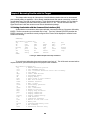
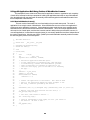
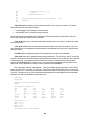
HOST COMMAND: elf –z6 image
Compress each of the sections of the elf image using the zlib compression algorithm (built into the elf tool).
Note that if the image’s headers are in little-endian, then “elf –cz6 image” is the command to use. This
creates a file called image.ezip.
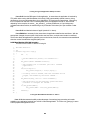
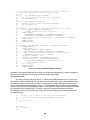
HOST COMMAND: ttftp 1.2.3.4 put image.ezip image,Ec
This transfers the elf-compressed/formatted ‘image.ezip’ file on the host to the file ‘image’ in TFS. Notice
that the destination now has an ‘,Ec’ appended to it. This tells MicroMonitor’s TFTP server to store it in TFS
with the ‘executable compressed image’ flags set (refer to section 5.1 above for discussion on TFS’s file
attributes).
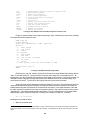
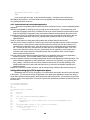
TARGET COMMAND: image
83