1
PX5_kihon_e.book
33 ページ
2014年3月17日 月曜日 午後2時2分
USB Flash Drive
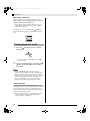
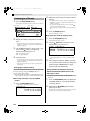
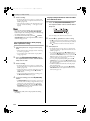
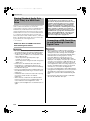
Press the eo (YES) button.
The message “Please Wait” will remain on the display
while the load operation is being performed. Do not
perform any Digital Piano operation while this message
is on the display. “Complete” appears on the display
after data loading is complete.
• If there already is a file with the same name in the
Digital Piano memory, a message “Replace?” will
appear asking if you want to replace it with the new
data. Press the eo (YES) button to overwrite or the eo
(NO) button to cancel the load operation.
Deleting Data from a USB
Flash Drive
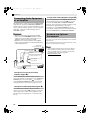
Use the following procedure to delete USB flash drive
data (files).
1.
Insert the USB flash drive into the Digital
Piano’s USB flash drive port (es).
2.
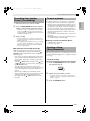
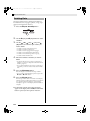
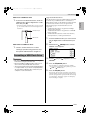
Hold down the er (MEDIA) button until the
“MEDIA” screen appears.
3.
Use the dt (w) and ek (q) buttons to select
“Delete”.
4.
5.
Press the em (ENTER) button.
For the remainder of this procedure, perform
the steps starting from step 7 under “Loading
Data from a USB Flash Drive to Digital Piano
Memory” (page E-32).
Renaming a USB Flash Drive
File
Use the following procedure to change the file name of
a file on a USB flash drive.
1.
Insert the USB flash drive into the Digital
Piano’s USB flash drive port (es).
2.
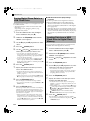
Hold down the er (MEDIA) button until the
“MEDIA” screen appears.
3.
Use the dt (w) and ek (q) buttons to select
“Rename”.
4.
5.
Press the em (ENTER) button.
For the remainder of this procedure, perform
the steps starting from step 7 under “Loading
Data from a USB Flash Drive to Digital Piano
Memory” (page E-32).
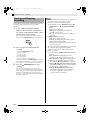
• For details about how to input characters, see
“Inputting Text Characters” in “Operations Common
to All Modes” (page E-10).
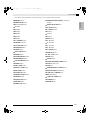
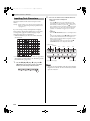
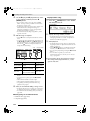
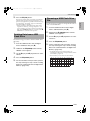
• The characters you can select are shown below.
0
A
K
U
(
1 2 3
B C D
L M N
V W X
) - ^
4
E
O
Y
{
5 6
F G
P Q
Z S
} @
7
H
R
&
~
8
I
S
_
`
9
J
T
'
E-33
English
9.