1
CamView and CamPlay User Manual
6.3.1
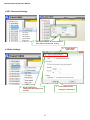
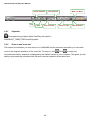
Quality Function Tab
Bandwidth
Available selections are from 64K to 1.5M. Appropriate bandwidth setting must match the camera
physical site internet uploading bandwidth. Higher bandwidth contributes better picture quality.
Video Setting
If you check the box of select the best resolution and frame rate automatically, the camera will
automatically adjust the most suitable video setting in Resolution and Frame Rate.
Resolution: The higher resolution you set, the bigger image you get.
Frame rate: Frame per second (1 to 30fps ), the higher frame rate you set, the smoother motion you
get.
Preference
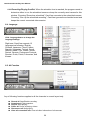
By selecting Image Quality, the camera automatically adjusts itself for image quality as priority in
case of interference with the network environment. Vice versa, by selecting the Video Motion, the
camera automatically adjusts itself for video motion.
6.3.2
Video Function Tab
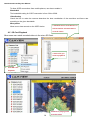
Video Color
User can set the video as colored image or black and white image.
Brightness
Control the brightness of the camera video from 1(dark) ~ 10(Bright)
level.
Sharpness
Control the level of sharpness and clearness of the image.
Low Light Sensitivity
The level of the camera senses the low light condition.
Place
You can choose the camera installation environment in order to
make camera automatically adjust for the best image quality.
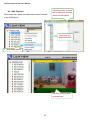
OSD
On Screen Display. Enabling this function will make the camera
embed the time information into the picture.
Microphone
Disable or enable the microphone. When you enable the Mic., the
user who monitors the image can hear the sounds.
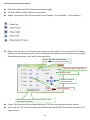
Video Flip
This function is for cameras to flip the image.
12