1
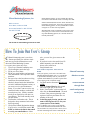
PAGE 3 Blast Emails—Two Ways With Advisors Assistant During the onset of the financial crisis we received several client emails every week which were sent by Advisors Assistant users to their clients. We were on their email list, so we received them too and were very happy to read them because it showed that Advisors Assistant was being used for client communications. Blast emails, aka bulk emails, are a major function of a good CRM system. Advisors Assistant can send blast emails two different ways. Using Microsoft Office Microsoft Word’s mail merge feature can merge into emails and automatically put each individual email into your Outlook outbox. Advisors Assistant’s Help has a 7 minute video demonstration which will show you this method. View the video by clicking HERE or by typing the word Blast into the Help’s Index Search. Using A Third Party Emailer Because many Internet Service Providers, ISP, will limit the number of emails you can send in a certain period of time, you may need to use a 3rd party email service. Because we will usually send 10,000 or more emails at a time from our database, we use such a service. To create a file for use by a third party email program, follow these steps: 1. Select the data you want using Selection Reports, just as if you were going to print a report. 2. Click on the Export icon at the bottom of the reports list. 3. Choose the file format and other information as shown in the illustration to the right. Then, all you need to do is upload the exported file to your vendor’s web site and kick off the email. How To Avoid Your ISP Limits Most ISP’s limit the amount of emails you can send in one batch or within some time interval. They will usually have a program that will count the number of emails in their server’s outbox. If it exceeds a certain number, like 100, they will discontinue their email service for several minutes. You will want to check with your ISP to see what their limits are. Microsoft Word let’s you send a range of records, such as 1 to 99, in a batch. This will let you avoid triggering your ISP limit. All you need to do is send fewer than the limit and wait a few minutes (less than 5) before sending the next batch. Avoiding Spam Filters When you send bulk emails, you don’t want them to get caught up in your clients’ spam filters. There are some basic precautions you can take to enhance your chances that the email will make it through. How Spam Filters Work Most spam filters work on a point system backed up by a spam address system. If your address gets on a spam list, you’ll need to get it taken off, but there are ways to keep from earning spam points and getting rejected by your client’s email provider. A provider may set the point limit at 5 so that any email that earns more than 5 points will be rejected as spam. If your ISP’s limit is 200 and you only have 500 to send, this is only a minor work around. Compliance Issues Remember, your broker dealer may require that bulk emails are approved by the Compliance Department. Start with a simple email asking your client to put your email address on their safe email list. Not all clients may know how to do this, but it will help. Keep the ratio of text to graphics high. Emails with mostly graphics and just a little text look like spam. Graphics Continued On Page 4 Avoid your ISP’s spam limits by learning your ISP’s email batch limits, and then set the record range you send with Microsoft Word below that limit.