1
User’s Manual
Seika Braille Display
Sep 2011
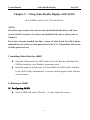
Chapter 9 – Using Seika Braille Display with NVDA
1. Configuration of BRLTTY
Before using Seika Display with NVDA, please install BRLTTY (for
windows) and configure BRLTTY as follows:
z
Make sure that Seika Display driver has been installed successfully
and Seika Braille Display has been connected with your computer.
z
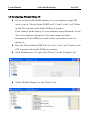
Run the “Detect Seika COM Port V1.0.exe” in the “tool” folder in the
CD; remember the Seika COM port number.
z
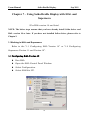
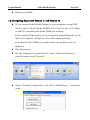
Double click “brlttycnf.exe” to chose “Seika” at Braille display list
z
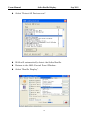
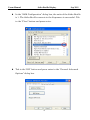
In the COM port list, select the Seika COM port which you
remember. Click OK button to save and exit.
z
Double click “install.bat” to install BRLTTY service.
z
You will hear beeps when BRLTTY starts to work successfully as
system service and Braille Display will update display. If not, please
reboot computer with connecting display and “brltty.exe” will run
automatically.
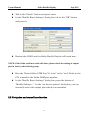
2. Configuration of NVDA
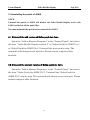
To use Seika Display with NVDA through brltty, please configure
NVDA as follows:
z
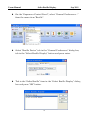
Run “nvda.exe”, select “preference”, and select “Braille settings”.
z
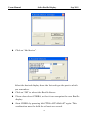
Select “brltty” at Braille display list, click OK to save and exit.
39