1
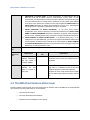
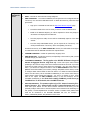
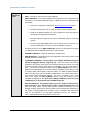
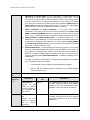
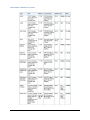
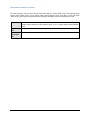
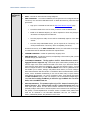
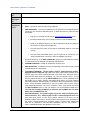
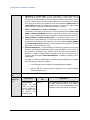
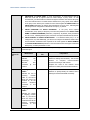
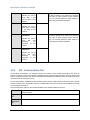
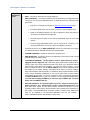
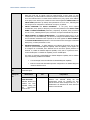
MONITORING THE AWS E C2 REGION Configurable parameters for the test 1. TEST PERIOD - How often should the test be executed 2. HOST – The host for which the test is being configured 3. AWS ACCESS KEY - To monitor an AWS EC2, the eG agent has to be configured with the "access key" of a user with a valid AWS account. To obtain the access key, follow the steps given below: Sign up for a new AWS account from the http://aws.amazon.com/ec2/ page. Provide the details of the user for whom you wish to create the AWS account. Based on the AWS EC2 Regions, you will be requested to choose the pricing for an instance to be deployed in the AWS EC2. Once the payment is made, the user will be automatically signed in to the AWS account. From the newly created AWS account, you can request for an "access key". You will be provided with an "access key" and a corresponding "secret key". Provide the access key in the AWS ACCESS KEY text box; this will enable the eG agent to communicate with the AWS API and collect the required metrics. 4. CONFIRM PASSWORD - Confirm the password by retyping it here. 5. AWS SECRET KEY - Provide the secret key corresponding to the access key that you had obtained through your AWS account. 6. CLOUDWATCH ENABLED - This flag applies to the EC2 - Instance Resources and EC2 Aggregate Resource Usage tests only. These tests report critical metrics pertaining to the resource usage of the server instances launched in the cloud. If you want these tests to report resource usage metrics very frequently - say, once every minute or lesser - you will have to configure the tests to use the AWS CloudWatch service. This is a paid web service that enables you to monitor, manage, and publish various metrics, as well as configure alarm actions based on data from metrics. To enable the above-mentioned tests to use this service, set the cloudwatch enabled flag to true. On the other hand, to report resource usage metrics less frequently - say, once in 5 minutes or more - these tests do not require the AWS CloudWatch service; in this case therefore, set the cloudwatch enabled flag to false. Note that for enabling CloudWatch, you will have to pay CloudWatch fees . For the fee details, refer to the AWS EC2 web site. 7. EXCLUDE INSTANCE - This parameter applies only to EC2 - Instance Connectivity, EC2 Instance Resources , EC2 - Instance Uptime, and EC2 - Instance Deployment tests. Since these tests report metrics for each server instance launched on the cloud, you can optionally configure these tests to exclude one/more server instances from monitoring. For this, specify a comma-separated list of instance names or instance name patterns that need not be monitored in the EXCLUDE INSTANCE text box. For example: ib0c3e*,*7dbe56d. By default, this parameter is set to none. 64