1
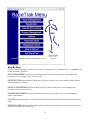
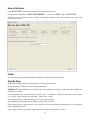
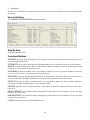
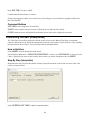
Step By Step
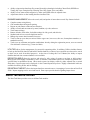
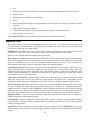
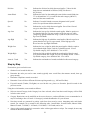
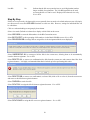
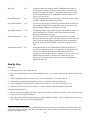
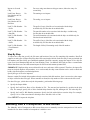
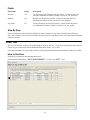
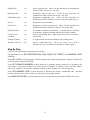
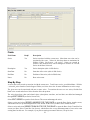
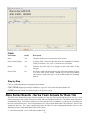
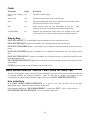
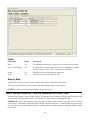
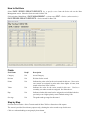
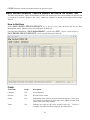
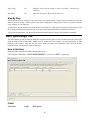
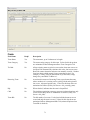
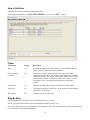
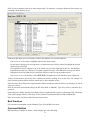
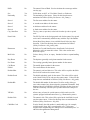
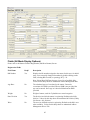
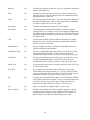
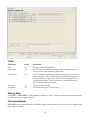
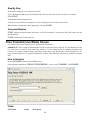
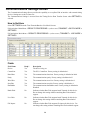
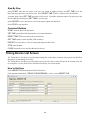
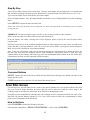
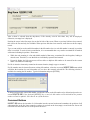
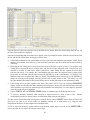
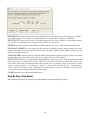
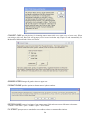
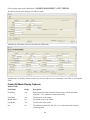
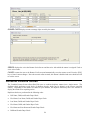
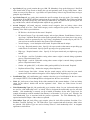
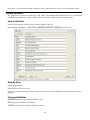
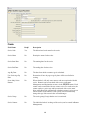
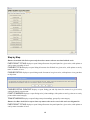
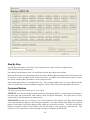
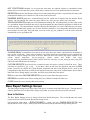
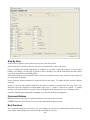
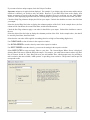
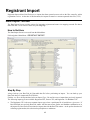
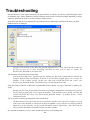
Select a Sort By option to sort the data on your report by the selected item.
Select a Font Size to increase or decrease the font size in the detailed section of the report.
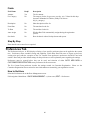
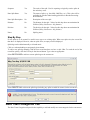
Select a Grouping and desired subgrouping (if available) of your data. Group allow data to be listed under a
heading; for example, you can group by gender to show a headings of F and M, with female and male runners
respectively listed under each heading (group).
Select Show Details to list the detailed section of the report, usually the runners data. Uncheck to get a high level
of various totals for the data.
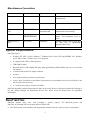
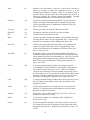
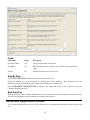
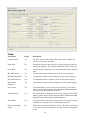
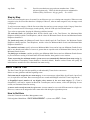
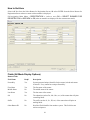
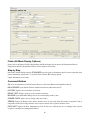
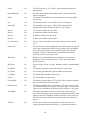
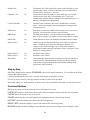
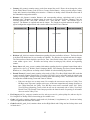
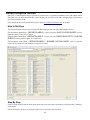
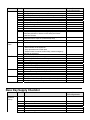
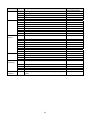
Set the Separator Width (maximum) for each data field on your report. To display the field, check the Display
checkbox.
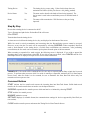
Increase or decrease the Separator Width (how far apart one column is separated from the next). Note: most
RaceTrak reports are displayed in Portrait Mode where up to 7.5 inches of data can be printed. A warning
message is provided when this is exceeded. Note: the Registration QC Report can be run in Landscape mode.
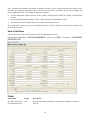
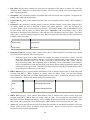
Check the Alternate gray background to highlight every other line with a gray background.
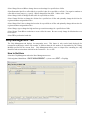
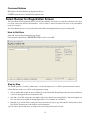
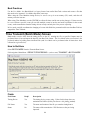
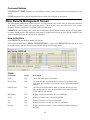
Command Buttons
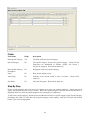
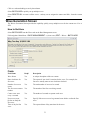
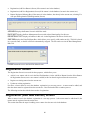
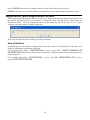
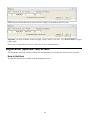
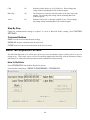
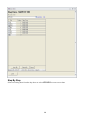
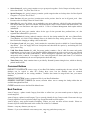
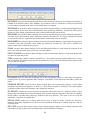
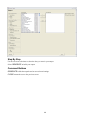
RUN generates the report per your settings and displays the report in preview mode.
CLOSE returns the user to the previous screen (most often the Race Report Screen).
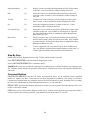
Best Practices
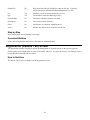
The customized settings are not saved, so note your settings if you need to run a desired report again in the exact
same format. Such settings can be described in the notes field for your race.
160