1
Printer is printing blank pages
Cannot delete documents from the print queue
Blank pages may be caused by improperly installed ink cartridges.
If you have jobs stuck in the print queue and cannot delete them to get other jobs to print, then the
computer and printer may not be communicating.
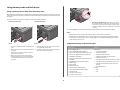
REINSTALL THE INK CARTRIDGES AND DEEP CLEAN AND ALIGN THE PRINTHEAD
RESTART THE COMPUTER AND TRY AGAIN
1 Reinstall the ink cartridges, see “Replacing ink cartridges” on page 10 for more information.
If the cartridges do not seem to fit, make sure the printhead is properly seated, and then try installing
the cartridges again.
Cannot print through USB
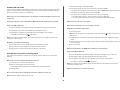
2 Load plain paper.
3 From the printer control panel, press
If the "Before you troubleshoot" checklist does not solve the problem, then try one or more of the
following:
.
4 Press the arrow buttons to scroll to Maintenance, and then press
CHECK THE USB CONNECTION
.
5 Press the arrow buttons to scroll to Deep Clean Printhead, and then press
1 Check the USB cable for any obvious damage. If the cable is damaged, then use a new one.
.
2 Firmly plug the square end of the USB cable into the back of the printer.
A cleaning page prints.
6 Press the arrow buttons to scroll to Align Printer, and the press
3 Firmly plug the rectangular end of the USB cable into the USB port of the computer.
.
The USB port is marked with a
An alignment page prints.
USB symbol.
Note: If you continue to have problems, then try another USB port on the computer. You may have
connected to a defective port.
Note: Do not remove the alignment page until printing is finished.
Printer is busy or does not respond
MAKE SURE THE USB PORT IS ENABLED IN WINDOWS
If the "Before you troubleshoot" checklist does not solve the problem, then try one or more of the
following:
1 Click
, or click Start and then click Run.
2 In the Start Search or Run box, type devmgmt.msc.
MAKE SURE THE PRINTER IS NOT IN POWER SAVER MODE
If the power light is blinking on and off slowly, then the printer is in Power Saver mode. Press
wake up the printer.
3 Press Enter, or click OK.
The Device Manager opens.
to
4 Click the plus sign (+) beside Universal Serial Bus controllers.
If the printer will not come out of Power Saver mode, then reset the power:
If USB Host Controller and USB Root Hub are listed, then the USB port is enabled.
1 Unplug the power cord from the wall outlet, and then wait 10 seconds.
For more information, see the computer documentation.
2 Insert the power cord into the wall outlet, and then turn on the printer.
REMOVE AND REINSTALL THE PRINTER SOFTWARE
If this problem persists, then check our Web site for updates for your printer software or firmware.
RECONNECT THE PRINTER POWER SUPPLY
1 Turn off the printer, and then unplug the power cord from the wall outlet.
2 Gently remove the power supply from the printer, and then reinsert it.
3 Plug the power cord into the wall outlet, and then turn on the printer.
22