1
If document files and image files are stored on the memory device, then press
Documents.
For Macintosh users
to select
1 Click the printer icon on the Dock.
3 Select and print the document:
2 From the print queue dialog, choose the job you want to cancel, and then click Delete.
If the printer is using a USB connection
a Press the arrow buttons to select the file name of the document that you want to print or the
Copying
folder where the document is saved in the memory device.
b Press
, and then press
to start printing the document.
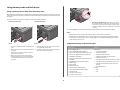
ADF
Scanner glass
If the printer is using a Wireless connection (selected models only)
a Press the arrow buttons to select the file name of the document that you want to print.
b Press
, and then wait for the printer to connect to the network computer or to finish searching
the network for available computers.
c When prompted, press the arrow buttons to select the name of the network computer, and then
press
to start printing the document.
Notes:
• You may be prompted to enter a PIN if the computer requires it. Enter the PIN using the keypad.
• To assign a computer name and a PIN to the computer, see the Help for the printer software
associated with your operating system.
W
I
PRINTING
F
I
W
I
PRINTI
F
NG
Canceling print jobs
To cancel a print job from the printer control panel, press
do the following:
I
Use the ADF for multiple-page documents.
Note: The ADF is available only on select models. If
you purchased a printer without an ADF, then load
original documents or photos on the scanner glass.
. To cancel a print job from the computer,
Use the scanner glass for single pages, small items
(such as postcards or photos), transparencies, photo
paper, or thin media (such as magazine clippings).
For Windows users
1 Click
Tips for copying
, or click Start and then click Run.
• When using the ADF, adjust the paper guide on the ADF to the width of the original document.
• When using the scanner glass, close the scanner lid to avoid dark edges on the scanned image.
• Do not load postcards, photos, small items, transparencies, photo paper, or thin media (such as
2 In the Start Search or Run box, type control printers.
3 Press Enter, or click OK.
The printer folder opens.
magazine clippings) into the ADF. Place these items on the scanner glass.
4 Right-click the printer, and then select Open or See what's printing.
Making copies
5 Cancel the print job:
• If you want to cancel a particular print job, then right-click the document name, and then select
1 Load paper.
Cancel.
2 Load an original document faceup into the ADF or facedown on the scanner glass.
• If you want to cancel all print jobs in the queue, then click Printer > Cancel All Documents.
3 From the printer control panel, press
16
.