Download English - Intertex Data AB
Transcript
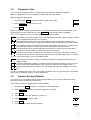
3.4 Diagnostic Test If you cannot access the Internet, your Internet Gate can attempt to localise the problem. Note: The diagnostic test is only available in models with keys and display. Start the diagnostic test like this: 1. Press and keep SET pressed 3 seconds to enter setup-mode. AD 2. Press SELECT 4 times until “LQ” is lit. AD CFG DHP RST LQ TX RX CFG DHP RST LQ TX RX 3. Press SET . It takes a couple of seconds to perform the test. Any errors discovered are shown in the display. The diagnostic test can find multiple errors, press SELECT to flip through all error messages. ”E 1” to ”E 9” indicate errors in your external Internet connection (WAN): AD CFG DHP RST LQ TX RX AD CFG DHP RST LQ TX RX AD CFG DHP RST LQ TX RX AD CFG DHP RST LQ TX RX AD CFG DHP RST LQ TX RX No WAN link connection (ADSL or Ethernet dependent on model). Check all cables. Contact your broadband-supplier if the error remains. No WAN DHCP server found. This may be OK, but check configuration according to 4.1. Reboot your Internet Gate. Contact your Internet Service Provider (ISP) if the error remains. No Gateway found. This may be OK, but check configuration according to 4.1. Reboot your Internet Gate. Contact your Internet Service Provider (ISP) if the error remains. No DNS server found. Check configuration according to 4.1. Reboot your Internet Gate. Contact your Internet Service Provider (ISP) if the error remains. No Internet connection. You do have a connection to your ISP, but they have no Internet connection for the moment. Contact your Internet Service Provider (ISP) if the error remains. ”E11” to ”E19” indicate error in your local network (LAN): AD CFG DHP RST LQ TX RX AD CFG DHP RST LQ TX RX AD CFG DHP RST LQ TX RX No Ethernet link. Check the cable connected to port ET1 on firewall models and ET2 on ADSL models. No DHCP addresses requested. The DHCP server of the Internet Gate is on, but no PC:s on the LAN have requested addresses. This may be OK, but check your settings, see 3.2.1. No Ethernet packets at all received. This may be OK, but check your settings, see 3.2 and 4.1. If no error messages are shown, then your Internet connection is OK. Any remaining error is probably due to your PC’s settings. See 3.2 for more information! 3.5 Reset to Factory Defaults If you wish to you can reset all settings to their original values, so your Internet Gate is set up the same way as when delivered from the factory. If your ADSL modem is equipped with keys and a display: 1. Press and hold SET pressed for 3 seconds, to enter setup mode. AD 2. Press SELECT repeatedly until ”RST” appears in the display. AD CFG DHP RST LQ TX RX CFG DHP RST LQ TX RX 3. Press SET . 4. The question ”Clear all?” appears, and then ”no”. 5. Press SELECT to choose ”YES”. AD CFG DHP RST LQ TX RX 6. Press SET . 7. The modem now resets and then restarts. AD CFG DHP RST LQ TX RX 8