1
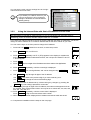
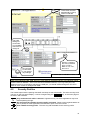
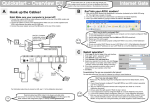
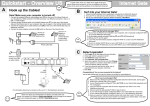
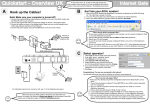
These fields are filled
automatically if Get by
DHCP is selected.
The USB
settings fit
most users.
You probably
don’t have to
change is.
Do not forget
to click Save
if you change
any settings!
How do I configure
the LAN connection
(ET1 or ET2)?
Refer to 3.2, 3.2.1,
and 3.2.2!
Note: Image differs for firewall models.
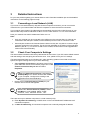
Note:
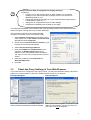
Each of the interfaces LINE, USB, ET2, ET1 must reside on separate subnets. Two interfaces cannot
have the same IP address – even if one of them is blocked! However, if you e.g. want your LAN
Ethernet port to be on the same subnet as the USB port, you should instead change the “ET1/ET2
used as” from “inside” to “bridged with USB”.
4.2
Security Profiles
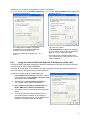
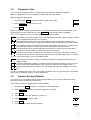
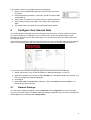
The firewall supervises the passing data traffic and stops unauthorised traffic. The active security level
is shown on the front panel display. It can be changed using the ALT CFG key, or the menu page on
the built in web interface.
AD CFG DHP RST
LQ
TX
RX
AD CFG DHP RST
LQ
TX
RX
AD CFG DHP RST
LQ
TX
RX
Only web and email traffic is allowed - Highest security, but some applications may have
trouble passing through.
All outgoing and legitimate incoming traffic is allowed - Same security against attacks as
the Hi profile, but more applications are allowed to pass out to the Internet.
User editable security profile - The user may edit the details for this security profile.
10