1
Using Line Markers
Line Markers are used to frame an image between two lines. These lines
may be used as a reading guide for long lines of
text, or as a guide to help keep your place as you
move from one side of the page to the other, or
just to make writing easier and neater.
a. With the Control Box
You can choose horizontal or vertical line
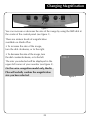
markers by pressing the LINES button on the
control box (see figure 1).
figure 1
Line Markers are available in full video
magnifier mode and external video source mode. See Viewing Mode
Features Available on page 42.
You can increase or decrease the distance between the line markers by
turning the WIDTH knob on the control box.
You can change the line markers’ position
across the screen in the horizontal or vertical
direction by turning the POSITION knob on
the control box.
b. With the Remote Software
You can choose horizontal or vertical line
markers by clicking on the LINES icon on the
graphical user interface (see figure 2).
figure 2
Line markers are available in full video
magnifier mode and external video source mode. See Viewing Mode
Features Available on page 42.
You can increase or decrease the distance between the line markers by
clicking and dragging the WIDTH cursor. You can also click on the left
and right arrows on the graphical user interface.
You can change the line markers’ position across the screen in the
horizontal or vertical direction by clicking and dragging the POSITION
cursor. You can also click the left and right arrows on the graphical
user interface.
24