1
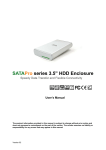
!"#$%!&'%()*+,+) -./01.)234-35) Includes ToughTech XE mini and ToughTech FS mini (Revised January 16, 2008) Features Fast speed – ToughTech mini series uses fast SATA drives and Oxford 924 (TTXEM) and Oxford 934 (TTFSM) chipsets to maximize data speeds. Data transfers up to 800 Mbps through FireWire. Widely Compatible – These ToughTech minis work right out of the box with no new drivers needed. They work with any modern operating system including Mac OS X, Windows XP, Windows Vista and most Linux distributions. Easy to connect – ToughTech FS mini offers three different connection types (Dual FireWire 400, eSATA, and USB 2.0). ToughTech XE mini offers three different connection types (Dual FireWire 800, eSATA, and USB 2.0). Cables for each type are included. TTXEM comes with a converter cable for FireWire 400. Easy to Use – ToughTech is used by anyone who needs more storage space for backups, music, games, Internet downloads, photography, audio/video editing or server storage; and they use it everywhere from homes to government labs. Shock absorbers for your hard drive – Your car has shock absorbers, so why not your hard drive? The ToughTech mini series introduces ToughMount™ Anti-Shock Protection. ToughMount strips are mounted between the drive and the enclosure protecting your data against shock and reducing enclosure noise. Cool and quiet – ToughTech has an all aluminum design meant to draw heat away from the hard drive. The entire product acts like a heat dissipater, helping to keep your drive cool. And because it doesn't need a fan, ToughTech is quiet. More portable than ever – Not much bigger than a pack of playing cards, ToughTech mini will easily travel with you. It fits easily in a shirt pocket or briefcase. You don’t even need to use an AC adapter when connecting to a powered FireWire host (although a world-compatible AC adapter is included). Table of Contents Before Installation Box contents Identifying parts of the unit Warning notices Drive Installation Instructions Connecting to a computer Usage with Macs ToughTech User Manual 2 2 2 2 3 6 7 -1- WiebeTech LLC Usage with Windows Computers Technical Specifications 7 8 Before Installation 1. Check the accessories with your ToughTech mini. Please contact WiebeTech if any items are missing or damaged. The box should contain: ToughTech FS mini ToughTech mini enclosure eSATA cable FireWire 400 cable USB cable Packet of screws for hard drive AC adapter Manual and Warranty information 1 1 1 1 1 1 (on CD) ToughTech XE mini ToughTech mini enclosure eSATA cable FireWire 800 cable FireWire 800 to 400 cable USB cable Packet of screws for hard drive AC adapter Manual and Warranty information 1 1 1 1 1 1 1 (on CD) 2. Identify the parts of your ToughTech mini. ToughTech FS mini A = Power/Access Indicator LED B = FireWire 400 (1394a) port C = FireWire 800 (1394b) ports D = Power input (from AC adapter) E = eSATA & USB2 combo port 3. • • • • ToughTech XE mini Please read the following warnings to before beginning installation. The main circuit board of the HDD enclosure is susceptible to static electricity. Proper grounding is required to prevent electrical damage to the enclosure or other connected devices, including the computer host. Always place the HDD enclosure on a smooth, flat surface and avoid all dramatic movement, vibration and percussion. Do NOT allow water to enter the HDD enclosure. Avoid placing the HDD enclosure close to magnetic devices (such as a mobile phone), highvoltage devices (such as a hair dryer), or near a heat source (such as on the dashboard of a car or any place where the enclosure will be subject to direct sunlight). The operating system may NOT detect the HDD enclosure if it does not support the interface of your HDD enclosure. If so, installation of an appropriate driver on the host computer is required. ToughTech User Manual -2- WiebeTech LLC • Ensure that only a 9.5mm high 2.5” SATA hard drive is used in the enclosure. The ToughTech mini will not function if an older model drive with a different thickness is used. Additionally the enclosure and other equipment may be damaged. ToughTech User Manual -3- WiebeTech LLC Hard Drive Installation These instructions are only necessary if you’re installing your own hard drive inside the ToughTech mini. If you purchased the product with a hard drive pre-installed, you may skip to the next section (Connecting the ToughTech to a Computer). 1. Remove one screw from each side of the rear panel with a small Phillips screwdriver. 2 1 2. Carefully slide the drive tray out from the enclosure. WARNING: The circuit board is susceptible to static electricity. Proper grounding is required to prevent electrical damage. Keep the circuit board away from water. 3. One drive screw is already inserted into the circuit board to prevent movement during shipment. You’ll need to remove this screw before you can install the hard drive. The screw is held in place by a plastic nut. ToughTech User Manual -4- WiebeTech LLC 4. You are now ready to install your 2.5” SATA drive. Line up the drive’s interface with the SATA interface on the circuit board. 5. You may need to angle the drive as you push it into place. After connecting the drive to the SATA interface on the circuit board, the drive should lay flat on the board. 6. Secure the drive in place using the included screws. Drive the screws through the bottom of the circuit board and into the hard drive. WARNING: DO NOT OVERTIGHTEN THE SCREWS. This could cause the circuit board to bend slightly, which could create a short circuit with the metal case. ToughTech User Manual -5- WiebeTech LLC 7. Slide the drive tray back into the enclosure. 8. Make sure the LED indicator is properly aligned with opening on the front of the enclosure. 9. Reassemble the enclosure by replacing the screws removed in step 1. The ToughTech mini is now assembled and ready for connection to a computer. ToughTech User Manual -6- WiebeTech LLC Connecting the ToughTech to a Computer Connect the AC/DC power adapter. This step is only needed when connecting via USB or to an unpowered FireWire host. Connect the USB or FireWire cable to the corresponding port on the ToughTech mini. Plug the other end of the USB or FireWire cable to an available port on the computer. Turn on the power switch; ensure that the green LED indicator is active. When connected via FireWire or USB, the LED indicator will blink orange when the drive is accessed. Your ToughTech is now ready to use! If your hard drive is already formatted, you can begin using it right away. New hard drives will need to be formatted before they can be used. ToughTech User Manual -7- WiebeTech LLC Usage with Macintosh Computers Compatibility The ToughTech is fully plug-and-play under Mac OS X. No drivers are needed. The USB2 port is USB 1.1 compatible. ToughTech mini uses SATA (Serial ATA) hard drives only. Mounting and Unmounting Volumes If the hard drive installed in the ToughTech is already formatted, an icon representing the drive’s volume will appear (mount) on the desktop. You can begin using the volume right away. If the drive is unformatted, a message will appear on the desktop saying that the disk is unreadable. You can use OS X’s Disk Utility to easily format the drive. Unmount the volume before powering down the unit by dragging the volume’s icon to the trash bin, or by selecting the volume then pressing Command-E. Disconnecting the unit without first unmounting the volume can result in data loss. Booting from your ToughTech Some Macs support booting from a FireWire device. To activate this feature, you must first install OS X on the external volume. The easiest way to do this is to clone an existing system drive using a utility such as Carbon Copy Cloner or Super Duper. Next, go to System Preferences Startup Disk. A window will list the available bootable volumes. Select the volume from which you wish to boot. Another method is to hold down the Option key during boot up. A screen should appear that allows you to select the volume you wish to use. This is useful if you wish to boot from your ToughTech only some of the time. Usage with Windows Operating System Compatibility The ToughTech is fully plug-and-play with Windows XP or Vista. No drivers are needed on these operating systems. The USB2 port is USB 1.1 compatible. ToughTech mini uses SATA (Serial ATA) hard drives only. Mounting and Ejecting Volumes If the hard drive attached to the ToughTech is already formatted, you can begin using the volume right away. When the ToughTech is properly connected and turned on, a window may open to allow you access to the volume. If no window appears, you can find the volume by double-clicking the “My Computer” icon. Eject the ToughTech before powering it down by single-clicking the green arrow icon on the task bar, then selecting “Safely remove….” Windows will indicate when it is safe to disconnect the ToughTech. Disconnecting the unit without first ejecting it can result in data loss. (Windows XP) Booting from your ToughTech Some PC motherboards support booting from an external device. To activate this feature, you will need to adjust the motherboard’s BIOS settings. Check with your motherboard’s manufacturer or owner’s manual for details. ToughTech User Manual -8- WiebeTech LLC Technical Specifications Product Name (& Code) Interface Types & Speeds Chipset Drive Compatibility Ports / Connection Types Operating System Requirements ToughTech mini (TTFSM) & ToughTech XE mini (TTXEM) eSATA port: up to 1500 Mbps FireWire 800: up to 800 Mbps (TTXEM) FireWire 400: up to 400 Mbps (TTFSM) USB 2.0: up to 480 Mbps Oxford 924 (TTXEM) Oxford 934 (TTFSM) • • • • 2.5” SATA (Serial ATA) hard drives TTFSM: One eSATA/USB-A combined port and two 9-pin 1394a (FireWire 400) ports. TTXEM: One eSATA/USB-A combined port, two 9-pin 1394b (FireWire 800) ports, FireWire 800 port can connect to FireWire 400 hosts using included converter cable. • Windows XP and Windows Vista • Mac OS X • Linux distributions that support the connection type used External Power Supply 100-240VAC, 5V / 1A (included) Certification FCC, CE, RoHS Shipping Weight 2 pounds Dimensions 5.12 x 3.15 x .79 inches (13 x 8 x 2 cm) Warranty 1-year limited warranty. See warranty statement for details and limitations. We don’t want anything to go wrong with your WiebeTech product. But if it does, Tech Support is standing by and ready to help. We offer 90 days of free phone support at 1866-744-8722. After 90 days, email support is available at [email protected]. ToughTech and ToughMount Anti-Shock Protection are trademarks of WiebeTech LLC. Other marks are the property of their respective owners. © 2007 WiebeTech LLC. All rights reserved. FCC Compliance Statement: “This device complies with Part 15 of the FCC rules. Operation is subject to the following two conditions: (1) This device may not cause harmful interference, and (2) this device must accept any interference received, including interference that may cause undesired operation.” Tested to comply with FCC standards FOR HOME OR OFFICE USE In the event that you experience Radio Frequency Interference, you should take the following steps to resolve the problem: 1) Ensure that the case of your attached drive is grounded, either to the ToughTech case or to an Earth ground. 2) Use a data cable with RFI reducing ferrites on each end. 3) Use a power supply with an RFI reducing ferrite approximately 5 inches from the DC plug. If you have any questions or problems, please contact [email protected] for technical support. If you are interested in purchasing more WiebeTech products, check our website or contact [email protected]. We appreciate being able to serve you! ToughTech User Manual -9-