1
BIOS CONFIGURATION
•
•
•
•
•
•
•
Add physical drives,
Define volume sets,
Modify volume sets,
Modify RAID level/stripe size,
Define pass-through disk drives,
Modify system functions and
Designate drives as hot spares.
3.3 Configuring Raid Sets and Volume Sets
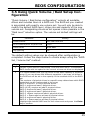
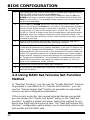
You can configure RAID sets and volume sets with McBIOS RAID
manager automatically. Using “Quick Volume/Raid Setup” or manually using “Raid Set/Volume Set Function”. Each configuration
method requires a different level of user input. The general flow of
operations for RAID set and volume set configuration is:
Step
Action
1
Designate hot spares/pass-through drives (optional).
2
Choose a configuration method.
3
Create RAID sets using the available physical drives.
4
Define volume sets using the space available in the RAID set.
5
Initialize the volume sets and use volume sets (as logical drives) in the
host OS.
3.4 Designating Drives as Hot Spares
Any unused disk drive that is not part of a RAID set can be designated as a hot spare. The “Quick Volume/Raid Setup” configuration
will add the spare disk drive and automatically display the appropriate RAID level from which the user can select. For the “Raid Set
Function” configuration option, the user can use the “Create Hot
Spare” option to define the hot spare disk drive.
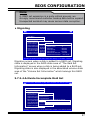
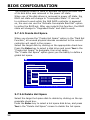
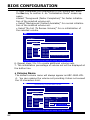
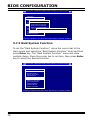
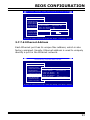
When a hot spare disk drive is being created using the “Create Hot
Spare” option (in the “Raid Set Function”), all unused physical devices connected to the current controller appear:
Choose the target disk by selecting the appropriate check box.
Press Enter key to select a disk drive, and press Yes in the “Create Hot Spare” to designate it as a hot spare.
44